Forgot your Silo password? No problem! Follow these steps to reset it.
From the Login Screen
- On the login screen (https://app.usesilo.com/login), press Forgot your password?
- Enter your email address and press Send reset link
- Within a few minutes, you should receive an email with a link to reset your password. If you don't receive the email, confirm that you entered your email address correctly and try again.
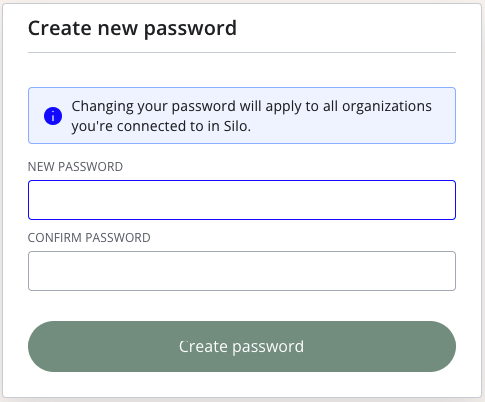
- Follow the link and enter and confirm your new password—you should now be able to sign in to Silo with your updated password
While Logged In
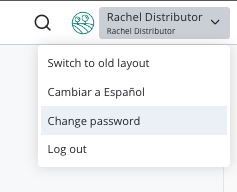
- Press the user dropdown in the top right corner of the screen
- Select Change password
- Enter your current and new password in the window and press Change password to complete the change.
FAQs
received an email from Silo that I need to reset my password. What do I do?
- If you didn't request to change your password, delete and ignore the message.
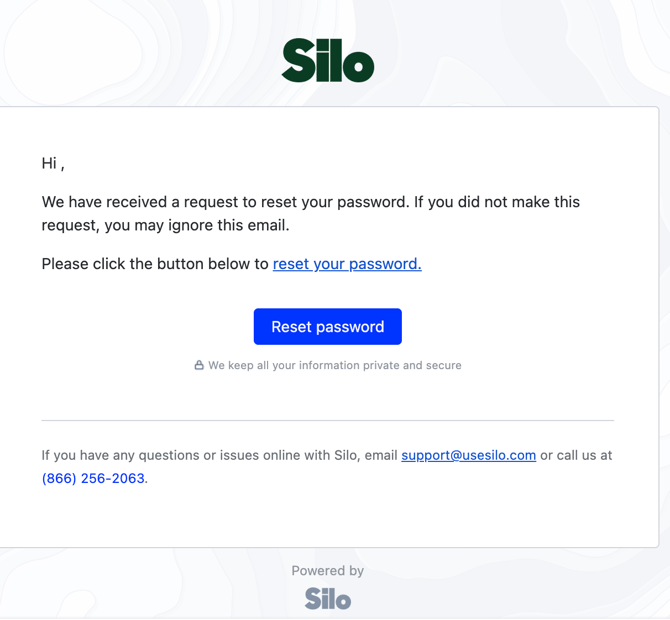
- Our password reset messages will always feature our logo and greet you by the name you set in your account details. If these things are missing, the message is likely not really from Silo and should be ignored and deleted.
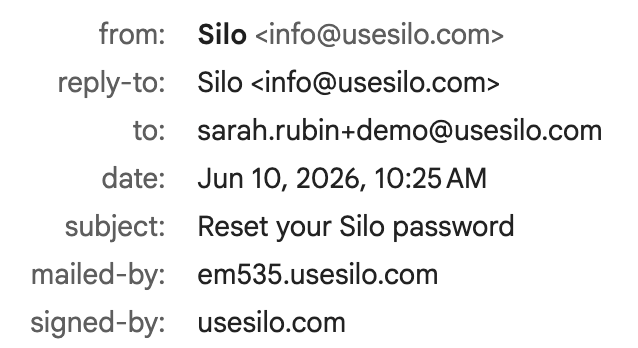
Silo Password Reset Email:
|
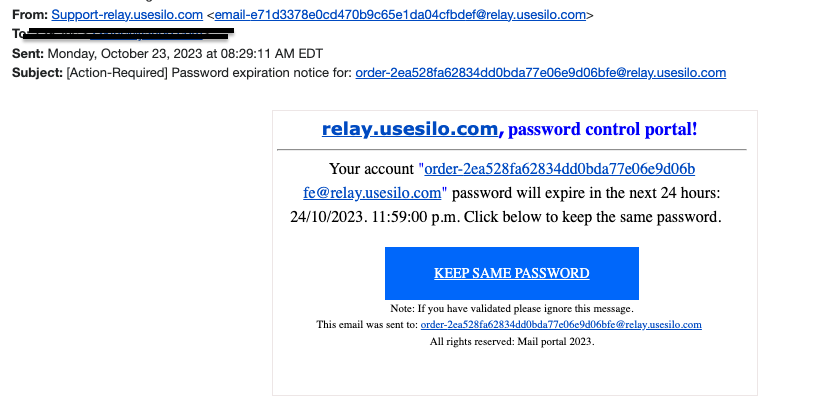
Look for the end of the email address to have our domain, usesilo.com. If you see "relay" (see below phishing), do not reply! from info@usesilo.com You can often find more details on sender, reply-to, etc, by clicking into the email header section. |
|
 |
Example Phishing Email:
Look for the word "relay"
For further information, please see: