Turning on the Multiple Locations feature allows your organization to buy, sell, and manage inventory across different locations within Silo.
Settings
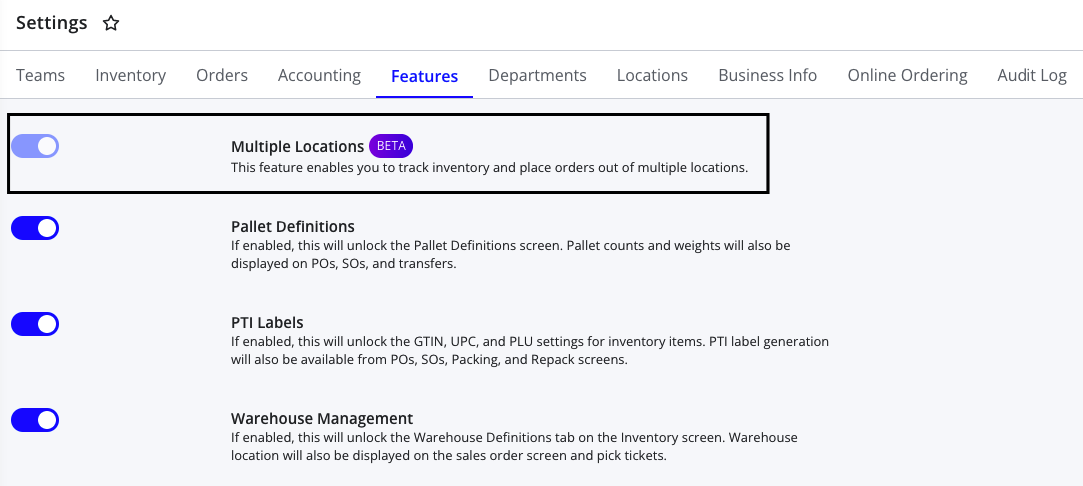
The Multiple Locations setting is available in Settings > Features. Note that the setting cannot be turned off once enabled. If you do not see this setting appear on the Features screen, reach out to Support to have it enabled.
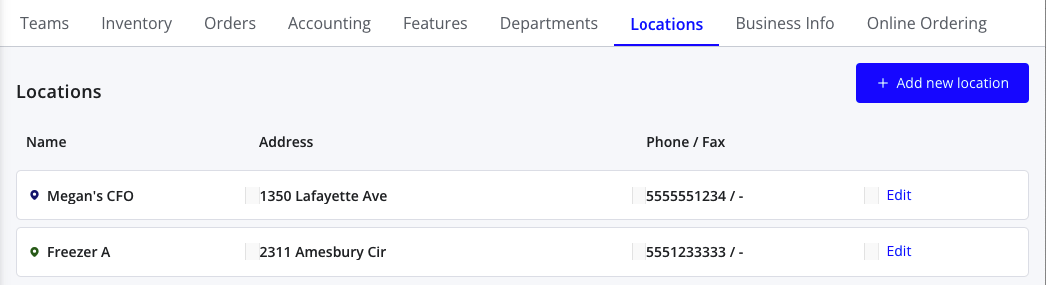
Enabling this feature causes an additional Locations tab to appear in the Settings screen, where administrators can configure their location names, addresses, and phone numbers. Any locations created here will appear as an option in all the location fields on the platform (e.g., in sales orders, purchase orders, and inventory transfers). Note that once you create a location, you are able to edit any of the fields, but you will not be able to delete or deactivate it.
Turning on Multiple Locations also causes a default location field to appear for each user on the Settings > Teams screen. The user's default location is what will be filled in default in the Sell From location field on sales orders and the Receive In location field on purchase orders when this user creates an order.
Purchasing
Each purchase order has an associated 'Receive In' location. All lots generated from that purchase order will be created in the PO's designated receiving location. The location of a PO can only be updated if all associated lots have no sales, transfers, or other activity.

Inventory Management
Lots can be fully or partially transferred between locations using the Transfers screen. Creating a location transfer moves all associated item quantities from available to sell in the original location to a new incoming sub-lot in the transfer location. New transfers default to a status of 'Pending'. Marking the transfer as received moves the associated quantities out of O/H, allocated in the original location, and from incoming to O/H in the transfer location. There is currently no restriction on selling items that are in the process of being transferred. Users can also print pick tickets, BOLs, and labels for transfers.
Sales
Sales orders also have a 'Sell From' location. By default, only lots in the selected sell-from location will appear in the omnibar, although the user can change this by toggling off the 'Only my location' filter. Lots from any location can be added to any sales order, and one item can include multiple lots from different locations. To make this more transparent to users, any item with assigned lots from locations other than the selling location will show a location indicator (or a 'Multiple' indicator if lots from multiple locations are assigned). The BOL and pick ticket can be configured to print a separate document for each location associated with at least one lot on the order or a single document grouped by location. Either way, unlotted items will appear under the sell-from location. The ‘Delivery From’ address on the BOL and pick ticket will also display the seller's address from the location.