Organizations which turn on the Allow specifying target price of lots on purchase orders setting will surface an additional pricing field on POs that permits setting a target price—also known as a max price or display price—for each item on a purchase order.
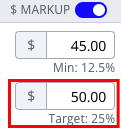
To activate this setting, navigate to Settings > Orders and scroll down to the Pricing Guidance section.

When this setting is activated, the Target Price field represents the top range of an item's lot-level sales pricing guidance. In addition to the PO screen, the following places will display this value:
- Inventory screen lot drawer
- Sales order item footer
- Sale order item price field, if the Choose pre-populated price when adding new items to a sales order setting has been set to the target price
Some rules apply when setting a target price on a purchase order:
- If a Silo user enters a target price lower than an item's minimum price:
- The field will be highlighted in red, and an error message will appear
- The user cannot save the order until the value is corrected.
- To resolve the error, users must update the item's markup in one of two ways:
- Edit the Target Price value to be higher than (or equal to) the listed Minimum Price
- Edit the Minimum Price value to be lower than (or equal to) the listed Target Price
Who would benefit from using this tool?
- Users who wish to set more granular sales pricing parameters for their salesmen instead of just a minimum sale price.
- Users who wish to utilize the Sales Outside of Target Range report, showing users which items' sale prices fell outside the established minimum to target range for the associated lot.
If you turn on this setting, consider how you want your salespeople and other users to view and use the new Target Price field.
- If you want to hide this value from the Sales Order item footer, turn on the Hide target price on sales orders setting.
- If you want to show this value in the Sales Order inventory item search, make sure it is selected in the Lot information display in inventory search setting.
- If you want to default to target price when adding an item to a sales order, consider changing your setting for Choose pre-populated price when adding new items to a sales order.
- If you want to warn users when an item is priced below target, consider changing your setting for Warn salespeople when sale price is below specified value.
- If you want to restrict who can see and edit Target Price (and Minimum Price) in the Inventory screen, review which users have Inventory > Pricing guidance view-only and edit/allow permissions.
Other related functionality:
- You can select your preferred pricing guidance - absolute dollar value or percent markup on top of the original item's break-even cost - using the "Markup" toggle in the Purchase Order and Inventory screens. If you want users to always specify markup in a particular format, you can set the Default markup type setting in Settings > Inventory.
- Explore the benefits of utilizing the Sales Outside Target Range report, which is available to all users who have turned on Allow specifying target price of lots on purchase orders.