Introduction
While creating a repack, you can add expenses like packaging and labor costs directly to the output lots being created. This allows you to avoid navigating to each individual output lot to add expenses after you finish creating the repack.
How Does It Work?
When creating a repack, there is an Expenses column with an Add button for each output item.
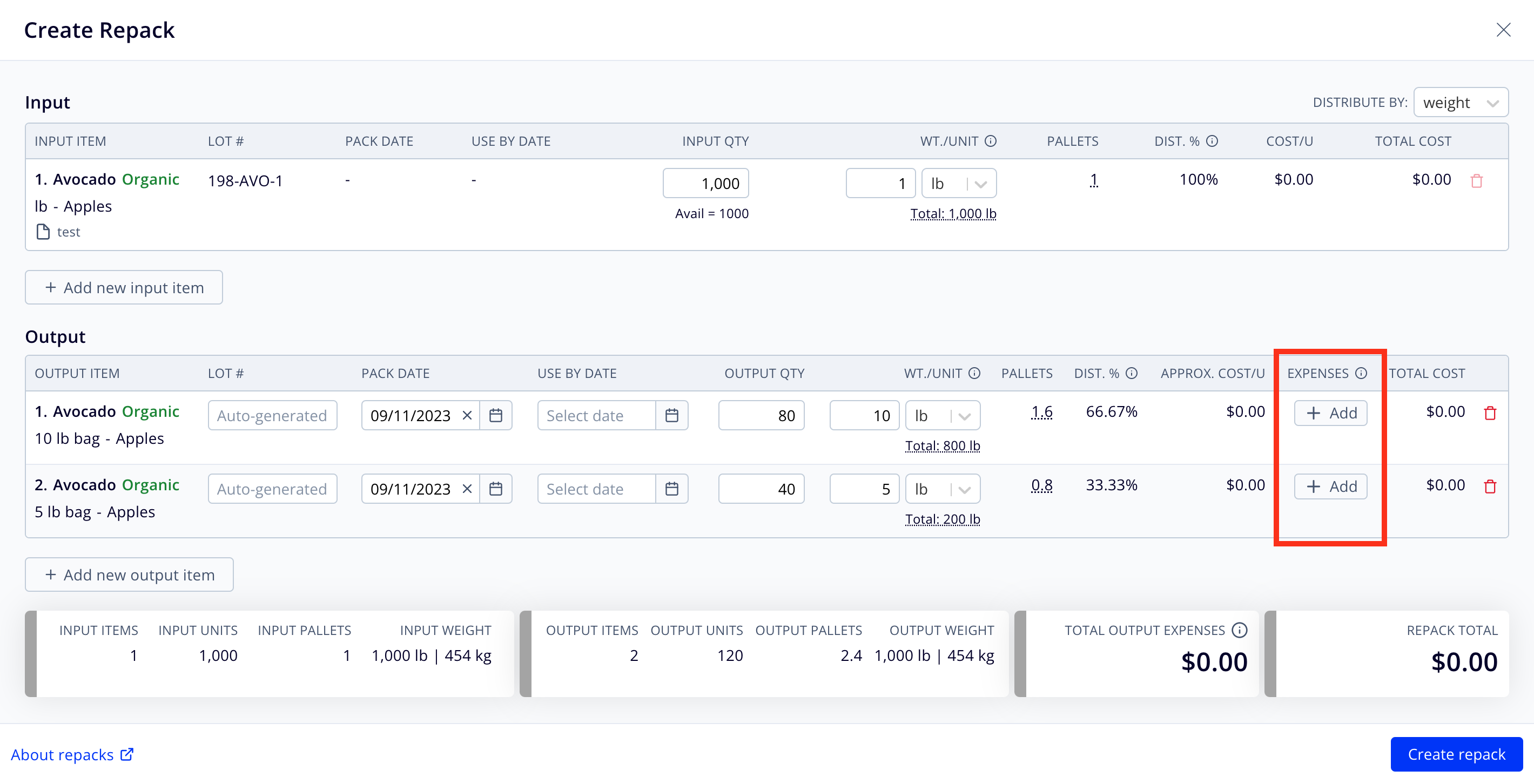
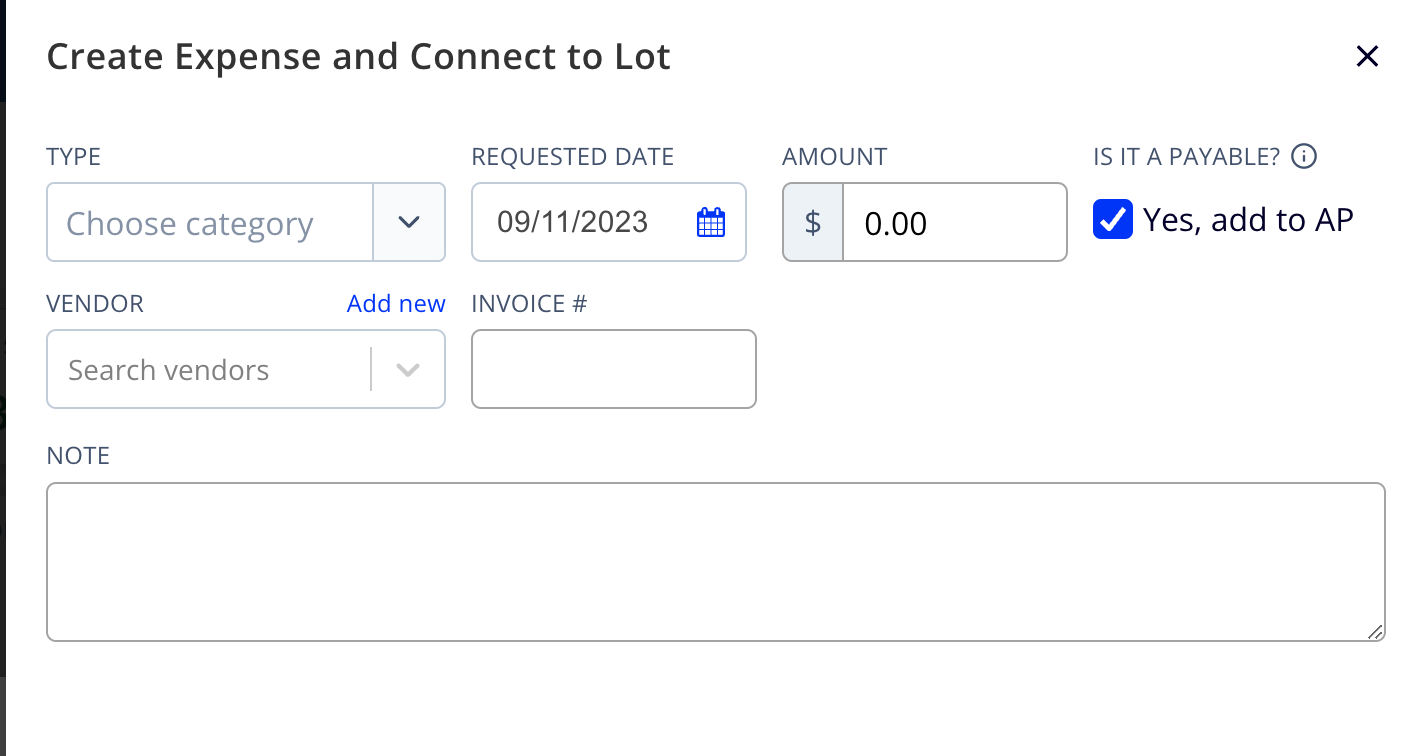
When pressed, it opens up the normal Create Expense panel, where you can add an expense directly to that output lot.
Once you've created an expense, you can click the expense amount to edit or delete it or add other expenses to the output lot.
Expenses in Create vs. View/Edit Mode
When creating a repack, the output lots do not yet exist. As a result, the only expenses that will be visible are those you create as part of the repack. Any expenses inherited from the input lots will be not visible. For example, this repack has $1000 of expenses on the input lot, as well as two newly created expenses for $100 and $50 on the output lots. During creation, only the new output expenses are visible:

After the repack is created, you can see all of the expenses associated with each output lot when viewing or editing the repack. In the example above, the $1000 of expenses inherited from the input lots and the $100 and $50 expenses on the output lots are both included when viewing or editing the repack:

FAQs
- Are expenses associated with input lots displayed?
- Expenses inherited from the input lots are only displayed after the repack is created. The distribution logic is described here.
- How are output expenses distributed?
- Expenses are distributed evenly to all the units of a particular output lot. You cannot add an expense that applies to every output lot like you can on a PO, but you can update the expense after creation to connect it to multiple lots.
- Can I delete the expense?
- Yes, you can delete or edit the expenses on output lots at any time while creating the repack. However, if you are editing an existing repack, you'll need to wait until after you save your changes to make edits to the connected expenses.