Managing User Permissions
User permissions control what your team members can do within Silo. To update a user's permissions, take the following steps:
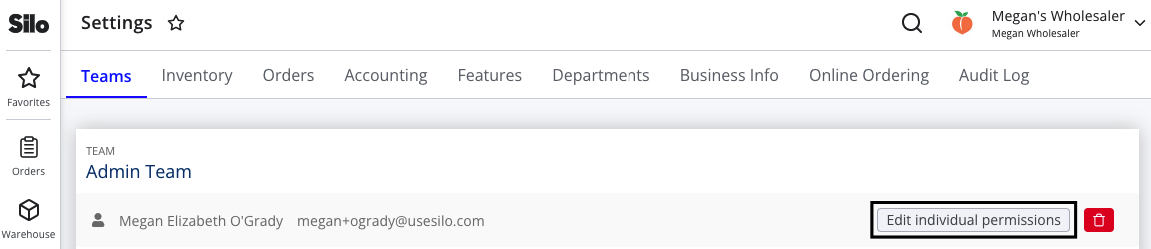
- Navigate to Settings > Teams
- Press Edit individual permissions to the right of the desired user's name
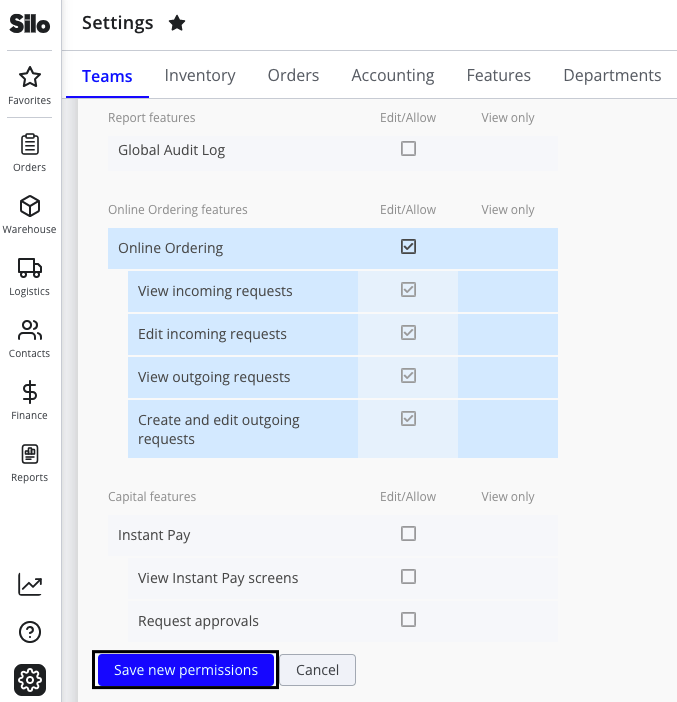
- Select or deselect the checkboxes next to the desired permissions
- Once you're satisfied with the selected permissions for the user, scroll to the bottom of the list and press Save new permissions
User Permission Groupings
- Admin Features: gives user access to all functionality in the platform.
- Accounting Features: features primarily control access to functionality within the Accounting workspace, such as access to view the Chart of Accounts screen or record manual journal entries.
- Buyer Features: these permissions control access to functionality on the Buyer side of the platform, such as the Purchase Orders and Vendors screens.
- Seller Features: these control access to functionality on the Seller side of the platform, such as the Sales Orders, Lots, and Inventory screens.
- Report Features: these control access to each report in the platform. Each report has its own permission, and some have multiple that control what level of detailed data the user can view in a report.
- Capital Features: these control access to the fintech screens on the platform, such as those related to Instant Pay.
Settings
The Settings screen is where you can define user permissions, as well as edit settings that affect your Silo account as a whole. Only users with Administrator permission have access to Settings. The following tabs are available within Settings:
- Teams: allows adding team members, grouping them into different teams, and defining team-level and user-level permissions
- Inventory: settings related to inventory management and lots
- Orders: settings related to both sales orders and purchase orders, including invoices and pricing guidance
- Accounting: settings related to Accounts Receivable, statements, and payments
- Features: allows turning on new features like Oversold and Multiple Locations
- Departments: allows configuring different departments and which inventory items and users belong to them
- Locations: only available once the Multiple Locations features are turned on; allows configuring different locations and their addresses and phone numbers
- Online Ordering: only available for accounts using both the Inventory Management (IMS) and Order Management (OMS) products; allows sharing your inventory catalog with customers placing orders online.
Description of All Permissions
This is a list of all of the permissions available and the functionality they control.
-
Admin features
Administration- Required to access to all of the Settings screens
- Required to configure Silo Pay settings
- Required (along with being a payment approver) to add or delete vendor bank info
- Grants user all other permissions
-
Accounting features
Accounting-
Payments- View only: grants access to view data on all Accounting > Sales and Expenses screens, take any actions that don’t require editing data (e.g., exporting transactions, emailing statements), and edit preferred delivery method for customers on the Statements screen.
- Edit/allow: grants access to create and undo vendor and customer payments and apply and unapply credits
-
Crediting- Does not control access to any functionality.
-
View expenses- Allows users to click an expense number (in screens like Expenses) to access the Expense Details modal.
-
Edit expenses- Required to make any edits to expenses, including editing connections and deleting expenses.
-
Creates expenses- Required to create new expenses anywhere in the platform.
-
Chart of Accounts- View-only permission is required to access the Chart of Accounts and Automations screens
- Edit/allow permission is required to make edits to Chart of Accounts and Automations.
-
Create journal entries- Allows users to create new manual journal entries in Silo Accounting. Note that automated journal entries generated by creating a PO, SO, payment, etc. do not require this permission.
- Only relevant for organizations with chart of accounts configured.
-
Edit journal entries- Allows users to edit and delete manual journal entries (Silo doesn’t currently allow any edits to automated journal entries except by editing the original transaction). Note that editing manual journal entries is only available on the Ledgers screen, so this permission will not have any effect unless the user also has
View ledgers. - Only relevant for organizations with chart of accounts configured.
- Allows users to edit and delete manual journal entries (Silo doesn’t currently allow any edits to automated journal entries except by editing the original transaction). Note that editing manual journal entries is only available on the Ledgers screen, so this permission will not have any effect unless the user also has
-
View ledgers- Allows users to access the Ledgers screen.
- Only relevant for organizations with chart of accounts configured.
-
View accounting reports- Allows users to access the P&L, Balance Sheet, and Trial Balance reports on the Reports > Financial screen.
- Only relevant for organizations with chart of accounts configured.
-
Print checks- Allows users to print checks for manual vendor payments, add payments to the print queue to be printed later, and open and print from the print queue.
- Check printing functionality is only available from the Expenses > Payments screen, so to take full advantage of this permission the user will also need at least
Paymentsview-only permission.
-
Edit manual vendor payments- Allows users to edit the payment date, payment method, check #, and notes for manual vendor payments (i.e., payments not made via Silo).
- Editing vendor payments is only available from the Expenses > Payments screen, so users will also need at least
Paymentsview-only permission to access this functionality.
-
Edit manual customer payments- Allows users to edit the payment date, payment method, check #, and notes for manual customer payments (i.e., payments not made via Silo).
- Editing customer payments is only available from the Sales > Payments screen, so users will also need at least
Paymentsview-only permission to access this functionality.
-
Disconnect objects from syncing to QuickBooks- Allows users to disconnect entities to prevent them from attempting to sync to QuickBooks in the future.
- This can be accomplished by pressing the Disconnect button in the error log, which is accessible from Settings > Accounting and from all of the screens in Finance > Sales and Finance > Expenses, so users will also need at least
Paymentsview-only permission to access this functionality.
-
Edit bank reconciliation- Allows users to access the Finance > Reconciliation screen, create new reconciliation entries, and edit and delete existing entries.
- Allows users to access the reconciliation entry window for reconciled payments via links on the Sales > Payments, Expenses > Payments, and Ledgers screens
- Since reconciliation relies on comparing your bank transactions to payments recorded in Silo, users will also need at least
Paymentsview-only permission to see payment amounts in the Bank Reconciliation to tell if their transactions are actually balanced.
-
Mark checks as bounced- Allows users to indicate that manual customer check payments (i.e., payments not made via Silo) have bounced.
- Marking checks as bounced is only possible from the Sales > Payments screen, so users will also need at least
Paymentsview-only permission to access this functionality.
-
-
Buyer features
Vendors- View-only: grants users to access the Contacts > Vendors screen
- Edit/allow:
- Gives users access to create, edit, and delete vendors in the Vendors screen
- Gives users access to create new vendors from the Purchase Orders > New Order screen and Create Expense panel
- Also allows users to change which contacts receive access to vendor portal when creating or editing a PO (since this changes the value of the ‘Purchase orders’ checkbox for vendor contacts)
Purchase Orders-
View purchase orders- Grants access to the Purchase Orders > All Orders screen and the PO details window (without this permission, all PO numbers across the platform will display as plain text instead of links to the PO)
-
Create purchase orders- Grants access to the Purchase Orders > New Order screen and the Generate POs button in Warehouse > Oversold.
- Note that no other PO-related permissions apply when creating a new PO - all fields will be editable, regardless of the user’s other permissions.
-
Edit purchase orders before they are received- Grants access to the Edit order button when viewing a PO with a status of ‘Confirmed’ (as well as the Edit button in the Lots screen). Without this permission, confirmed POs will never be editable, regardless of the user’s other PO-related permissions.
-
Edit purchase orders after they are received- Grants access to the Edit order button when viewing a PO with a status of ‘Received’ (as well as the Edit button in the Lots screen). Without this permission, received POs will never be editable, regardless of the user’s other PO-related permissions.
-
Mark purchase orders as received- Grants access to the Receive order and Unreceive order options for POs (in the PO action footer, the All Orders screen 3-dot menu, and All Orders screen bulk action footer).
- This is independent from the other edit permissions - if a user has this permission, they should be able to receive/unreceive all POs regardless of their other PO-related permissions.
-
Create returns- Grants access to the Return to shipper link in the footer of existing POs.
-
Edit returns- Grants access to the Edit order button when viewing a return PO. Without this permission, return POs will never be editable, regardless of the user’s other PO-related permissions.
- Note that
Edit purchase orders before they are receivedandEdit purchase orders after they are receiveddo not apply here, since there is no concept of receiving a return PO.
-
Sign off on purchase orders- Grants access to the Sign off and Remove sign options for POs. These buttons are currently only available in the Lots screen, so users will also need
Lotsview-only permission to take full advantage of this functionality. - Similar to
Mark purchase orders as received, this is independent from the other edit permissions - if a user has this permission, they should be able to sign off/remove sign off on all POs regardless of their other PO-related permissions.
- Grants access to the Sign off and Remove sign options for POs. These buttons are currently only available in the Lots screen, so users will also need
-
Edit purchase orders after they are signed off- Grants access to the ‘Edit order’ button when viewing a PO that has been signed off.
- Note that depending on the PO’s status, the user will also need either
Edit purchase orders before they are receivedorEdit purchase orders after they are receivedfor the ‘Edit order’ button to be visible.
-
Edit purchase orders after payments have been applied- Grants access to the Edit order button when viewing a PO that has payments applied.
- Note that depending on the PO’s status, the user will also need either
Edit purchase orders before they are receivedorEdit purchase orders after they are receivedfor the Edit order button to be visible (orEdit returns, if attempting to edit a return PO that has been applied).
-
Add, remove, and edit items on purchase orders (excludes prices)- Once you are in edit mode for a PO, grants access to add, edit, and remove both inventory and non-inventory items.
- Note that separate permissions are required to edit prices, pallet definitions, and expense accounts for items, but all other fields (and the split lot functionality) are controlled by this permission.
-
Edit pallet definitions on purchase order items- Once you are in edit mode for a PO, grants access to edit the Units/Pallet and Pallets fields for inventory items.
- Only applies if the organization has the
Pallet Definitionsfeature enabled.
-
Edit attachment files on a purchase order- Grants access to add, edit, and remove attachments from a PO.
- The Attachments section is editable in both view and edit mode, but it still follows the same logic as the Edit order button - if that button is not available on an order (because the user is missing permission to edit orders with that status), the Attachments section will also not be editable, even if the user has this permission.
-
Edit BOL number on purchase orders- Once you are in edit mode for a PO, grants access to edit the BOL # field.
-
Edit buyer on purchase orders- Once you are in edit mode for a PO, grants access to edit the Buyer field.
-
Edit requested date on purchase orders- Once you are in edit mode for a PO, grants access to edit the Requested Date field.
-
Edit note to vendor on purchase orders- Once you are in edit mode for a PO, grants access to edit the note to vendor.
-
Edit order type on purchase orders- Once you are in edit mode for a PO, grants access to edit the Order Type field.
-
View prices on purchase orders- Grants access to view item per unit cost, item total cost, B/E, minimum price, target price, and overall order total when viewing or editing existing POs. Users without this permission also can only print the limited version of the PO with no pricing information.
-
Edit prices on purchase orders- Once you are in edit mode for a PO, grants access to edit the per unit cost, total cost, minimum price, and target price for items.
- Also grants access to the Settlement Calculator link on the PO view screen, but only if the user also has
View prices on purchase ordersand whatever combination of edit permissions are required to edit the PO based on its current status. - Note that this permission has no impact without
View prices on purchase orders(since the relevant fields are hidden for users without that permission).
-
Edit received by user on purchase orders- Once you are in edit mode for a received PO, grants access to edit the Received By field.
-
Edit received by date on purchase orders- Once you are in edit mode for a received PO, grants access to edit the Received Date field.
-
Edit receiving location on purchase orders- Once you are in edit mode for a PO, grants access to edit the Receive In field.
- This permission is only relevant for organizations with the
Multiple Locationsfeature enabled. - Also note that if there is any activity on any of the lots on the PO (e.g., sales, waste, repacks, transfers, or returns), this field will be disabled regardless of the user’s permissions.
-
Edit shipping reference number on purchase orders- Once you are in edit mode for a PO, grants access to edit the Shipping Reference # field.
-
Edit vendor invoice number on purchase orders- Once you are in edit mode for a PO, grants access to edit the Vendor Invoice # field.
-
Edit vendor on purchase orders- Once you are in edit mode for a PO, grants access to edit the Vendor field.
- Note that if a PO has an associated return or has payments or credits applied, this field will be disabled regardless of the user’s permissions.
-
Edit expense account on non-inventory items on purchase orders- Once you are in edit mode for a PO, grants access to edit the Expense Account field for non-inventory items.
- Note that for this field to be editable, the user also needs
Add, remove, and edit items on purchase orders (excludes prices)permission, and that this permission only applies to organizations who have configured a chart of accounts (without COA setup, this field will not be visible).
Hold/Unhold Lots- Grants access to hold and unhold lots.
- The user will also need other permissions to fully take advantage of this functionality: the hold/unhold checkbox is available in new PO creation (requires
Create purchase orders), PO view (requiresView purchase orders), the Lot Details modal (requiresView lot details), the Inventory > Physical O/H screen (requiresInventory - Inventory itemsedit/allow), the Inventory > Available Units screen (requiresInventory - Inventory itemsview-only), and the Inventory > Pricing screen (requiresInventory - Price sheet itemsview-only).
-
Seller features
Inventory-
Inventory items- View-only: grants access to the Available Units, Details, Locations, Pallet Definitions, Warehouse Definitions, and Inactive tabs of the Inventory screen, as well as the Oversold screen. Also allows the user to expand the lot/inventory transactions drawer in any Inventory screens they have access to.
- Edit/allow: grants access to the Physical O/H tab of the Inventory screen; the ability to waste units from the various Inventory screens; the ability to create new inventory items, products, units, and labels; the ability to delete manual waste from Inventory Transactions; the ability to create and delete cascade items; the ability to edit SKU, notes, GTIN, UPC, and PLU from Inventory > Details; the ability to edit all fields on Inventory > Pallet Definitions; and the ability to edit warehouse locations in Inventory > Warehouse Definitions.
-
Price sheet items- View-only: grants view-only access to the Inventory > Pricing tab and the Price Sheets screen (if the user also has at least
Price sheetsview-only permission). Note that users with only view-only permission will not be able to download price sheet pdfs (with or without prices). - Edit/allow: grants access to edit and publish/unpublish prices on the Inventory > Pricing tab.
- View-only: grants view-only access to the Inventory > Pricing tab and the Price Sheets screen (if the user also has at least
-
Inventory transfers- View-only: grants access to the Transfers screen. Note that this is only relevant for organizations with the
Multiple Locationsfeature enabled. - Edit/allow: grants access to create, edit, and undo transfers. Note that this is only relevant for organizations with the
Multiple Locationsfeature enabled.
- View-only: grants access to the Transfers screen. Note that this is only relevant for organizations with the
-
View lot cost- Grants access to see the Cost/Unit and B/E columns in the lot drawer of the Inventory > Available Units, Pricing, and Physical O/H screens. Also grants the ability to export and print items/items and lots from the Inventory screen with performance data.
-
Edit lot cost- Grants access to edit the Cost/Unit values in the lot drawer of the Inventory > Available Units, Pricing, and Physical O/H screens.
- Note that this permission has no effect if the user doesn’t also have
View lot cost(since the editable field will be hidden).
-
Pricing guidance- View-only: grants access to view the Min. Price and Target Price columns in the lot drawer of the Inventory > Available Units, Pricing, and Physical O/H screens.
- Edit/allow: grants access to edit the Min. Price and Target Price values in the lot drawer of the Inventory > Available Units, Pricing, and Physical O/H screens.
-
Edit item codes- Grants access to edit the Item Code field in the Inventory > Details screen.
-
Inventory - Inventory itemsview-only permission is also required to access the screen where this field appears.
Lots- View-only: grants access to view the Lots screen. Also grants access to view the internal version of Vendor Portal, which is accessible from the Lots screen.
- Edit/allow: grants access to close lots on the Lots screen.
-
View lot details- Grants access to the Lot Details window.
View Lots Screen Performance Summary- Grants access to view the performance summary bubbles at the top of the
Lotsscreen. As a result, users also need at leastLotsview-only for this permission to have any effect.
Manage Active Inventory- Grants access to deactivate and reactivate inventory items.
- This functionality is available on the Inventory > Available Units & Inactive screens, so
Inventory - Inventory itemsview-only permission is also required to access these options.
Customers- View-only: grants access to the Customers screen
- Edit/allow:
- Grants access to delete customers.
-
Customer price sheet assignments- View-only: does not grant any additional access.
- Edit/allow: grants access to edit a customer’s assigned price sheet and primary price sheet contact from the Customers or Price Sheets screen.
-
Price sheets- View-only:
- Along with
Inventory - Price sheet itemsview-only, is required to access the Price Sheets screen. - Grants access to download price sheet pdfs (with and without prices) and export price sheets to .csv. This is available from the Inventory > Pricing and Price Sheets screens, so the user will also need
Inventory - Price sheet itemsview-only to take advantage of this functionality.
- Along with
- Edit/allow: grants access to create, edit, and delete price sheets. Note that this can only be done from the Price Sheets screen, so the user will also need
Inventory - Price sheet itemsview-only to take advantage of this functionality.
- View-only:
-
Send price sheet- Grants access to email price sheets to customer price sheet contacts.
- This is available from the Inventory > Pricing and Price Sheets screens, so the user will also need
Inventory - Price sheet itemsand possiblyPrice sheetsview-only to take advantage of this functionality.
-
Modify customers- Grants access to add and edit customers (including customers addresses).
- Adding and editing are available on the Customers screen (requires
Customersview-only) and adding is also available when creating a new SO (requiresCreate sales orders). - Shows the link to the Customers screen on the Statements > Edit Statement Delivery Method panel if the customer has no statement contacts configured.
Repacks-
View repacks- Grants access to the View Repack window.
- Grants access to the All Repacks and Templates screens in Warehouse > Repacks
-
Create, edit, and delete repacks- Grants access to the Repack out of this lot and Undo repacks buttons. Note that both of these buttons are currently only available on the Lot Details window, so users will also need
View lot detailsto take advantage of this permission. - Grants access to the Create repack dropdown on the Warehouse > Repacks screen and the Create repack buttons in the table on the Warehouse > Repacks > Templates screen (the user will also need
View repacksto take advantage of either or these) - Grants access to create and delete templates on the Warehouse > Repacks > Templates screen (the user will also need
View repacksto access this screen in the first place)
- Grants access to the Repack out of this lot and Undo repacks buttons. Note that both of these buttons are currently only available on the Lot Details window, so users will also need
-
View repack expense automationsgrants access to the Warehouse > Repacks > Expense Automations screen -
Create and delete repack expense automationsgrants access to create and delete repack expense automations. This functionality is only available from the Expense Automations screen, so users will also needView repack expense automationspermission to take advantage of it.
Sales Orders-
View all sales orders- Grants access to the Sales Orders > All Orders screen and the SO details window (without this permission, all SO numbers for which the logged in user isn’t the sales rep will display as plain text instead of links to the SO)
- Allows users to print and email BOLs and pick tickets from existing SOs
-
View only my sales orders- Grants access to the Sales Orders > All Orders screen and the SO detail window for SOs on which the logged in user is the sales rep (without this permission, all SO numbers across the platform will display as plain text instead of links to the SO)
- Allows users to print and email BOLs and pick tickets from existing SOs on which they are the sales rep
-
Create sales orders- Grants access to the Sales Orders > New Order screen to place a new sales order (in single- or multi-order mode).
- Note that no other SO-related permissions apply when creating a new SO—all fields will be visible and editable, regardless of the user’s other permissions (e.g., item prices, ability to email any SO documents, etc.).
-
Edit sales orders before they are fulfilled- Grants access to the Edit order button when viewing an SO with a status of Confirmed. Without this permission, confirmed SOs will never be editable, regardless of the user’s other SO-related permissions.
- If the Edit order button is present when viewing an SO, users will also have the ability to add/edit attachments (since this is available in view mode as well as edit mode).
-
Edit sales orders after they are fulfilled- Grants access to the Edit order button when viewing an SO with a status of Received. Without this permission, received SOs will never be editable, regardless of the user’s other SO-related permissions.
- If the Edit order button is present when viewing an SO, users will also have the ability to add/edit attachments (since this is available in view mode as well as edit mode).
-
Edit sales orders after payments have been applied- Grants access to the Edit order button when viewing an SO that has payments applied.
- Note that depending on the SO’s status, the user will also need either
Edit sales orders before they are fulfilledorEdit sales orders after they are fulfilledfor the Edit order button to be visible (orEdit credit invoices, if attempting to edit a credit SO that has been applied). - If the Edit order button is present when viewing an SO, users will also have the ability to add/edit attachments (since this is available in view mode as well as edit mode).
-
Edit cash sales orders- Grants access to the Edit order button when viewing an SO for a customer with cash terms (Net D = 0).
- Note that depending on the SO’s status, the user will also need either
Edit sales orders before they are fulfilledorEdit sales orders after they are fulfilledfor the Edit order button to be visible (orEdit credit invoices, if attempting to edit a credit SO). - If the Edit order button is present when viewing an SO, users will also have the ability to add/edit attachments (since this is available in view mode as well as edit mode).
-
Edit terms sales orders after cutoff time- Grants access to the Edit order button when viewing an SO for a customer with terms (Net D > 0) after the defined cutoff time.
- This permission only applies if the account has a value specified in the
Block edits to terms sales orders after specified number of hourssetting (in Settings > Orders). - Note that depending on the SO’s status, the user will also need either
Edit sales orders before they are fulfilledorEdit sales orders after they are fulfilledfor the Edit order button to be visible (orEdit credit invoices, if attempting to edit a credit SO). - If the Edit order button is present when viewing an SO, users will also have the ability to add/edit attachments (since this is available in view mode as well as edit mode).
-
Mark sales orders as fulfilled- Grants access to the Fulfill order option for SOs (in the SO action footer, the All Orders screen 3-dot menu, and the All Orders screen bulk action footer).
- This is independent from the other edit permissions—if a user has this permission, they should be able to fulfill all SOs regardless of their other SO-related permissions.
-
Mark sales orders as unfulfilled- Grants access to the Unfulfill order option for SOs (in the SO action footer, the All Orders screen 3-dot menu, and the All Orders screen bulk action footer).
- This is independent from the other edit permissions—if a user has this permission, they should be able to unfulfill all SOs regardless of their other SO-related permissions.
-
View sales by all salespeople in pricing intelligence- Grants access to see sales by other salespeople in the Previous Sales to
and Previous Sales tables of the Pricing Intelligence panel. - This panel is visible to all users who can create a new SO (
Create sales orders) or edit prices an existing SO (Edit prices on sales orders).
- Grants access to see sales by other salespeople in the Previous Sales to
-
View prices on sales orders- Grants access to view item per unit price and item total price (inline), lot break even and minimum price (in the lot assignment drawer), and overall order total when viewing or editing existing SOs.
- Also allows users to print triptych tickets and print and email invoices invoices and sales confirmations for existing SOs, since these documents all contain pricing information.
-
Edit prices on sales orders- Once you are in edit mode for a SO, grants access to edit the per unit price and total price for items.
- Note that this permission has no impact without
View prices on sales orders(since the relevant fields are hidden for users without that permission).
-
Edit sales rep on sales orders- Once you are in edit mode for an SO, grants access to edit the Sales Rep field.
-
Create credit invoices- Grants access to the Create credit invoice link in the footer of existing SOs.
- Note that this does not affect a user’s ability to create inline credits for items on an existing SO—any user with access to edit mode will be able to create inline credits.
-
Edit credit invoices- Grants access to the Edit order button when viewing a credit SO. Without this permission, credit SOs will never be editable, regardless of the user’s other SO-related permissions.
- Note that
Edit purchase orders before they are fulfilledandEdit purchase orders after they are fulfilleddo not apply here, since there is no concept of fulfilling a credit SO (it just inherits the status of the original order). - Note that this permission has no impact on overpayment SOs—these are never directly editable and can only be changed by editing or undoing the associated payment.
-
Sign off on sales orders- Grants access to the Sign off option for SOs. This button is currently available in the SO action footer and the All Orders screen, so users will also need
View all sales ordersorView only my sales ordersto access it. - Similar to
Mark sales orders as fulfilled, this is independent from the other edit permissions—if a user has this permission, they should be able to sign off on all SOs regardless of their other SO-related permissions.
- Grants access to the Sign off option for SOs. This button is currently available in the SO action footer and the All Orders screen, so users will also need
-
Remove sign-off on sales orders- Grants access to the Remove sign-off option for SOs. This button is currently available in the SO action footer and the All Orders screen, so users will also need
View all sales ordersorView only my sales ordersto access it. - Similar to
Sign off on sales orders, this is independent from the other edit permissions—if a user has this permission, they should be able to remove sign-off on all SOs regardless of their other SO-related permissions.
- Grants access to the Remove sign-off option for SOs. This button is currently available in the SO action footer and the All Orders screen, so users will also need
-
Bypass oversell restrictions on sales orders- Grants access to place or save an order even if it will result in unlotted quantity or an item becoming oversold.
- Note that this only applies if the account has the
Restrict Unassigned Salessetting (on Settings > Orders) set to ‘Blocked’.
-
Bypass over credit limit restrictions on sales orders- Grants access to place orders for customers who are over the credit limit defined in the Customers screen.
- Note that this only applies if the account has the
Block creating sales orders for customers over credit limitsetting enabled (on Settings > Orders).
-
Bypass overdue customer restrictions on sales orders- Grants access to place orders for customers who have an overdue balance based on the terms defined in the Customers screen.
- Note that this only applies if the account has the
Block creating sales orders for overdue customerssetting enabled (on Settings > Orders).
-
View SO audit log- Grants access to the Audit Log link in the SO footer. Note that since this appears on the SO screen, users will also need
View all sales ordersorView only my sales ordersto take advantage of this functionality.
- Grants access to the Audit Log link in the SO footer. Note that since this appears on the SO screen, users will also need
Packing- View-only: grants access to the Packing screen.
- Edit/allow: does not grant access to any additional functionality.
-
Labeling- View-only: does not grant access to any additional functionality.
- Edit/allow: grants access to mark items as packed and labeled using the P and L buttons on the Packing screen.
Logistics- View-only: grants users access to view the Orders > Delivery Routes screen.
- Edit/allow: grants users access to add, edit, and delete delivery routes.
Open Lots- Grants access to the Open lot button for closed lots.
- This button is available on the Lots screen (requires
Lotsview-only) and the Lot Details window (requiresView lot details). - Note that once payments are applied to a PO, this button will be disabled regardless of the user’s permissions.
-
-
Report features
Sales Reports-
Sales Overview- Grants access to the Overview screen under Reports > Sales
-
Sales by User (All Users)- Grants access to the User screen under Reports > Sales with the ability to view all data and filter on any sales rep
-
Only mine: grants access to the User screen filtered to show only the logged in user’s sales data
-
Sales by Customer (All Users)- Grants access to the Customer screen under Reports > Sales with the ability to view all data and filter on any sales rep
-
Only mine: grants access to the Sales by Customer report filtered to show only the logged in user’s sales data -
Sales totals: grants access to the Sales by Customer report with the Sales Rep filter blank and disabled (so that the user cannot see sales numbers for any individual)
-
Sales by Vendor (All Users)- Grants access to the Vendor screen under Reports > Sales with the ability to view all data and filter on any sales rep
-
Only mine: grants access to the Sales by Vendor report filtered to show only the logged in user’s sales data -
Sales totals: grants access to the Sales by Vendor report with the Sales Rep filter blank and disabled (so that the user cannot see sales numbers for any individual)
-
Sales by Inventory (All Users)- Grants access to the Inventory screen under Reports > Sales with the ability to view all data and filter on any sales rep
-
Only mine: grants access to the Sales by Inventory report filtered to show only the logged in user’s sales data -
Sales totals: grants access to the Sales by Inventory report with the Sales Rep filter blank and disabled (so that the user cannot see sales numbers for any individual)
-
Sales by Department (All Users)- Grants access to the Department screen under Reports > Sales with the ability to view all data and filter on any sales rep
-
Only mine: grants access to the Sales by Department report filtered to show only the logged in user’s sales data -
Sales totals: grants access to the Sales by Department report with the Sales Rep filter blank and disabled (so that the user cannot see sales numbers for any individual)
-
Sales by Item Detail (All Users)- Grants access to the Item Detail screen under Reports > Sales with the ability to view all data and filter on any sales rep
-
Only mine: grants access to the Sales by Item Detail report filtered to show only the logged in user’s sales data -
Sales totals: grants access to the Sales by Item Detail report with the Sales Rep filter blank and disabled (so that the user cannot see sales numbers for any individual)
-
Sales by Outside of Target Range (All Users)- Grants access to the Outside Target Range screen under Reports > Sales with the ability to view all data and filter on any sales rep
-
Only mine: grants access to the Sales Outside Target Range report filtered to show only the logged in user’s sales data
Inventory Reports-
Inventory Aging- Grants access to the Aging screen under Reports > Inventory
-
Inventory by Day- Grants access to the By Day screen under Reports > Inventory
-
Inventory Movement- Grants access to the Movement screen under Reports > Inventory
-
Inventory Value- Grants access to the Value screen under Reports > Inventory
-
Inventory Waste- Grants access to the Waste screen under Reports > Inventory
-
Purchased Lots- Grants access to the Purchased Lots screen under Reports > Inventory
-
Repacks- Grants access to the Repacks screen under Reports > Inventory
Financial Reports-
Settlements- Grants access to the Settlements screen under Reports > Financial
Global Audit Log- Grants access to the Audit Log screen under Reports > Audit Log
-
-
Online Ordering features
Online Ordering-
View incoming requests- Grants access to the Online Ordering > Incoming Requests screen, as well as the ability to print and view details for all incoming requests
-
Edit incoming requests- Grants access to make edits and adjustments to incoming order requests, including confirming and cancelling
- Grants access to view and participate in instant messaging for incoming order requests
-
View outgoing requests- Grants access to the Online Ordering > Outgoing Requests screen, as well as the ability to print and view details for all outgoing requests
-
Create and edit outgoing requests- Grants access to create new outgoing order requests and make edits and adjustments to existing ones, including confirming and cancelling
- Grants access to view and participate in instant messaging for outgoing order requests
Capital features
Instant Pay-
View Instant Pay screens- Grants access to the Finance > Instant Pay screen, including the Approvals, Schedule, and Overdue Invoices tabs
-
Request approvals- Grants access to request that customers be approved for Instant Pay funding.
- This is only available on the Approvals tab, so the user will also need
View Instant Pay screenspermission to take advantage of this functionality.
-
-
Additional permissions
There is also one additional permission that is not visible on the Settings > Teams screen.
-
Payment approver- Required to send digital payments (rather than queue them for someone else to approve)
- Required to approve digital payments submitted by non-approvers
- Required (along with
Administratorpermission) to configure bank accounts for vendors on the Contacts > Vendors screen - If you need this permission granted to a user, reach out to your Silo CSM or Silo Support
-