Overview
The Warehouse > Packing screen lists sales orders that need to be assembled and delivered to customers. This screen only displays SOs that are not yet fulfilled—marking an order as fulfilled indicates that it has already been packed and delivered, so it is no longer shown in this view.
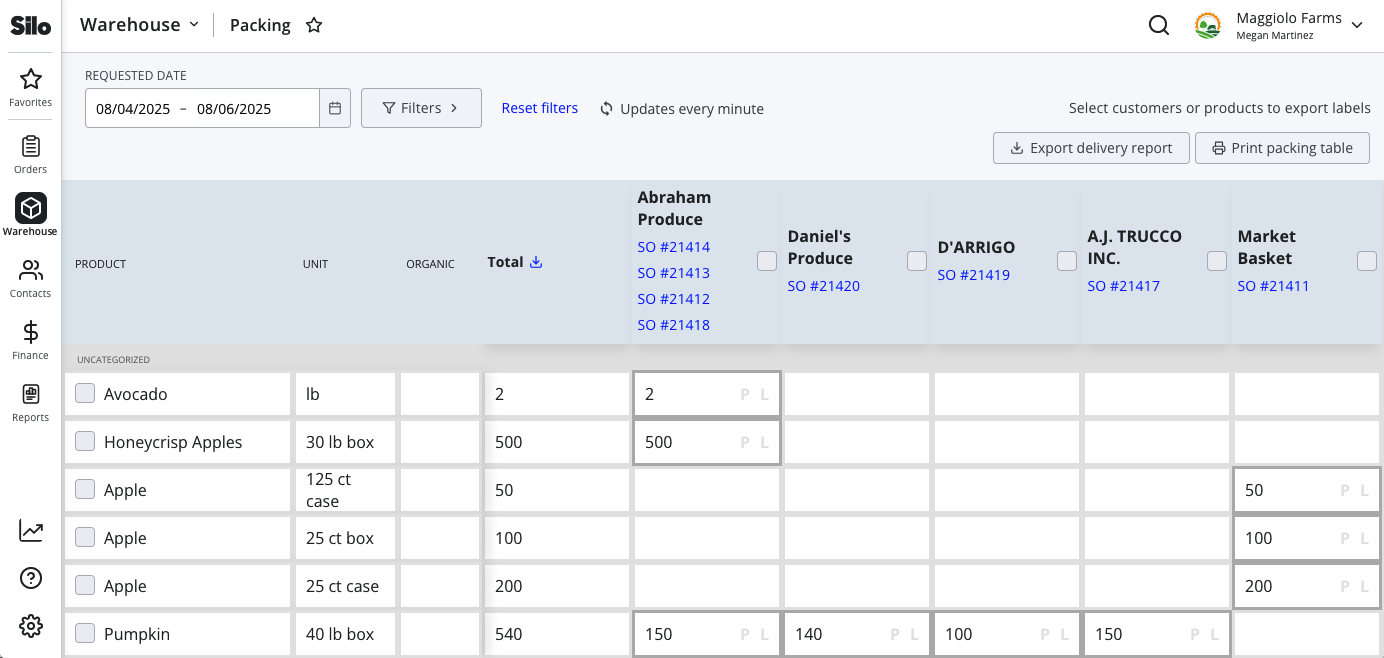
Features
- Rows for each product, accompanied by columns for unit & organic status
- Columns for each customer
- Item totals column that shows the sum of all units for that product/unit/organic status across all columns (to assist in pulling all units needed for a product at once)
- Corresponding cells to represent item totals for each customer with sales orders, given the associated filters
- Filters for date range, delivery routes, customers, and products can be applied to narrow the screen's focus for the user based on their specific needs. Note that any orders that have already been marked as fulfilled are automatically filtered out from the screen, although they will still be included in the delivery report export.
Each item + customer cell contains "P" and "L" buttons that users can click to indicate that the item has been "P"acked and "L"abeled to assist those assembling orders in keeping track of what's been done and what is still left to do.
Users can select multiple customers or multiple products and export or print all PTI labels for the group selected, enabling flexibility depending on their order assembly workflows.
The Packing screen can also be printed to allow people completing the packing and labelling to use it as a work list. The printout is generally in the same format as what appears in Silo but does not include checkboxes or SO numbers and is broken into sets of up to 11 customers to avoid horizontal scrolling. The 'Total' column will only appear on the first page of the printout.
You can also export a delivery report from the main Packing screen. This report includes data for all SOs that match the specified filters (including those that have already been delivered/picked up, which don’t otherwise appear in Packing).
What is it used for?
For many of our users, SOs aren't packed as they are entered. Orders pile up throughout the day, then get assembled, packed, and loaded all in one go once new orders are closed. The Packing screen enables these teams to have a convenient data organization that makes sense for them, rather than relying on either performing their own data pivots or even flipping through stacks of BOLs and making multiple trips to retrieve the same item.