Oversells or unlotted sales are sales that are not linked to an existing lot in Silo. Users can create an unlotted sale by:
- Pressing the Add unlotted button for an item in the sales order inventory search
- Pressing the Unlot link in the item footer for an item already added to a sales order
- Increasing the item quantity on an SO above the number of available-to-sell (ATS) units for the selected lots
- Selling an item that has no ATS quantity in Silo
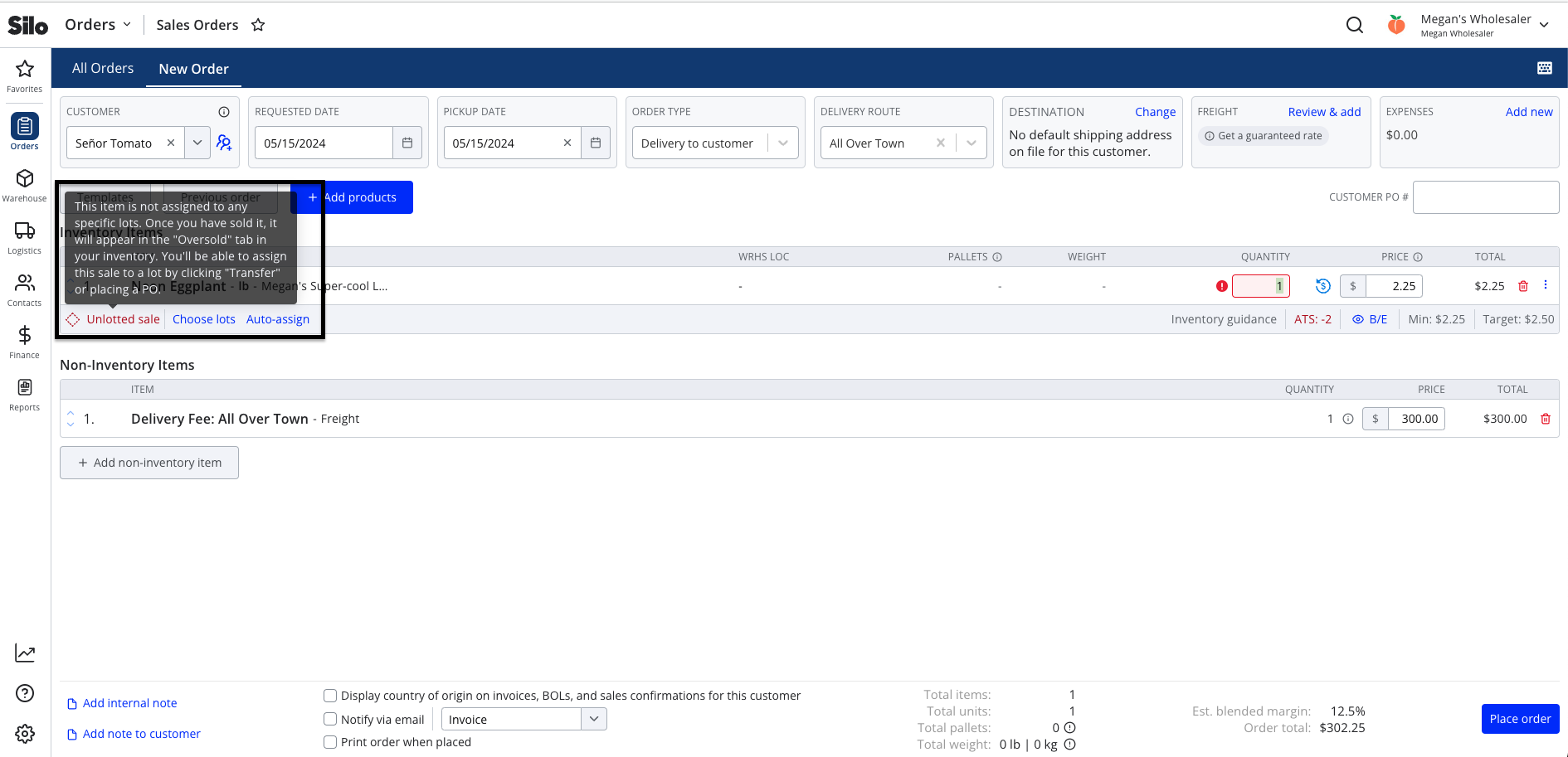
When an item has unlotted sales or is truly oversold (negative ATS count), the Unlotted Sales quantity in the Inventory screen will display in red and link to the Oversold screen. The lot drawer will also include a ‘Transfer’ button to transfer unlotted sales to a different lot assignment easily.
SOs that include unlotted quantities are indicated with a warning icon on the SO Orders list. Users can easily locate these orders by setting the Has Warning filter to Unlotted items.

All items with unlotted sales can be viewed from the Inventory > Oversold screen, where you can filter by sale date, product/unit/label, or only items on SOs for which they were the sales rep. You can also search by invoice number of the oversold SO. More details about the SOs linked to oversold quantities are visible by pressing the value in the 'SOs with Oversold Units' column.
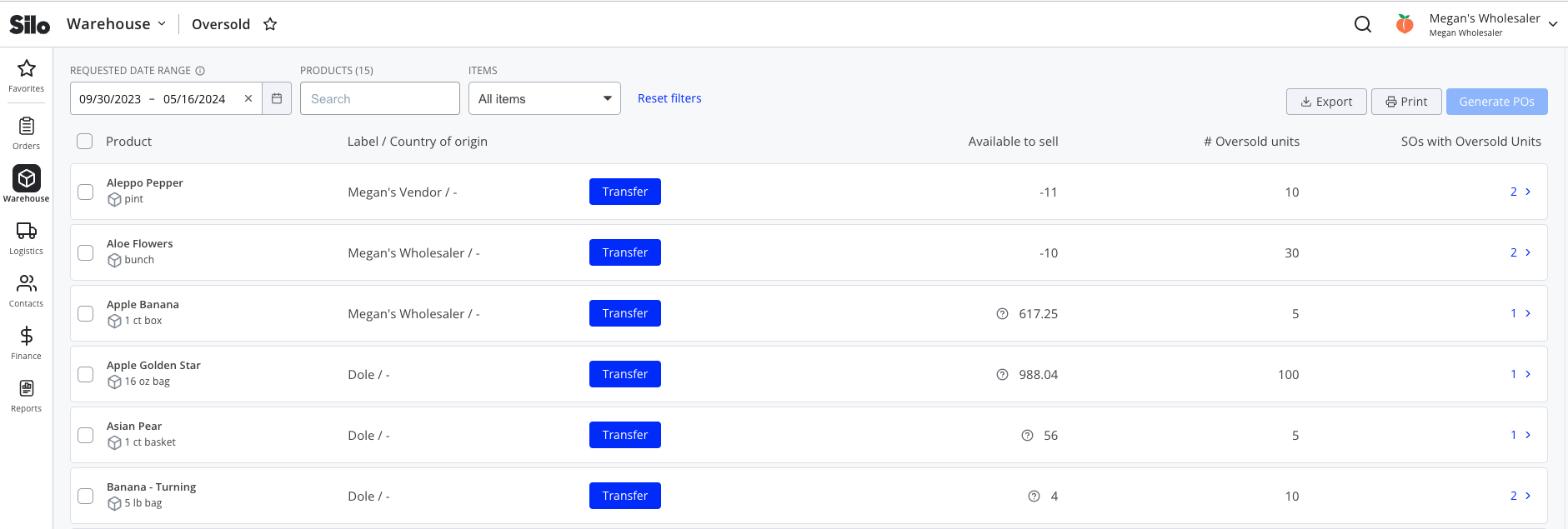
Once you've found the desired oversold items, they can either transfer sales or generate new POs to resolve the oversells. To generate new POs, select from the oversold items and press Generate POs in the top right corner. You'll then be able to specific a vendor, quantity, cost per unit, and requested date to populate POs for each of the selected items.
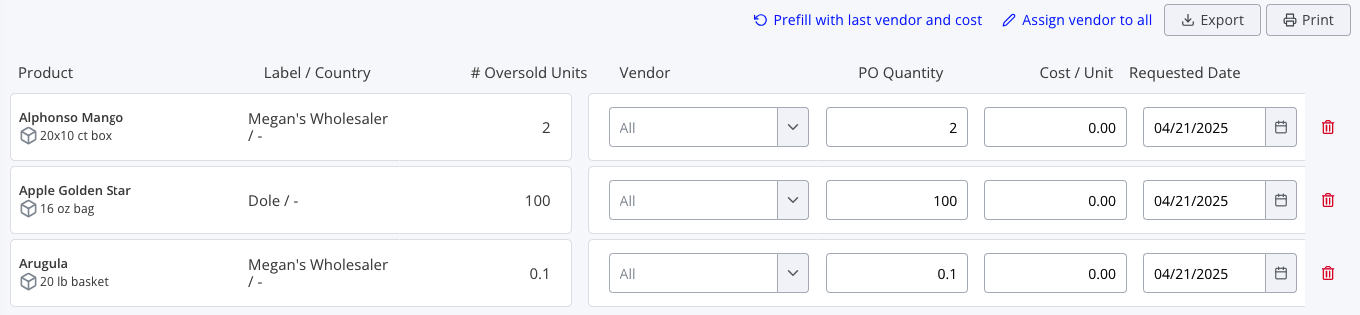
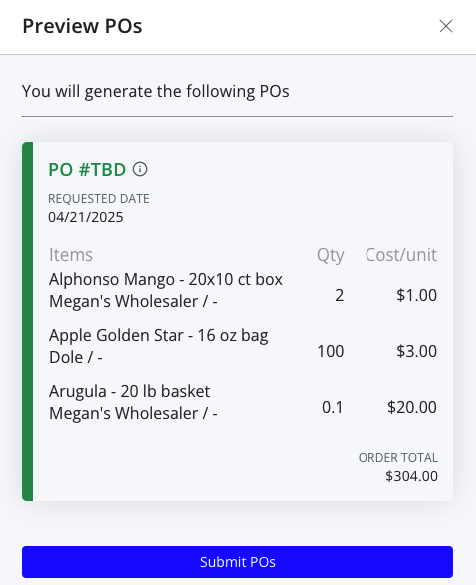
You can use the Prefill with last vendor and cost button to automatically populate the Vendor and Cost / Unit fields with the values from the most recent purchase orders for these items. You can also use the Assign vendor to all button to set the Vendor field to the same value for all items (for example, a generic "Warehouse" vendor). When you're finished filling in all fields, press Submit POs to see a preview of the orders that will be created, then press Submit POs again to finish creating the orders.
To see more information about how to resolve oversells using the sales transfer workflow, see the following article: