Viewing the Waste Report
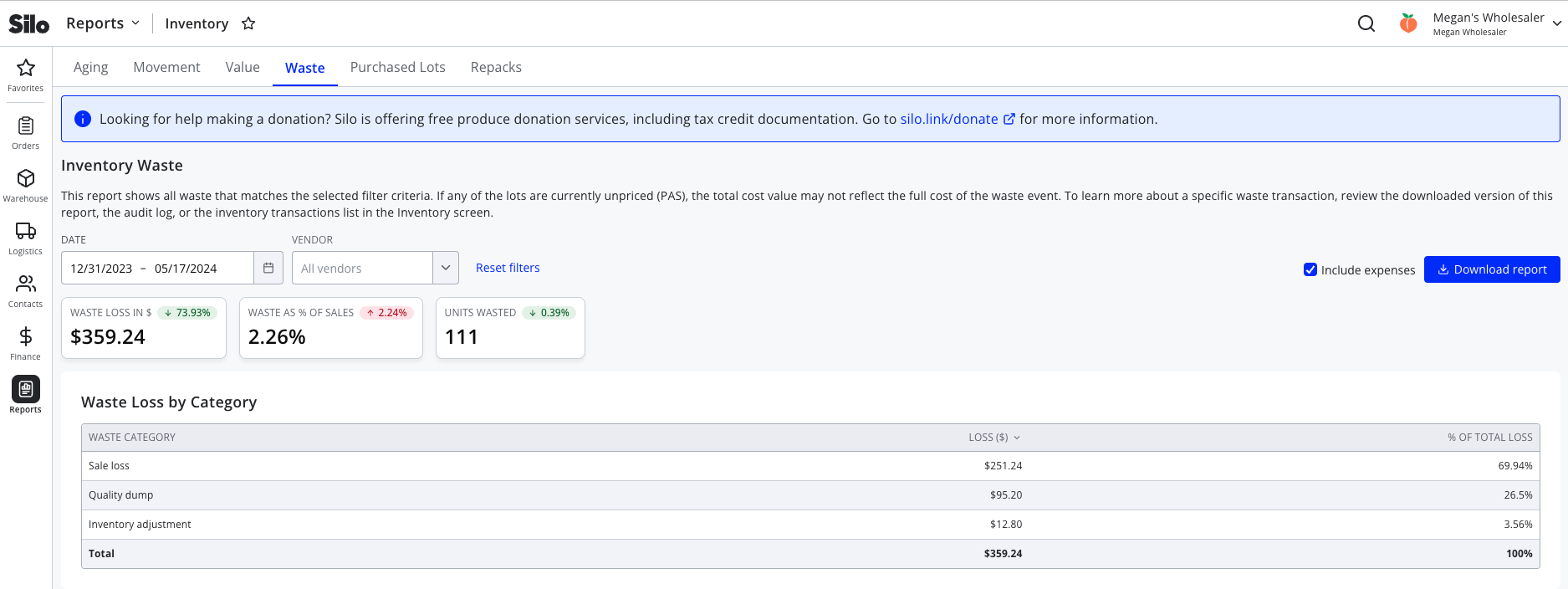
- Navigate to Reports > Inventory > Waste
- Set the desired date range and adjust other filters as needed
- View the report in Silo or use the Download report button to export it to .csv (note that the export will always include columns for values with and without expenses, regardless of whether the Include expenses? checkbox is selected)
Types of Waste
- Manual loss: a user manually indicates that some number of units from a lot have been wasted. This can be done from the Inventory screen lot drawer, the Reconcile Inventory panel (accessible from the ‘Fix’ button in Inventory > Physical O/H), and the Lot Details modal. All manual waste events are displayed in the Waste report using the waste reason the user selected when recording the waste.
- Lot closing loss: this is automatic wasting of any units remaining in a lot when the lot is closed. This can occur when you close a lot from the Lots screen or Lot Details modal or when you inactivate an item from the Inventory screen (which closes all remaining open lots for the item). All closing loss events are displayed in the Waste report using the waste reason the user selected when closing the lot.
- Sale loss: this occurs when a customer decides that units they originally intended to purchase are not high enough quality, or need to be returned for some other reason and the Silo account will not be able to resell them. This is documented on a credit invoice as a “Loss”-type credit.
Report Components
Summary Bubbles
- Waste loss in $: this is the total value of all the waste that matches the specified filters. Note that if any of the wasted lots were PAS and have not yet been priced, this may not accurately reflect the full cost of the wasted units. Change from the previous period (shown as an up or down value in the top right of the bubble) is calculated as loss during the current period minus loss during the previous period divided by loss during the previous period.
- Waste as % of sales: waste loss in $ divided by total revenue for the selected date range (you can find this value on the Sales > Overview report). Change from the previous period is calculated as waste % of sales during the current period minus waste % of sales during the previous period.
- Units wasted: the total number of units wasted that match the specified filters. Change from the previous period is calculated as units wasted during the current period minus units wasted during the previous period divided by units wasted during the previous period.
Note about the previous period: The previous period is the same length of time immediately before the date range for which the report is run. For example, if you run the report for a date range of 2/1/24 - 2/7/24 (seven days long), the previous period would be the seven days before this range: 1/25/24 - 1/31/24.
Loss Breakdown Tables
- Waste Loss by Category: breaks down waste into by the category selected when documenting the waste, as well as sale loss (for loss credits) and manual waste and lot closing loss (for loss that occurred before there was a field to record waste category).
- Waste Lot by Location: breaks down waste by the location of the lot that was wasted. Note that this table only appears if your account is using the Multiple Locations feature.
Top 10 Tables
- Top 10 Lots: the ten lots with the highest loss $ matching the selected report filters
- Top 10 Vendors: the ten vendors with the highest loss $ matching the selected report filters. Note that if you documented waste for a repack lot with multiple inputs from different vendors, this will be represented by a 'Multiple Vendors' line in this table.
- Top 10 POs: the POs with the highest loss $ matching the selected report filters. Note that if you documented waste for a repack lot with multiple inputs from different POs, it will not be reflected in this table.
Export
The following columns are included in the report export (accessed by pressing the 'Download report' button).
- Waste date: date the waste event occurred. For manual and lot closing loss, this is the date the waste event was recorded; for sale loss, it's the requested date of the loss credit.
- User: the name and email of the user who triggered the waste event
- Lot #: the lot # of the wasted inventory
- Product: the product of the wasted inventory
- Growing Method: the growing method of the wasted inventory (either organic or conventional)
- Unit: the unit of measurement of the wasted inventory
- Label: the label of the wasted inventory
- Source: where the lot came from (the PO # for purchase lots, RPK # for repack output lots, TR # for transfer output lots, or "Manual lot" for manually created lots)
- Vendor: the vendor of the lot. If the lot is a repack or transfer lot with inputs from multiple vendors, this will display "Multiple Vendors". If the lot was manually created, this column will be blank.
- Vendor Invoice #: the vendor invoice # from the lot's PO. If the lot is a repack or transfer lot with all inputs from the same PO, the vendor invoice # from this PO will display.
- Received Date: the received date of the lot.
- Waste Category: the waste reason chosen when the lot was wasted, or the type of waste (SALE_LOSS, MANUAL_LOSS, or CLOSING_LOSS) if it was recorded before waste reasons were available.
- Loss (units): the number of units wasted
- Loss ($): the dollar value (including expenses) of the units wasted
- Loss ($) (No Expenses): the same as loss ($) but including any expenses associated with the wasted units.
- Loss % of Sales: Loss ($) / revenue from that lot during the report date range, expressed as a percent. If revenue = $0, this column will display "inf" (for infinity).
- Loss % of Sales (No Expenses): Loss ($) (No Expenses) / revenue from that lot during the report date range, expressed as a percent. If revenue = $0, this column will display "inf" (for infinity).
- % of Total Loss: Loss ($) / sum of all Loss ($) for the date range, expressed as a percent
- % of Total Loss (No Expenses): Loss ($) (No Expenses) / sum of all Loss ($) (No Expenses) for the report date range, expressed as a percent