Inactive Inventory
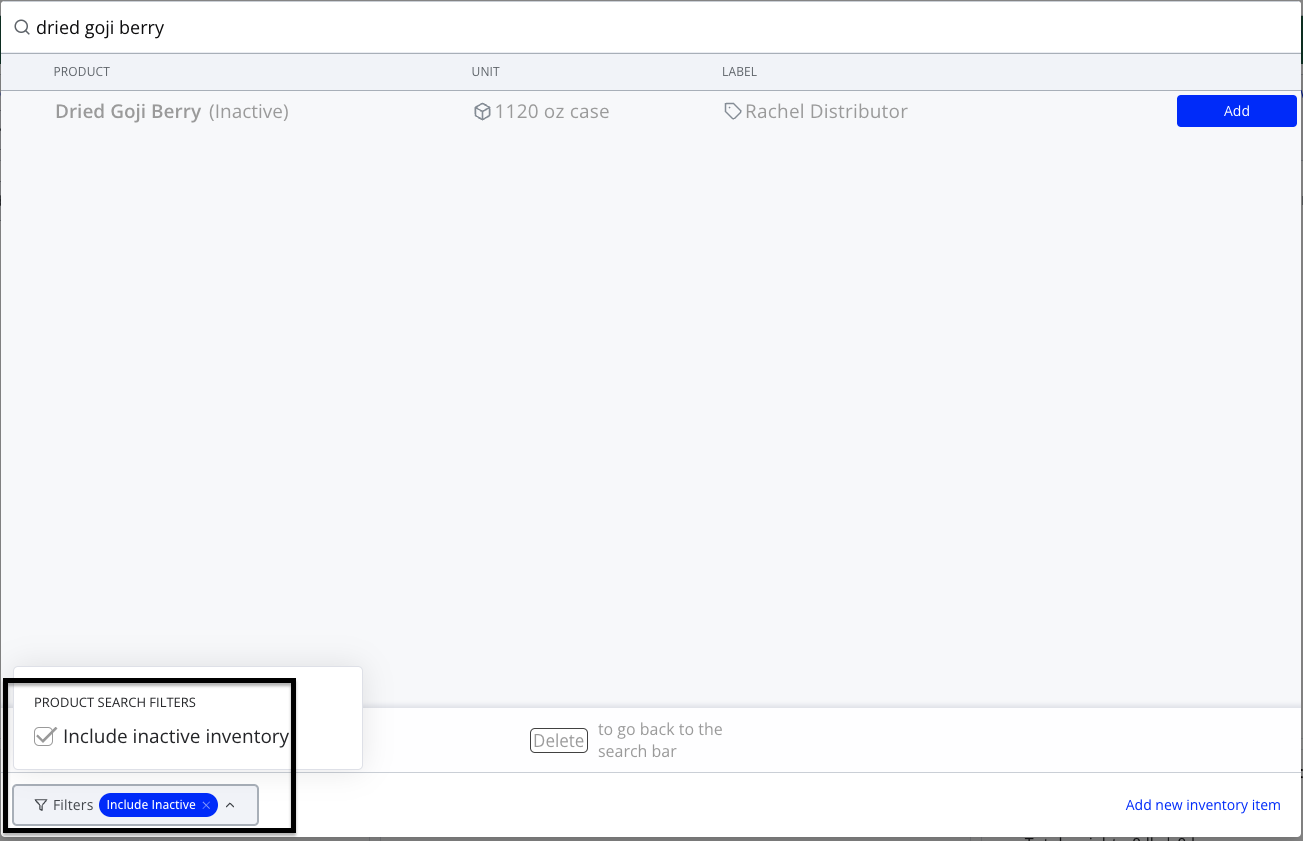
Inactivation is a form of soft deletion for inventory items. Inactive items will no longer appear in the user's main Inventory screens and will only appear on a separate Inactive tab. They will also not appear in the PO, SO, or repack inventory search windows by default, although they can still be added by selecting the 'Include inactive' filter (and the user will be warned that using the item will automatically activate it).
How to Deactivate Items
- Navigate to Warehouse > Inventory > Available Units
- Find the item you'd like to deactivate and select the checkbox on the left side of the row
- Press Deactivate items in the bulk action footer
- Select a waste reason for any units that will be marked as wasted (if applicable)
- Press Yes, deactivate to confirm
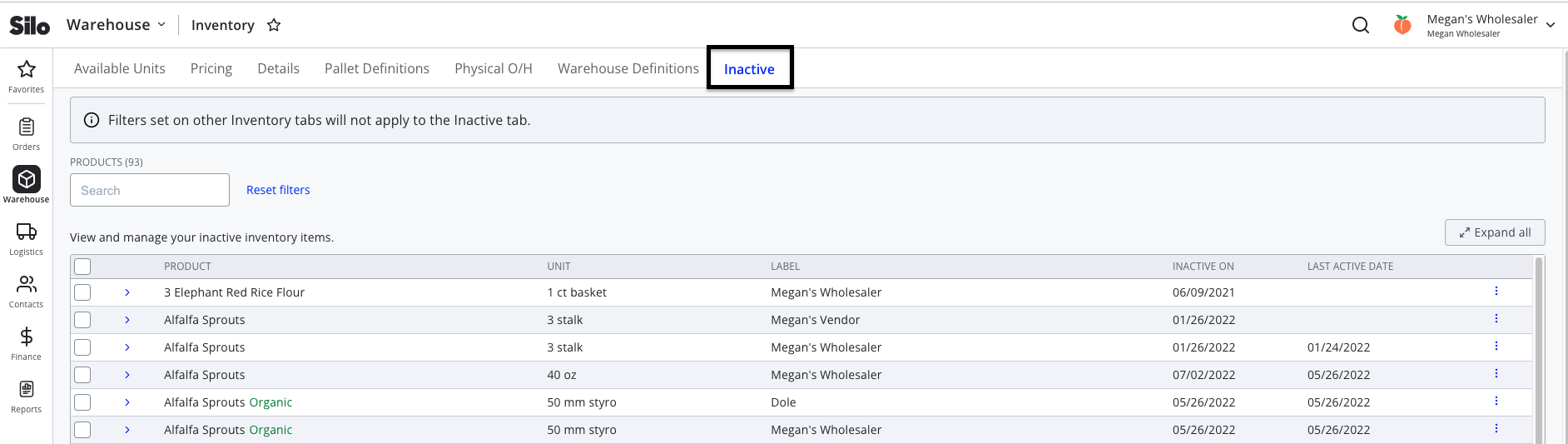
- The items will now appear on the Inactive tab of Inventory
- To completely remove the item, select the item on the Inactive tab and press Delete items (but note that this is only possible for items with no transaction history)
Troubleshooting

If you see the above error when trying to deactivate an item, you need to first resolve any oversells for that item. The easiest way to do this is by expanding the lot drawer for the item in the Inventory screen and pressing Transfer sales.

Alternately, you can access the Warehouse > Oversold screen and search for the item there to either transfer sales or generate a new PO for the oversell.

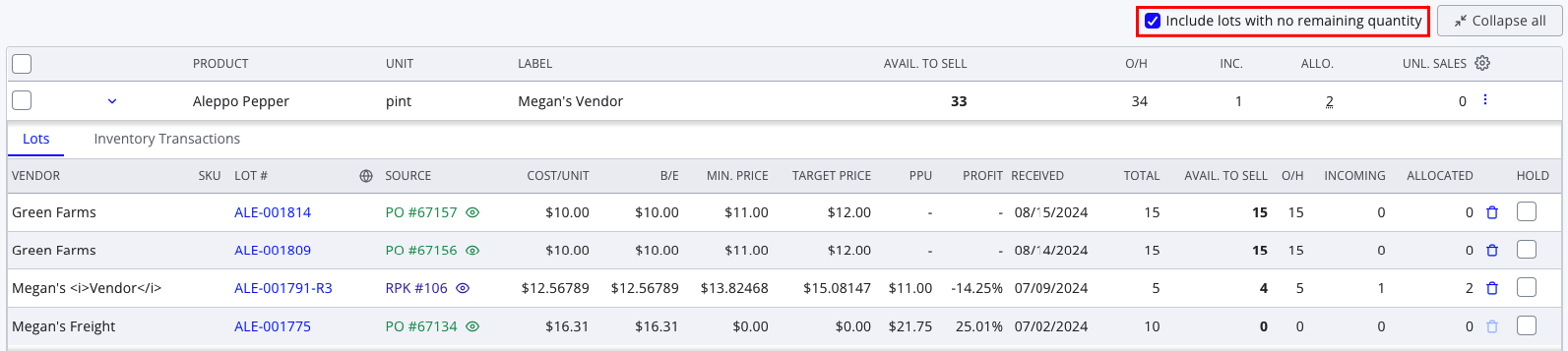
If you see the above error, there is at least one open lot for the item. If you expand the lot drawer for the item in the Inventory screen and make sure the Include lots with no remaining quantity checkbox is selected, you'll be able to see all open lots and access the Lot Details window for each to close them.
Alternately, there is a setting in Settings > Inventory to allow deactivating items with open lots. 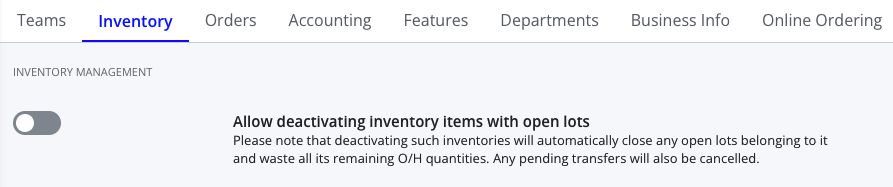
If this setting is turned on, you will no longer see the above error, and instead deactivating the item will automatically close all open lots and waste all remaining units.
Why Inactivate?
As produce goes out of season, customers often have hundreds of rows in their inventory sitting at zero on hand for months. This creates a ton of clutter and makes it hard to use that screen effectively. This helps keep off-season (and one-off) goods hidden until they are back in stock, keeping the Inventory screen clean.
How to Add Inactive Items to an Order
- Navigate to the Orders > Purchase Orders or Sales Orders screen
- Create a new order or edit an existing one
- Press Add products
- Press Filters in the bottom left of the window
- Select the Include inactive inventory checkbox—you will now see inactive items in your search results, indicated with grey text and the word '(Inactive)' after the product name
- Add the item to your order as you normally would. Note that once you place the order, the item will be automatically reactivated.