The Expenses > Payments screen provides a list of all Accounts Payable payments (payments to your vendors for purchase orders and other expenses) based on the selected filters.
Users can see all the payments they made to various vendors for a given date range. The payment rows contain details such as vendor name, payment date, payment amount, payment method, etc. Individual payments can be expanded to see a list of expenses to which the payment has been applied. They can be reversed by pressing Undo payment under the 3-dot action menu. Pressing the Edit payment details option under the 3-dot menu will allow you to edit the payment date, method, check number (if applicable), and notes. Payments that are partially or fully unapplied can also be easily applied by clicking the value in the Rem. Balance column or the Apply credit option in the expanded payment details.
You can search for a payment by check number or payment ID for the payment or by PO number or invoice number to which the payment was applied using the 'Search by' dropdown to the right of the filters.
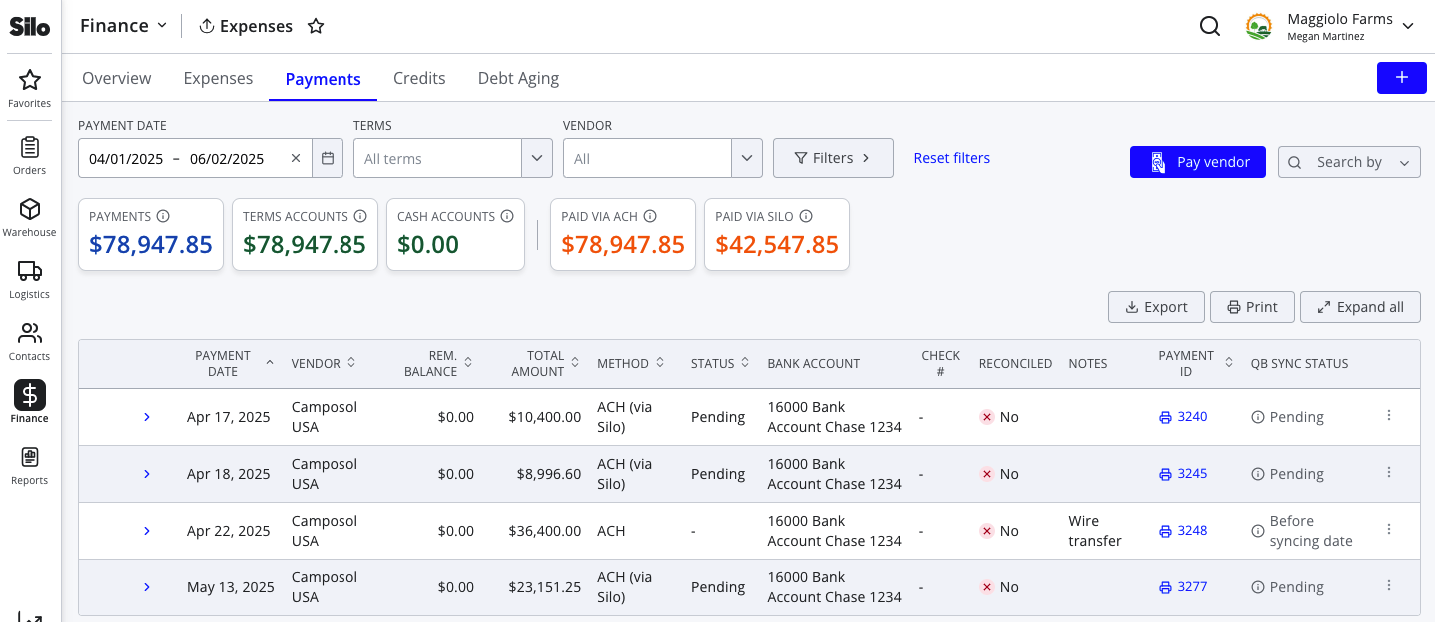
Users can filter the list of payments by payment date range, vendor, terms (cash or Net D > 0), payment method, and payment status (only relevant for payments made via Silo).
The following additional actions are available from this screen:
- Export: the payments shown can also be exported into a CSV file using the Export button. The export includes the same information as the AP Payments screen.
- Print: the list of payments shown can be printed using the Print button. This provides a printout that matches the CSV export.
- Record payments and apply credits: Payments can be manually recorded or send via Silo and existing credits applied using the Pay vendor button.
- Receipt printing: you can print a receipt for any payment shown by clicking the print icon in the Payment ID column. This includes the account’s and vendor’s contact information and basic information about the expenses and purchase orders to which the payment was applied.
- Check printing: for manually recorded check payments (i.e., not those made via Silo), users can print checks directly from the AP Payments screen by clicking the print icon in the Method column, or by selecting multiple check payments at once and using the Print checks button in the bulk action footer.
Calculations
Summary bubbles at the top of the Payments screen give high-level summary information for all payments matching the selected filters. Each bubble includes an info tooltip with more information about calculating it.
- Total Payments: sum of all payments shown, not including any that are failed, rejected, or pending approval
- Total Term Accounts: sum of all payments shown made to vendors whose Net D > 0, not including any that are failed, rejected, or pending approval
- Total Cash Accounts: sum of all payments shown made to vendors whose Net D = 0, not including any that are failed, rejected, or pending approval
- Total Paid via ACH: sum of all payments shown with a method of ‘ACH’ or ‘ACH (via Silo)’, not including any that are failed, rejected, or pending approval
- Total Paid via Check: sum of all payments shown with a method of ‘Check’ or ‘Check (via Silo)’, not including any that are failed, rejected, or pending approval
- Total Paid via Cash: sum of all payments shown with a method of ‘Cash’, not including any that are failed, rejected, or pending approval
- Total Paid via Credit Card: sum of all payments shown with a method of ‘Credit Card’, not including any that are failed, rejected, or pending approval
- Total Paid via Silo: sum of all payments with ‘(via Silo)’ appended to the payment method, not including any that are failed, rejected, or pending approval