Introduction
If you repack the same items on a regular basis, you can save time by creating your repacks from a template. Repack templates automatically populate input items, output items, and whether the repack is distributed by unit or by weight, and they can be configured to have a fixed ratio between input and output quantities. This improves efficiency and reduces errors when you regularly perform the same kinds of repacks.
Creating a Template
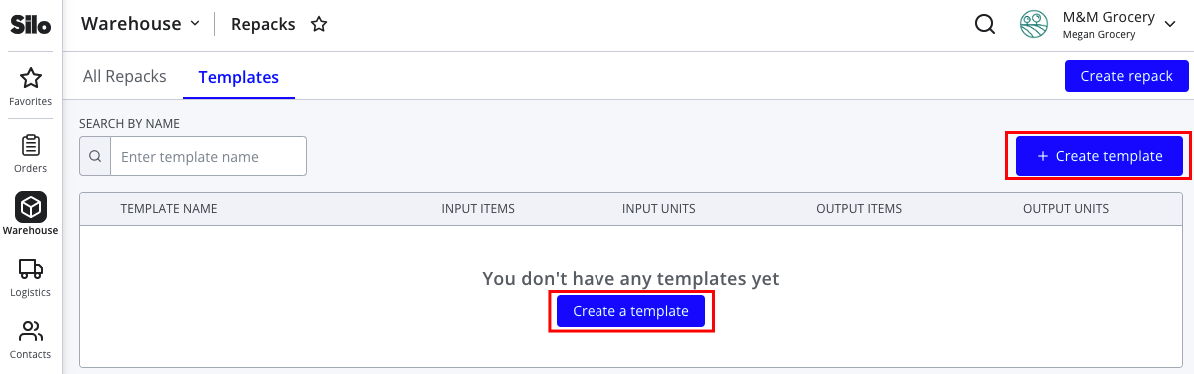
To create a new repack template, navigate to Warehouse > Repacks > Templates. Press the button to create a new template.
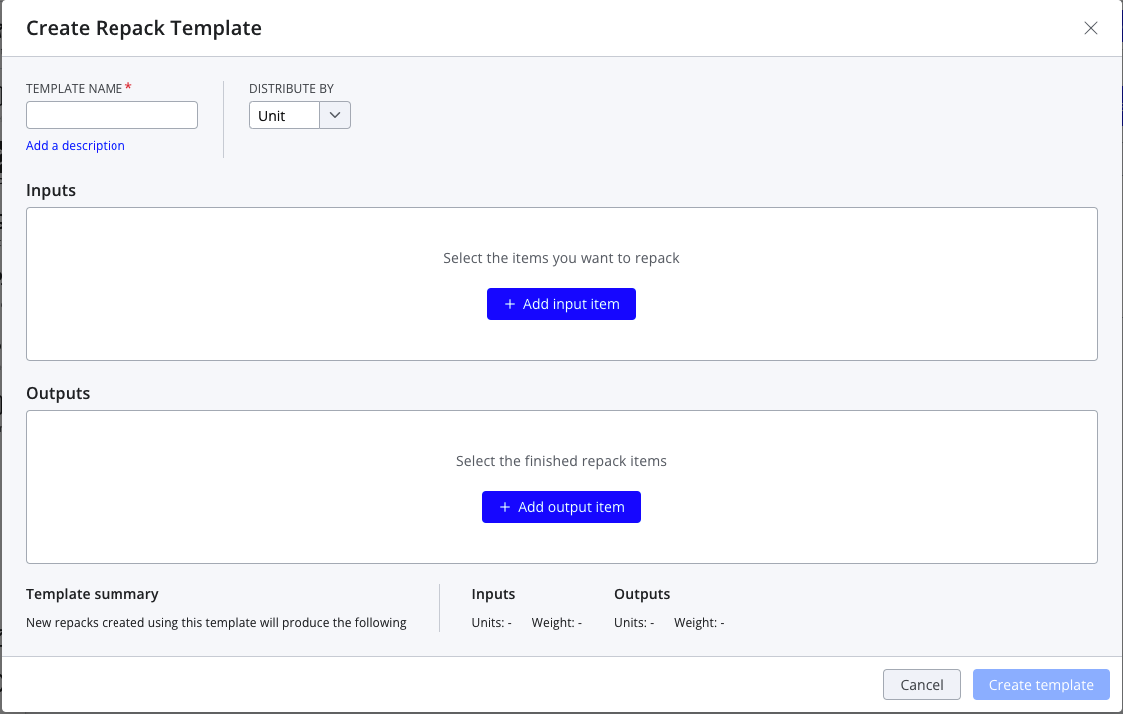
You will now see a window that looks very similar to the one used when creating a repack. Fill in the following required information:
- Template name
- Distribution (This will default based on the last method used when creating a repack. For more information about distribution methods, see this article.)
- At least one input item
- At least one output item
You can also choose whether the template should have linked item quantities.
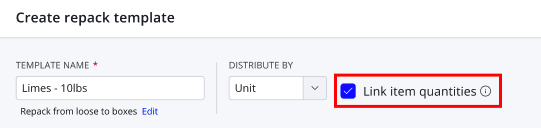
This means that when a repack is created from this template, there will be a fixed ratio between the quantity of the output item and the quantities of any input items. For example, you could create a template where you repack 1000 lb of limes into 100 10 lb boxes of limes. When creating a repack from this template, you find that you only had 990 lb of limes as input. When you update the input quantity to 990, the output quantity automatically updates to reflect that 99 10 lb boxes of limes will now be created instead. This saves you from having to manually calculate other quantities if you know how many inputs were used or how many outputs were created.
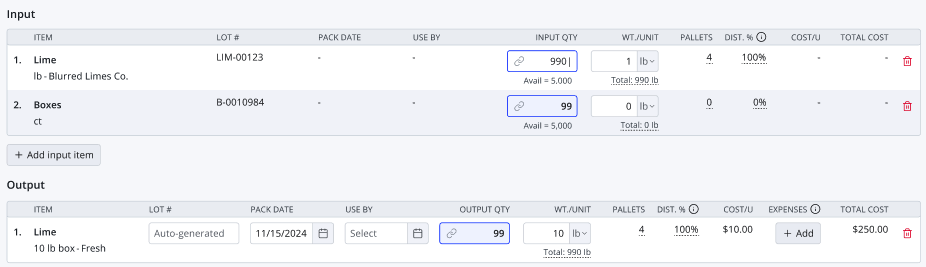
Note that linking item quantities is only available for repacks with a single output item.
Once you've entered all the information needed for your template, press Create template to finish saving.
Using a Template
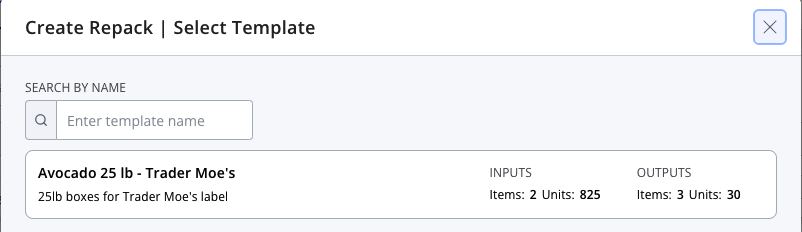
On the Repacks screen, the Create repack button will display as a dropdown once you've created at least one template. Select From template in the dropdown to start a new repack using a template, and then select the template you'd like to use from the next window.

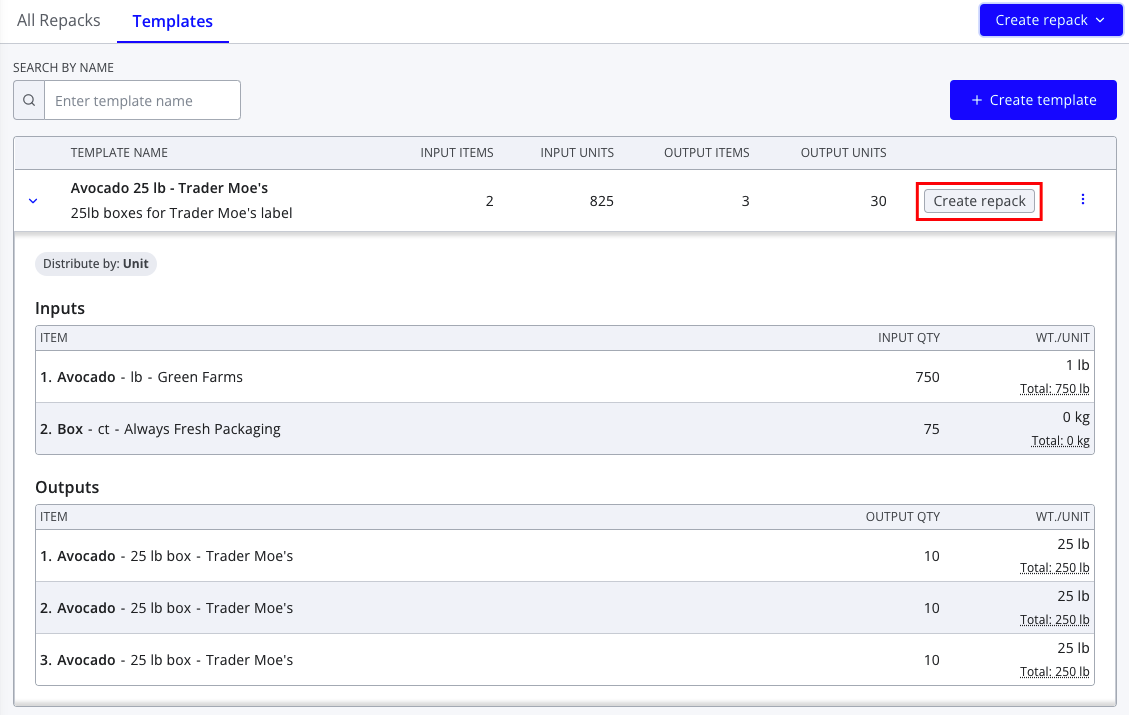
Alternately, you can press the Create repack button next to the template you'd like to use.
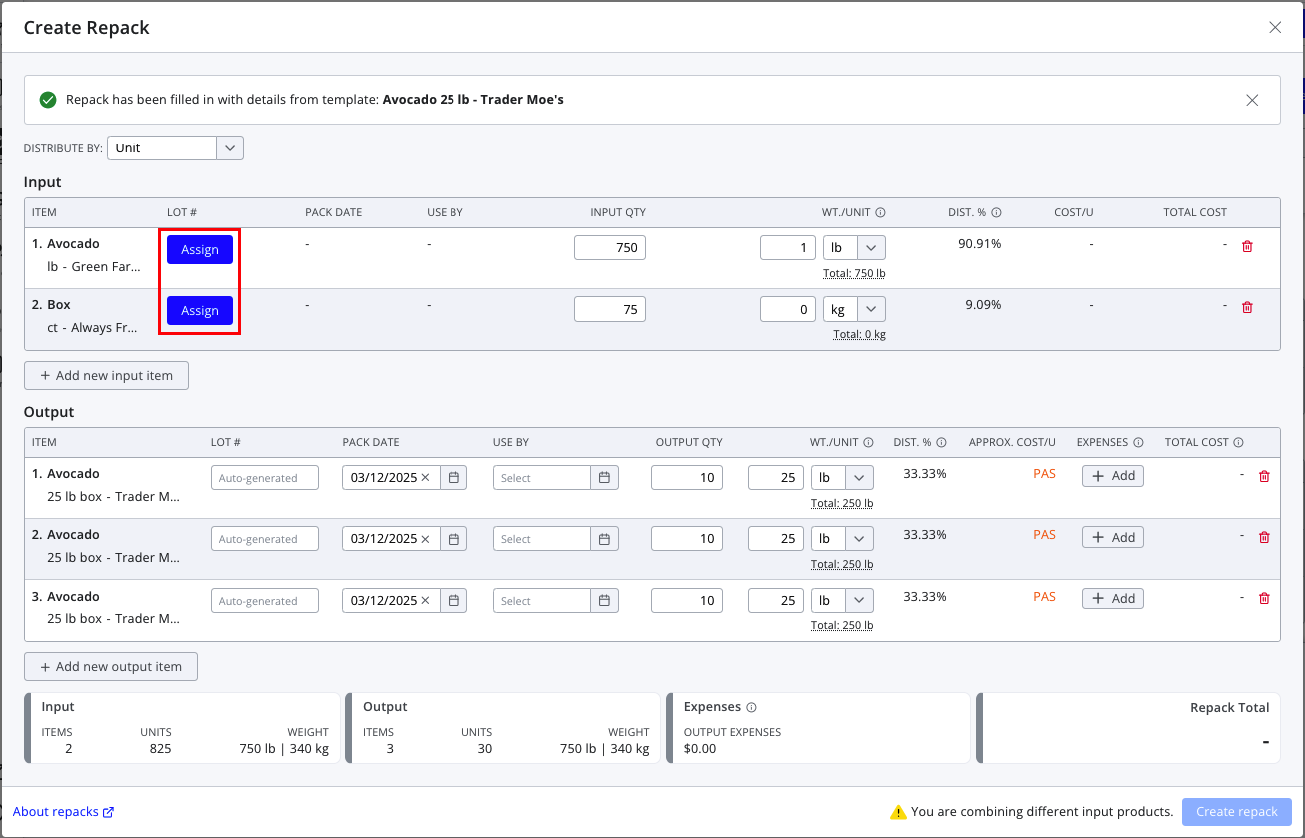
When you've started from a template, you'll need to assign input lots before you can finish creating the repack.
If you are using a template with linked quantities and want Silo to no longer automatically calculate quantities, you can press the Unlink button at the top of the window.
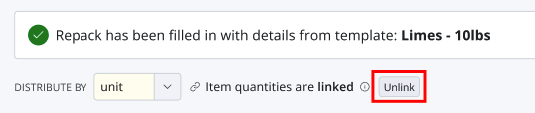
Item quantities will also be automatically unlinked if you add or delete items from the repack.
Otherwise, complete the repack as you normally would—confirm that all editable fields (such as use-by and pack dates) are correctly set, add output lot expenses if needed, and press Create repack when you are done.