Why Use Pallet Definitions?
Turning on the Pallet Definitions feature will display calculated weight and pallet count information for items on sales orders, purchase orders, transfers, and repacks. This helps users better understand what they can fit on a truck and how much their shipping partners charge them.
How to Use
To enable showing pallet information for inventory items across the platform, navigate to Settings > Features and press the Pallet Definitions toggle to blue.
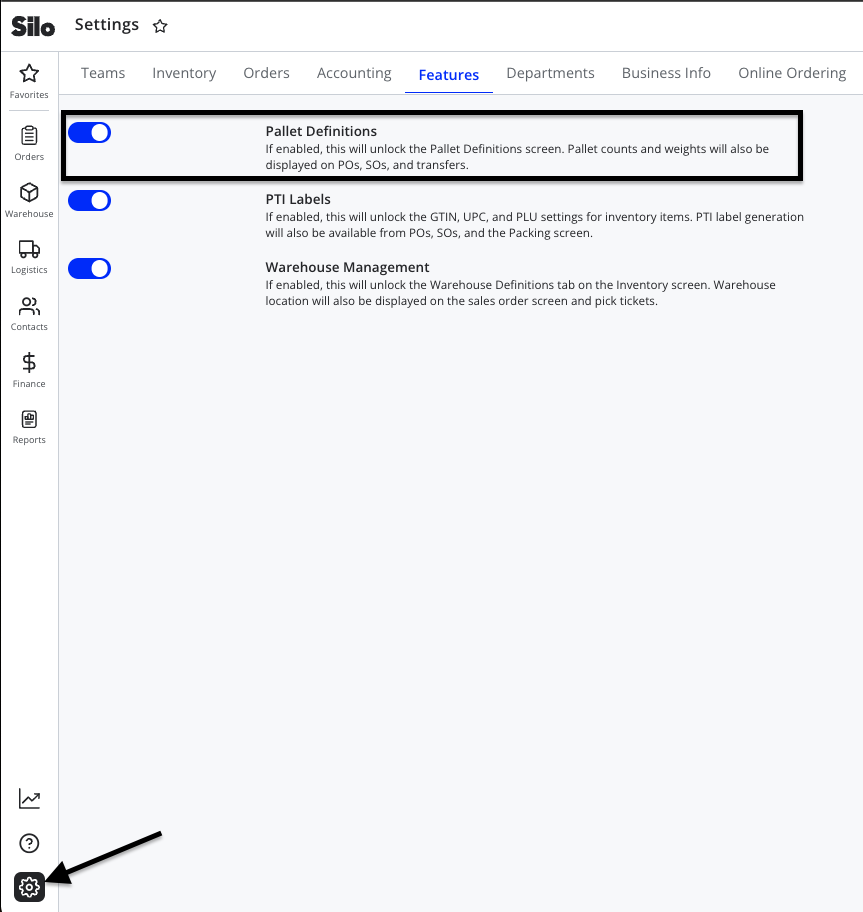
Once this feature is enabled, the Inventory screen will include a new Pallet Definitions tab. This is where you can input pallet definitions for each item in your inventory.

The following fields are available:
- Units per pallet: the number of units of this inventory item would fit on one pallet.
- Units per layer: how many units of this inventory item sit on each pallet layer?
- Weight per pallet: the weight of one full pallet of this product, in either lb or kg.

Once an inventory item has units per pallet and weight per pallet definitions, this information will surface on any sales orders, purchase orders, transfers, and printed documents containing this inventory item. Units per layer are not used elsewhere in the platform. Pallets and weight are automatically calculated based on the quantity of product entered.
Sales order

Purchase order

You can enter custom pallet information on a purchase order, but note that it will only apply to that specific order item. If you purchase a new inventory item, you will need to input pallet information in the Pallet Definitions screen for it to display pallet and weight values on future POs and SOs.
Turning on Pallet Definitions also adds the option to print pallet labels from POs, transfers, and the Lot Details window. For more information about label printing, see How to Print Labels.