Why use lot holds?
- Use holds when you don’t want anyone to sell units out from a specific lot or purchase order. For example, if you want to reserve units for a specific future sale or avoid selling lots that haven't been received yet, you may wish to put the lot on hold.
- The auto-hold setting is helpful for users who wish to block all unreceived product from being sold.
What happens when I put product on hold?
Putting a lot on hold removes all quantity from the Available to Sell units for the lot and prevents it from being selected in the sales order and transfer product search windows.
To hold lots & entire purchase orders:
- Navigate to Orders > Purchase Orders > All Orders. From there, either click to create a new order (and add at least one item) or open and edit an existing order.
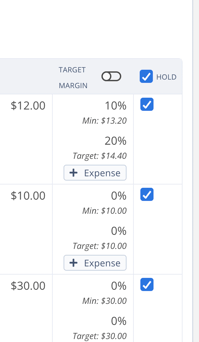
- Select the checkbox to the right of the line item to hold the lot.
- Select the checkbox at the top of the Hold column to hold all lots on the order, effectively holding the entire purchase order.
To put existing lots on hold from Inventory:
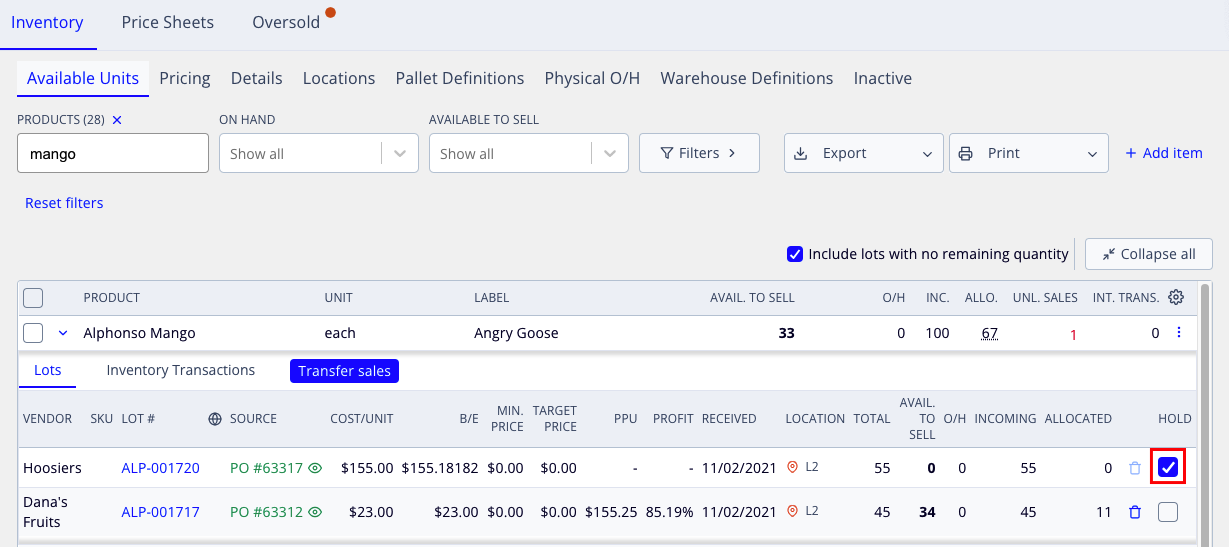
- Navigate to Warehouse > Inventory > Available Units
- Locate the item you want to hold and press the arrow to the left to view open lots
- Locate the lot you want to hold and select the Hold checkbox on the right side of the row. A lot is held when the checkbox is selected.
To search for held lots:
- Navigate to Orders > Purchase Orders > All Orders.
- Press the Filters dropdown at the top of the page and click into the Held Status field.
- Select the Has held lots option - this will return all POs that meet the other filter criteria and contain at least one held lot.
To set up automatic holds for newly purchased product:
- Navigate to Settings > Orders
- In the Purchase Orders section, locate the Automatically hold all new and unreceived purchase orders setting and toggle it on (the toggle should display in blue).
- Once this setting is enabled, all lots added to new and unreceived POs will automatically be marked as held. Regardless of the setting, you will always be able to unhold them manually whenever you wish.
- Locate the Automatically unhold all lots when receiving purchase orders setting and toggle it on.
- Once this setting is enabled, marking a purchase order as received will automatically unhold all lots on the order. Regardless of this setting, you will always be able to manually hold lots on received POs. We recommend enabling this setting in conjunction with Automatically hold all new and unreceived purchase orders so that a user doesn't need to manually go in and unhold each lot when an order is received.