High-Level Approach
If you're having issues with Silo's QuickBooks Desktop integration, take the following steps:
- Check the Integration Status Information in Silo section below to help diagnose the problem
- Follow the steps in the Remediation section to help solve it
- Still stuck? See the Common Gotchas section
Integration Status Information in Silo
- In Silo, navigate to Settings > Accounting. Scroll down to the Integrations section.
- Confirm that all settings are correct and all required fields (marked by *) are populated.
- Locate the “Automatic QuickBooks Desktop Syncing” box and confirm that the status is “Installed”.

- Press See all errors and note the last sync date shown in the panel.

- Check for any global errors in the error log (any error with nothing in the “Transaction” column). These errors must be resolved for syncing to continue (or no further transactions will be synced to QuickBooks).

Remediation
The following steps can be done in this order, or they can be done individually and repeated as needed.
- Re-download the QuickBooks Application Certificate (the link is in the “Automatic QuickBooks Desktop Syncing” box) and open it with the QuickBooks Web Connector application to connect Silo to QuickBooks Desktop (make sure to click “Remove” on the old integration first).
- Stop/start the QuickBooks Web Connector application. Confirm there is a single instance running and that its settings are correct. Make sure QuickBooks Web Connector is installed on the same computer as QuickBooks Desktop.
- Restart the computer where the QuickBooks Web Connector is being run (note: this will require closing down QuickBooks Desktop and reopening it after you restart).
More in-depth explanations (including screenshots) on how to execute these steps are below.
Using a New Integration Certificate
- Re-download the QuickBooks Application Certificate (link is in the “Automatic QuickBooks Desktop Syncing” box in Silo Settings > Accounting)
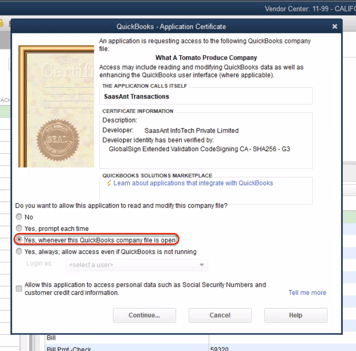
- After downloading and opening the Silo integration file, the user will be prompted with this QuickBooks Application Certificate which allows them to connect Silo to their QuickBooks Desktop account.
- When asked: “Do you want to allow this application to read and modify this company file?”:
- Select “Yes, whenever this QuickBooks company file is open”
- Click Continue
QuickBooks Web Connector Setup
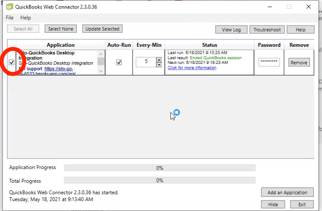
- QuickBooks Web Connector should open once an Integration Certificate is approved.
- Remove any old Silo integrations with the “Remove” button.
- Select the checkbox next to “Silo” under the Application column, enter the user’s Silo password (and fill in the other settings as shown), and click the Update Selected button to start a sync.
- Keep an eye on the first run with the new setup (the progress bar, status, and any error messages). Note that if there hasn’t been a successful sync in a while, this run may take longer than usual.
- Once a run has been completed, confirm that everything is working properly by following the steps under Integration Status Information in Silo above.
- Make sure that a single instance of QuickBooks Web Connector is kept continually running (do not close the application).
Common Gotchas
- Read all of the errors that indicate a broken QuickBooks integration and try to resolve them. They are typically in two places:
- Any global errors in Silo (Refer to the 'Integration Status Information in Silo' section above).
Note: global errors stop any further transactions from being synced to QuickBooks. - An error status in the QuickBooks Web Connector window for the Silo integration.
- Any global errors in Silo (Refer to the 'Integration Status Information in Silo' section above).
- Make sure only a single instance of QuickBooks Web Connector is running.
Sometimes restarting the computer is the best way to ensure this is the case. - Make sure all the required QuickBooks integration settings in Silo are set, which can be found under Settings > Accounting.