Introduction
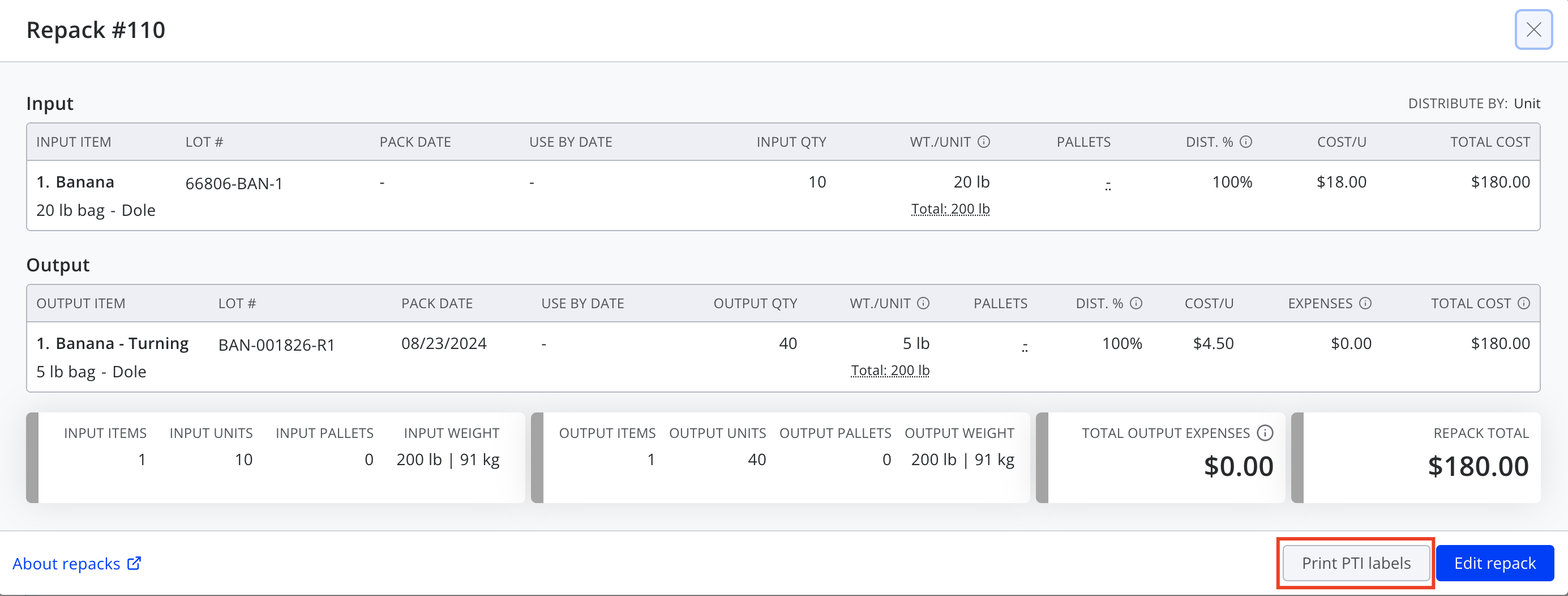
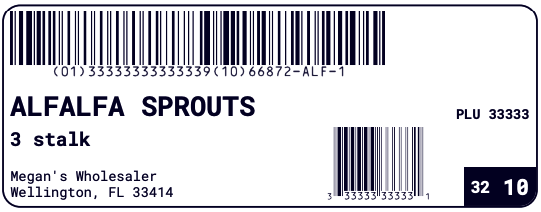
PTI (Produce Traceability Initiative) labels provide a way to label and track produce. Silo's PTI labels include the product name (prefaced by "Organic" if applicable), unit of measure, company name and location (city/state/zip code), and a GTIN barcode. Depending on configuration, they can also include a UPC barcode, PLU, and voice pick code.
How to Turn On PTI Labels
They are only available if the PTI Labels feature is enabled in Settings > Features.
PTI Label Requirements
To print a PTI label for an item in Silo, it must have a GTIN (global trade item number) specified. The GTIN is a 14-digit number comprising an indicator value, the company’s GS1 prefix, a reference number, and a check digit. GTINs are configured for each catalog item in Inventory > Details (you must have edit/allow inventory item permissions to do this). Optionally, users can also specify the UPC and PLU for each item on this screen, which will be included on the printed PTI labels if they are populated.
How to Print PTI Labels
There are four ways to print PTI labels: from a PO, an SO, the Packing screen, or the Repack window.
Purchase Orders (view mode)
When viewing an existing PO, there is Print PTI labels button near the bottom. The button is enabled if there is at least one eligible item that has the necessary configuration to generate a PTI label (i.e., at least one item on the order has a GTIN specified).
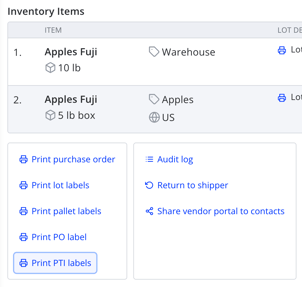
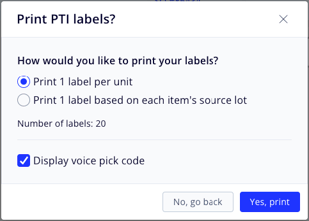
When you press this button, you will be given two different options for how many labels to print.
Sales Orders (view mode)
Very similar to the PO, each existing SO will show a button to print PTI labels. Also like POs, it will be enabled if there is at least one eligible item that has the necessary configuration to generate a PTI label. One main difference from printings from POs is that if the customer on the order has a customer code specified, it will display on the top right corner of each label printed from the SO screen or Packing screen.
Packing Screen
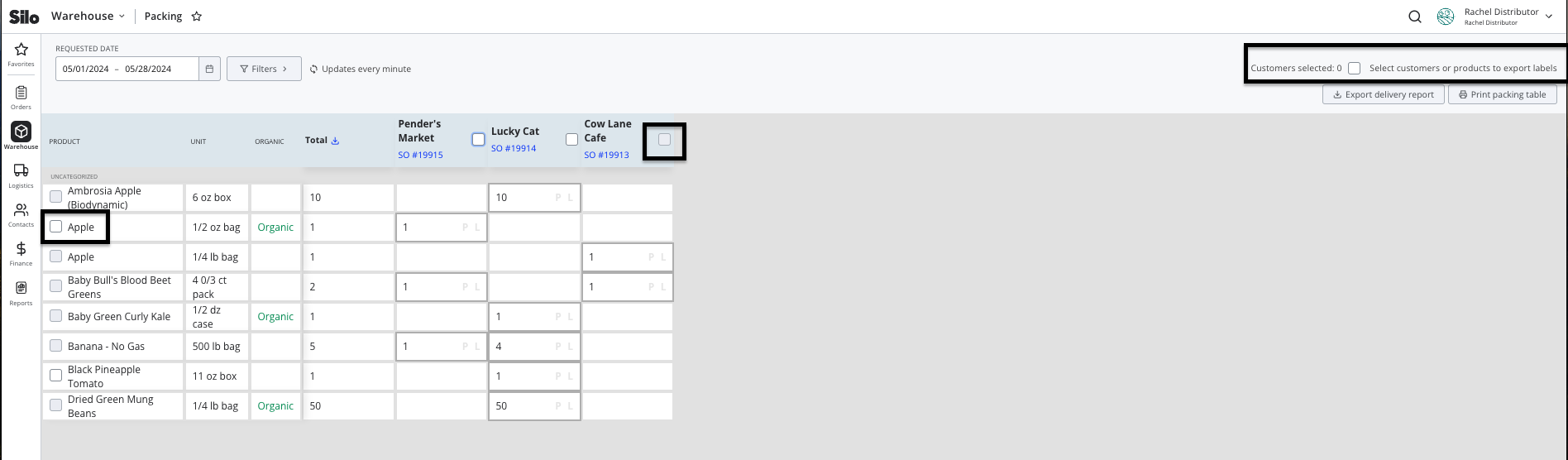
To print PTI labels from the Packing screen:
- Navigate to Warehouse > Packing.
- Adjust the date range or other filters as needed to find the relevant sales orders. Note that only unfulfilled sales orders display on the Packing screen.
- Select the items and orders to print labels for.
- To select all items and all customers shown, select the checkbox at the top right of the screen (where it says Select customers or products to export labels).
- To select all items for a customer, select the checkbox beside the customer's name.
- To select a single item, the checkbox beside the item name. If the checkbox is disabled, it means there is no GTIN specified.
- Once you've made your selection, press Print labels
- Decide how many labels to print (one per unit or one per lot assignment) and whether or not you want the labels to include the item's voice pick code.
- Press Yes, print to confirm.
Repack Window (view mode)
When viewing the details of an existing repack, there is a Print PTI labels button in the footer. Pressing this button will print PTI labels for each of the output lots on the repack.