Sales orders allow you to sell inventory to your customers and generate an invoice for this inventory. Your available inventory in Silo will automatically adjust in real time based on the units that you've sold.
To create a new sales order:
- Navigate to Orders > Sales Orders > New Order.
- Select a customer from the Customer dropdown.
- Confirm that the Order Type (delivery or pickup), Requested Date, and Sales Rep fields are set correctly.
- Set a Pickup Date if relevant. This drives freight quote auto-generation.
- Add items to the order. The easiest method is to press the ‘+’ button on your keyboard and search for your desired product in the window that opens. You can also click Add item.
- If you want to pull from a specific lot, you can either add it directly from the product search by pressing Add lot, or you can assign it once the item is added to your order by clicking Choose lots in the item footer.
- If you can't find the item you are looking for, check your filters in the product search window. If the item has no available quantity, is inactive, or isn't part of your assigned department, it may be getting filtered out. If you're seeing lots of matches, you can also try entering a more specific search term—remember that you'll see matches for text in the product, unit, and label of any items in your inventory.
- Fill out the Quantity and Price for each item. You have a few options when it comes to calculating prices:
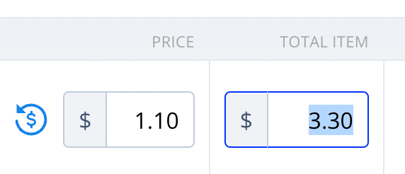
- If you enter a price per unit, Silo will calculate the item total for you (price per unit multiplied by unit quantity).
- If you enter the item total, Silo will reverse calculate the price per unit (item total divided by item quantity).
7. Add items until your order is complete.
8. When you're finished, press Place order.
What happens when a sales order is placed?
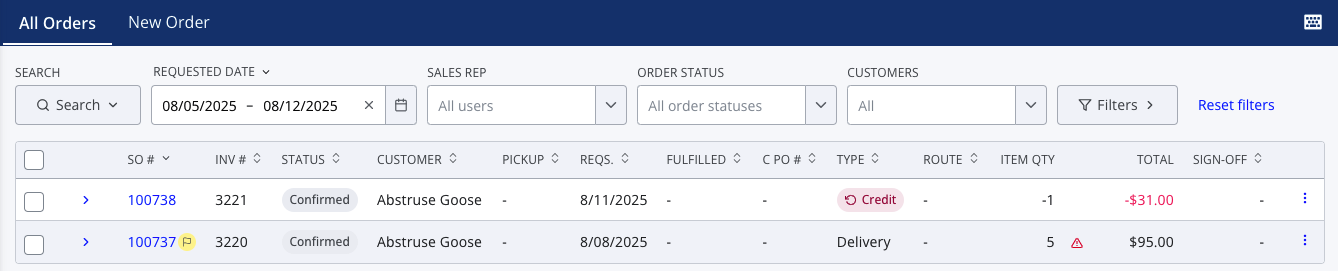
An invoice number is automatically generated when the order is created. Invoice numbers generally go in sequence based on the configured starting value in Settings > Orders, but may occasionally skip a few values due to technical limitations. If you need to edit the invoice number, or any other information on the order, you can access it from Orders > Sales Orders > All Orders:
To edit an existing sales order:
- Navigate to Orders > Sales Orders > All Orders
- Adjust the filters or search as needed to locate the SO you wish to edit
- Expand the order by pressing the chevron, then press Edit order at the top right
- Make the necessary changes or adjustments to the order and press Save changes
- If needed, reprint or re-email the order so you can share the updates with your customer
Note that you can still edit sales orders after payments are applied, as long as the new total is greater than or equal to the amount of payments applied. If you need to decrease the total below the paid amount, you must unapply a payment first—see How to Undo a Customer Payment for more information. Users also need the correct permissions to edit SOs, depending on factors like the order status, the customer's terms, applied payments, and how long it's been since the order was placed. See Permissions Overview for more information.
How do sales orders affect my inventory?
When you make a sale, the available-to-sell (ATS) quantities for all items on the order are reduced to reflect the outgoing quantities. Once the order is marked as fulfilled, these units will also be deducted from the items' on-hand (O/H) quantities. Sales orders also impact the lot performance calculations of each lot assigned to the sales order. You review performance of the sales order by customer, salesperson, and other variables in Reports > Sales Reports.