Purchase orders allow you document new inventory in your Silo account that you can then sell to your customers. Whenever you purchase inventory from a vendor, you should record it as a purchase order in Silo.
To create a purchase order:
- Navigate to Orders > Purchase Orders > New Order.
- Select a vendor from the Vendor dropdown (it’s easiest to start typing the Vendor’s name).
- Confirm that the Order Type and Requested Date fields are set correctly.
- You can add products to your order by pressing '+' on your keyboard or the Add products products button. Either way, a search window will open, and you can select existing items from your inventory or create a new one if needed.
- Enter the country of origin, quantity, cost per unit, and desired minimum/target price for each item.
- Once you're finished adding items, press Place order.
What happens after a purchase order is placed?
A PO number is automatically generated when the order is created. These are sequential based on your organization's settings; if you need to change the numbering, reach out to Silo Support or your CSM.
If you need to edit anything on the order or print documents for it, you can access it from Orders > Purchase Orders > All Orders:
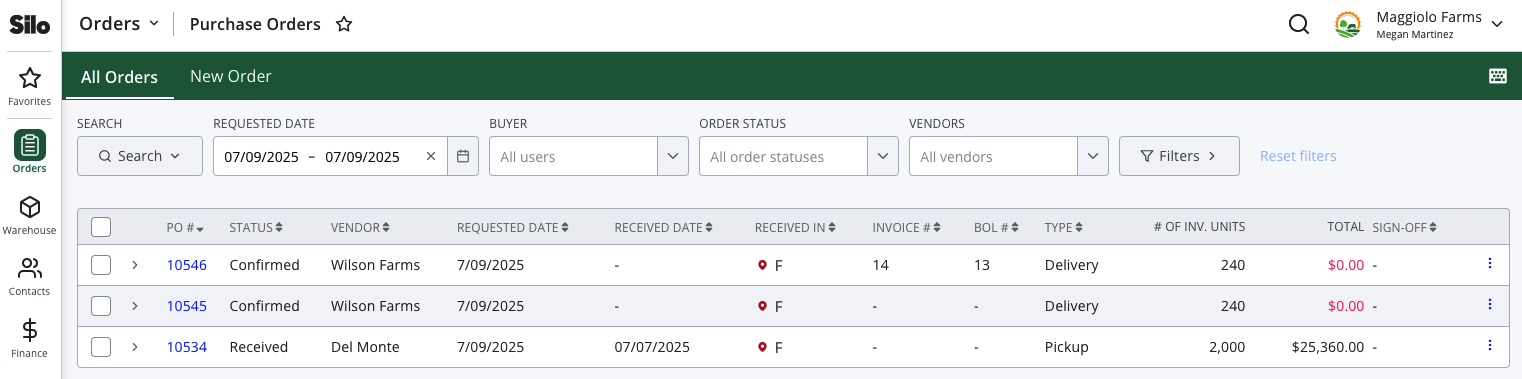
To edit an existing purchase order:
- Navigate to Orders > Purchase Orders > All Orders
- Adjust the filters or search as needed to locate the PO you wish to edit
- Expand the order by pressing the chevron, then press Edit order at the top right
- Make the necessary changes or adjustments to the order and press Save changes
- If needed, reprint or re-email the order so you can share the updates with your vendor
Note that you can still edit purchase orders after payments are applied, as long as the new total is greater than or equal to the amount of payments applied. If you need to decrease the total below the paid amount, you must unapply a payment first—see How to Undo a Vendor Payment for more information. Users also need the correct permissions to edit POs, depending on factors like the order status and applied payments. See Permissions Overview for more information.
How do purchase orders affect my inventory?
When you make a purchase, the incoming and available-to-sell (ATS) quantities for all items on the order are increasing to reflect the purchased quantities. When the order is marked as received, these units will move from incoming to on hand (O/H). The lots created by the PO will also populate in the Warehouse > Inventory screen.