To mark a sales order as fulfilled:
- Navigate to Orders > Sales Orders > All Orders
- Adjust filters or search to locate the desired order
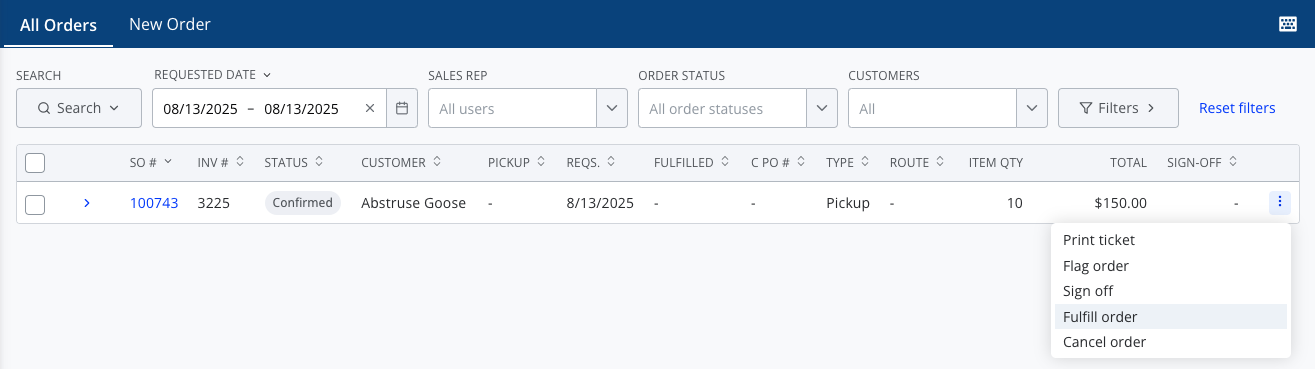
- Press the three vertical dots on the right side of the order row and select Fulfill order
- Confirm the fulfillment date (defaults to today) and fulfilled by user (defaults to the logged in user)
- Press Fulfill order—the order's status is now updated from Confirmed to Fulfilled
How is fulfillment different than sign-off?
Fulfilling an order indicates that it has left your warehouse. When you fulfill a sales order, any units that are assigned to that SO are subtracted from your on-hand and allocated inventory counts.
Signing off on a sales order alerts accounting that the sales order is finalized and ready for an invoice to be sent to the customer. Unlike marking an order as fulfilled, this has no impact on inventory—it's instead meant for internal communication of an order's status.
There are specific permissions required to both fulfill and sign off on sales orders, as well as to edit SOs that are already fulfilled or signed off, so that you can prevent non-admin users from making edits to orders that should be considered finalized.
Do I need to manually fulfill all SOs?
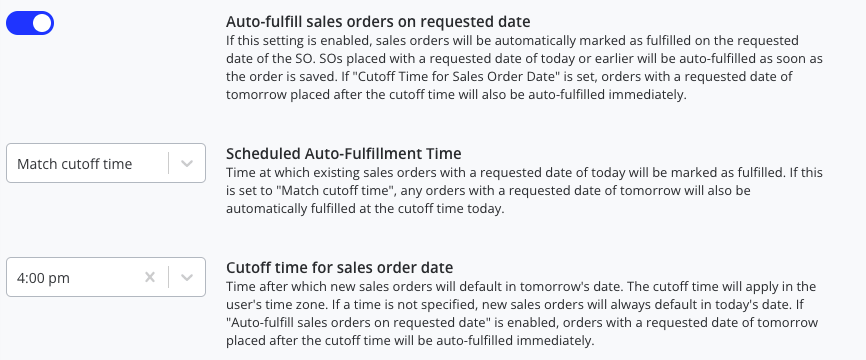
SOs need to be fulfilled as they leave your warehouse to keep your inventory counts accurate. You can either do this manually by following the steps above, or your administrator can turn on a setting in Settings > Orders to automatically mark SOs as fulfilled on their requested date. If you turn on auto-fulfillment, you can configure whether it should happen at the beginning of the day, the end of the day, or at your sales order cutoff time (the time when the requested date of SOs automatically switches to defaulting to the next day).
How do I decide whether auto-fulfillment makes sense for my organization?
Which option is better depends on the needs of your business.
If you turn auto-fulfillment ON, product will automatically be subtracted from O/H quantity on the requested date of the sales order. This streamlines the process and reduces manual work for users, but also means your inventory counts are likely to be less accurate throughout the day.
If you leave auto-fulfillment OFF, product will only be subtracted from the O/H quantity when the sales order is manually marked as fulfilled. This allows more granular control of inventory and greater accuracy about what's physically on hand, but also requires more manual steps for your users to consistently mark each order as fulfilled at the right time.