You can map expense accounts in your Chart of Accounts in Silo to their corresponding accounts in QuickBooks. This allows you to record expenses in Silo to a specific expense account and have them sync to the corresponding account in QuickBooks.
To set this up, navigate to Finance > Chart of Accounts. In the Expense Accounts section, find the account you want to map to a specific account in QB, then press the blue Edit button.
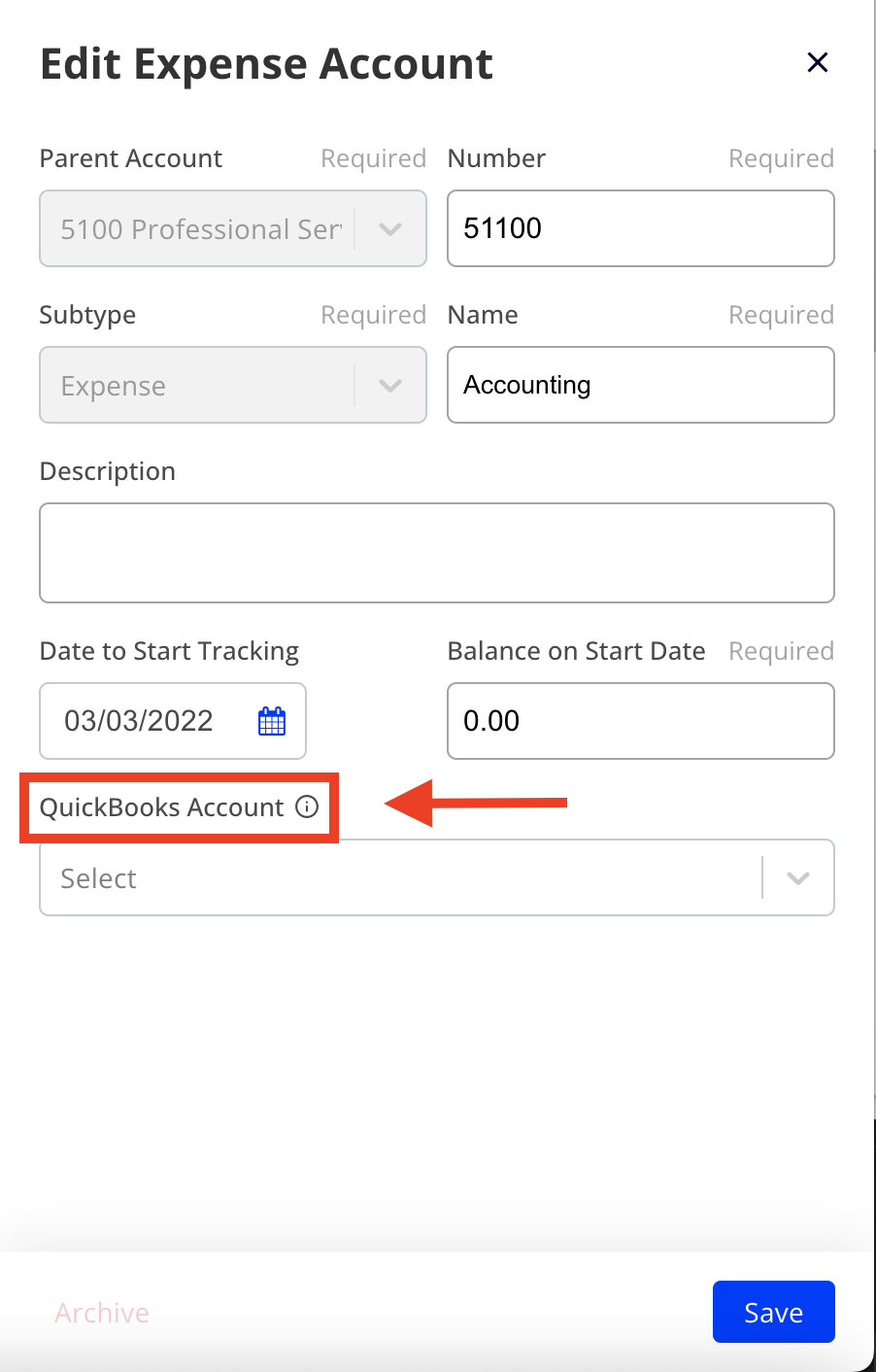
In the Edit Expense Account panel, there is a dropdown menu where you can select the QuickBooks Expense or Cost of Goods Sold account you wish to map to. Once you've selected the correct QuickBooks account, press Save.
Now when you record an expense to this account in Silo, it will automatically sync to the selected QuickBooks account through the QuickBooks integration.
If you want to see a summary of all Silo accounts that have mappings to specific QuickBooks accounts, you can view this list in Settings > Accounting in the Integrations section.