To record a customer payment:
- Navigate to Finance > Sales > Payments
- Press the Record payment button
- Select a customer from the dropdown list
- Enter a payment amount
- Adjust the invoices to be paid by selecting or unselecting the checkboxes on the left side of each invoice row
- Confirm the other payment details: method, notes (optional), date, and account (only required if using Silo Accounting)
- Press Record payment
To edit a customer payment:
- Adjust the filters or search as needed to locate the payment in the table
- Press the 3 vertical dots on the right side of the row and select Edit payment details—this opens a window where you can edit the date, payment method, check number, and notes
To print a payment receipt:
- Adjust the filters or search as needed to locate the payment in the table
- Press the value in the payment ID column to print the receipt

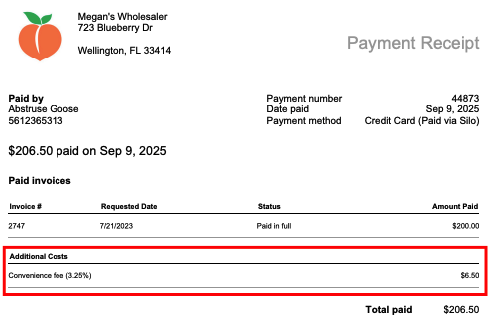
Note that if the payment was made via customer payment portal and included a convenience fee for paying with a card, this will be reflected on the receipt. As a receipt, the total shown on the receipt may not match the amount you see on the Payments screen.