Bad debt means that a customer owes you money for an outstanding invoices but after attempting to collect, you realize that they are not going to pay you.
In order to keep your accounts receivable and net income up to date, you need to record these invoices as bad debt and write them off.
There are two ways to account for bad debt in Silo:
- Record a payment and create an expense to offset it
- Create a credit and apply it to the invoice
Option 1: Record a payment + create an expense to offset
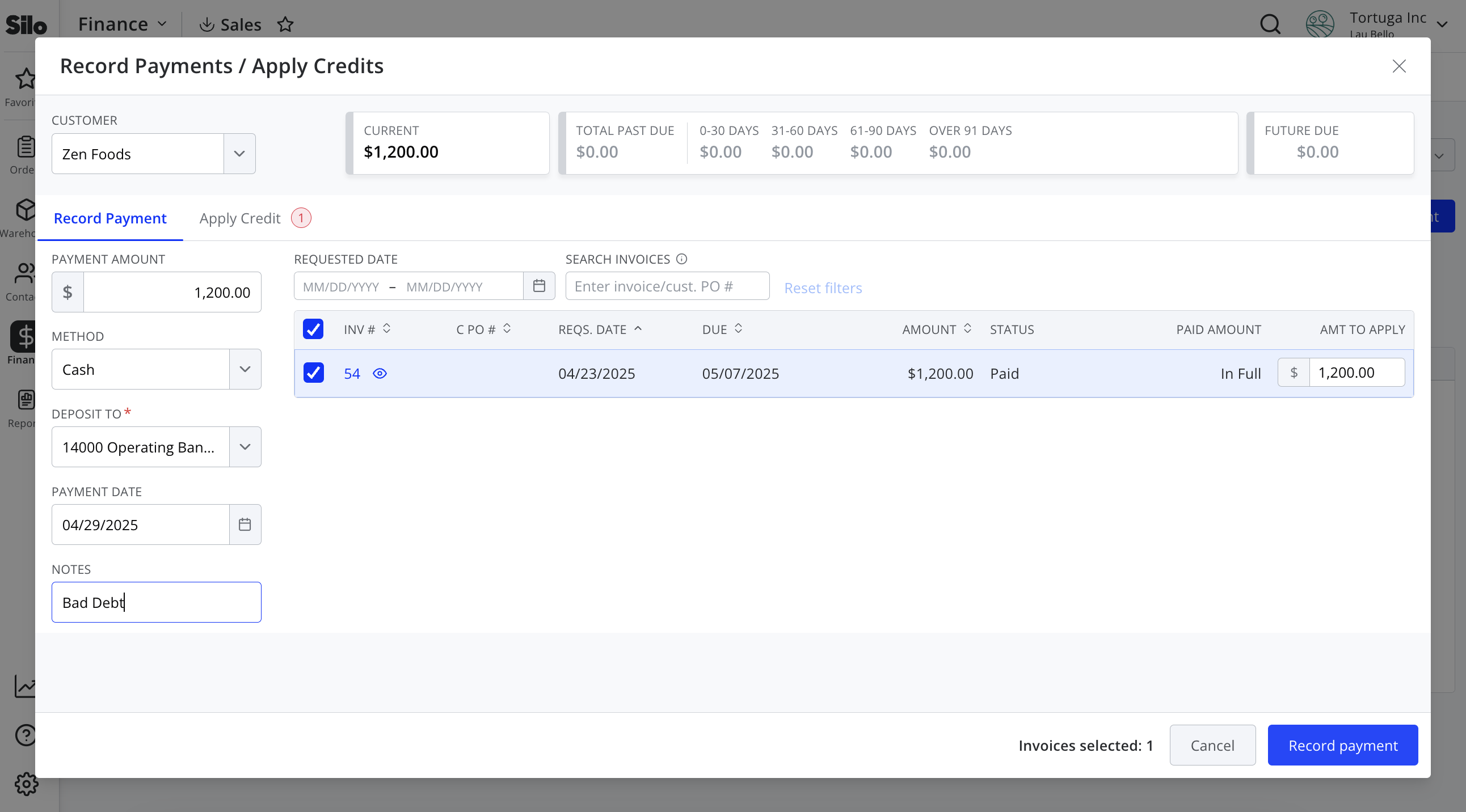
Step 1: Navigate to Finance > Sales > Payments and press Record payment. Select the customer of the invoice you are trying to write off, locate the invoice in the table, and record a payment for it with a note explaining that is it for bad debt.
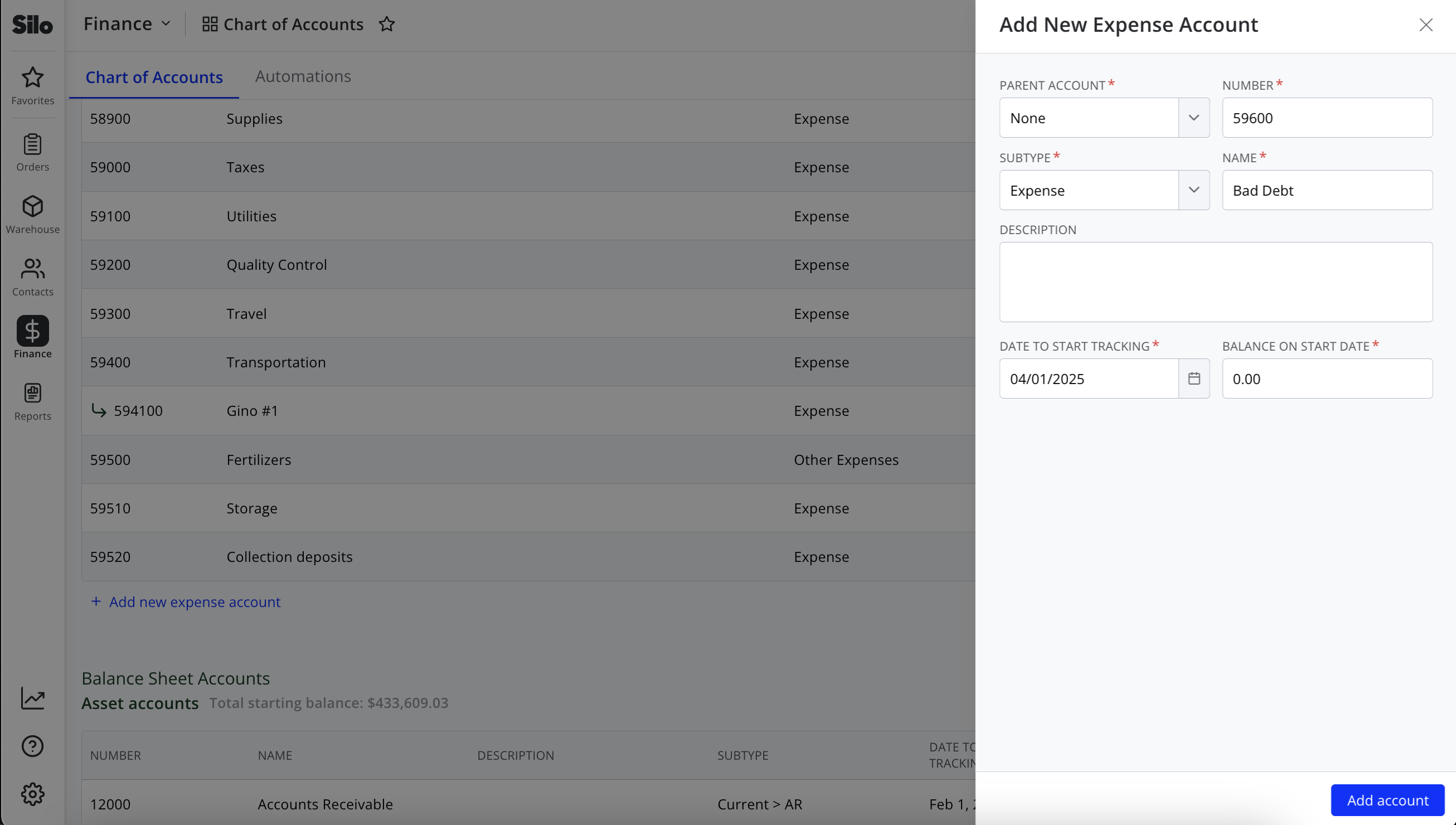
Step 2: If you are using Silo Accounting, navigate to Finance > Chart of Accounts and create an expense account for bad debt. If you are using one of Silo's QuickBooks integrations, make sure the QuickBooks account override is set to the appropriate QuickBooks bad debt account.
Step 3: In the Contacts > Vendors screen, create a vendor named "Bad Debt" if you don't have one already.
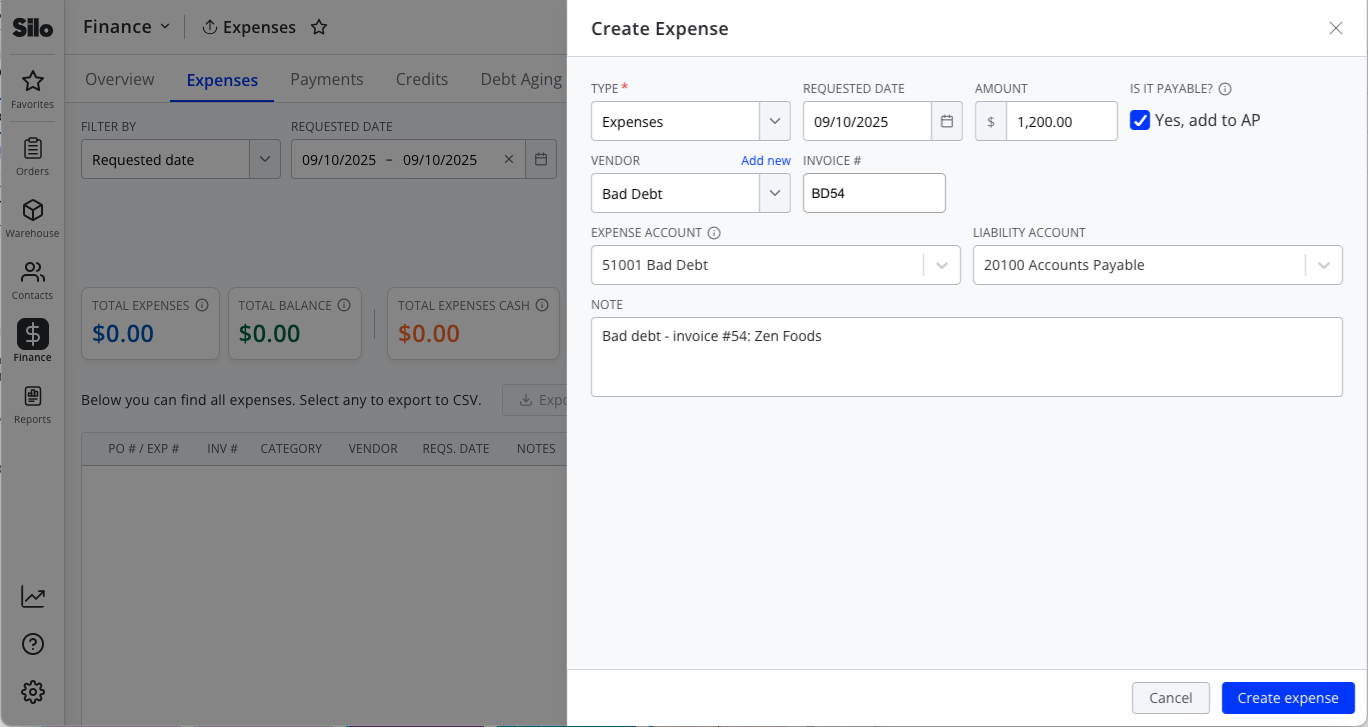
Step 4: In the Finance > Expenses > Expenses screen, create a payable expense to vendor "Bad Debt" for the total amount of the invoice you are offsetting with notes that make it easy to trace back to the original invoice. If you are using Silo Accounting, set the expense account to the Bad Debt account you previously created.
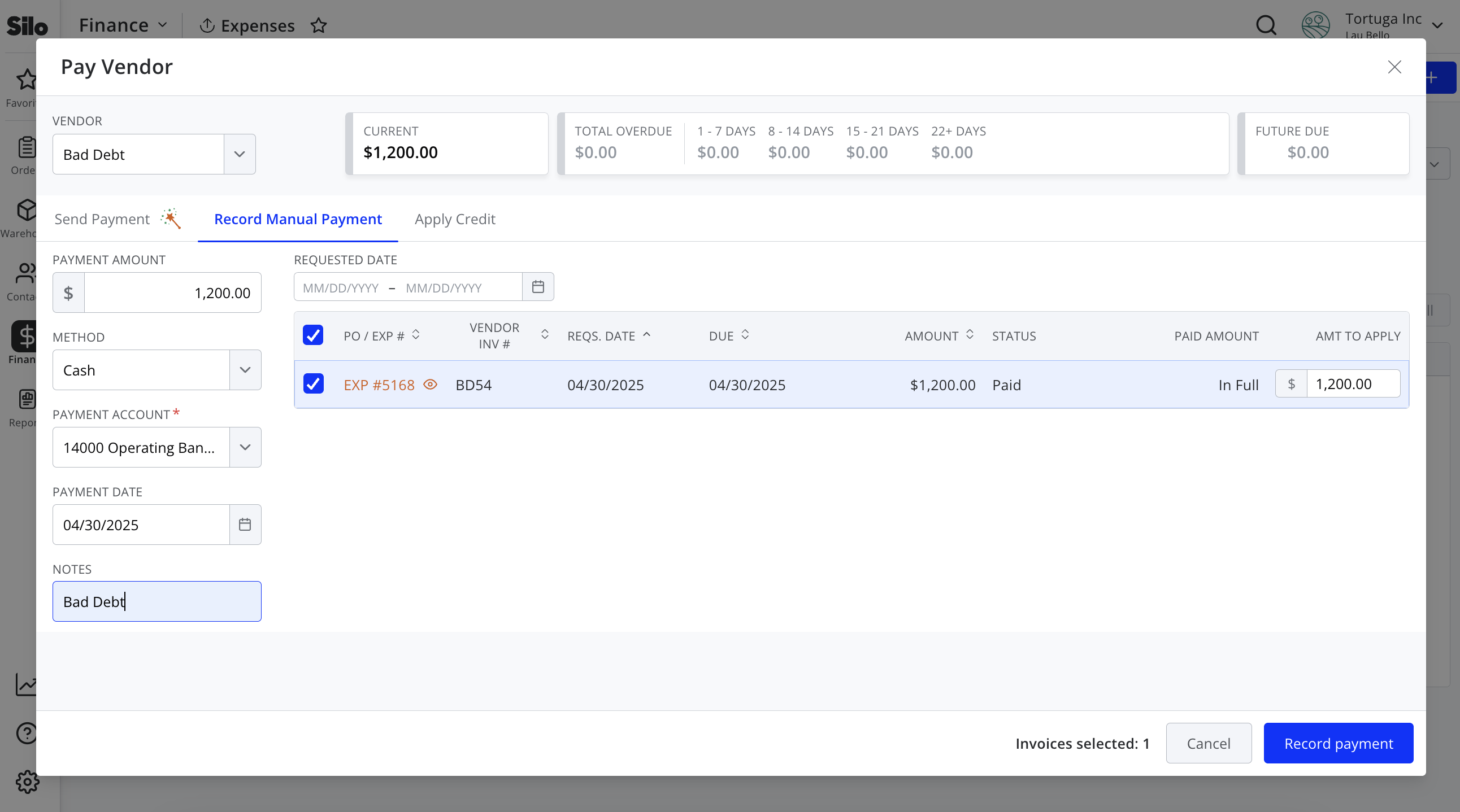
Step 5: Navigate to Finance > Expenses > Payments, press Pay vendor, and record a manual payment for the full amount of the expense you just created, with a note indicating that the payment is for bad debt.
Option 2: Create a credit + apply it to the invoice
Step 1: Navigate to Orders > Sales Orders > All Orders and adjust the filters or search to locate and open the invoice you are trying to write off.
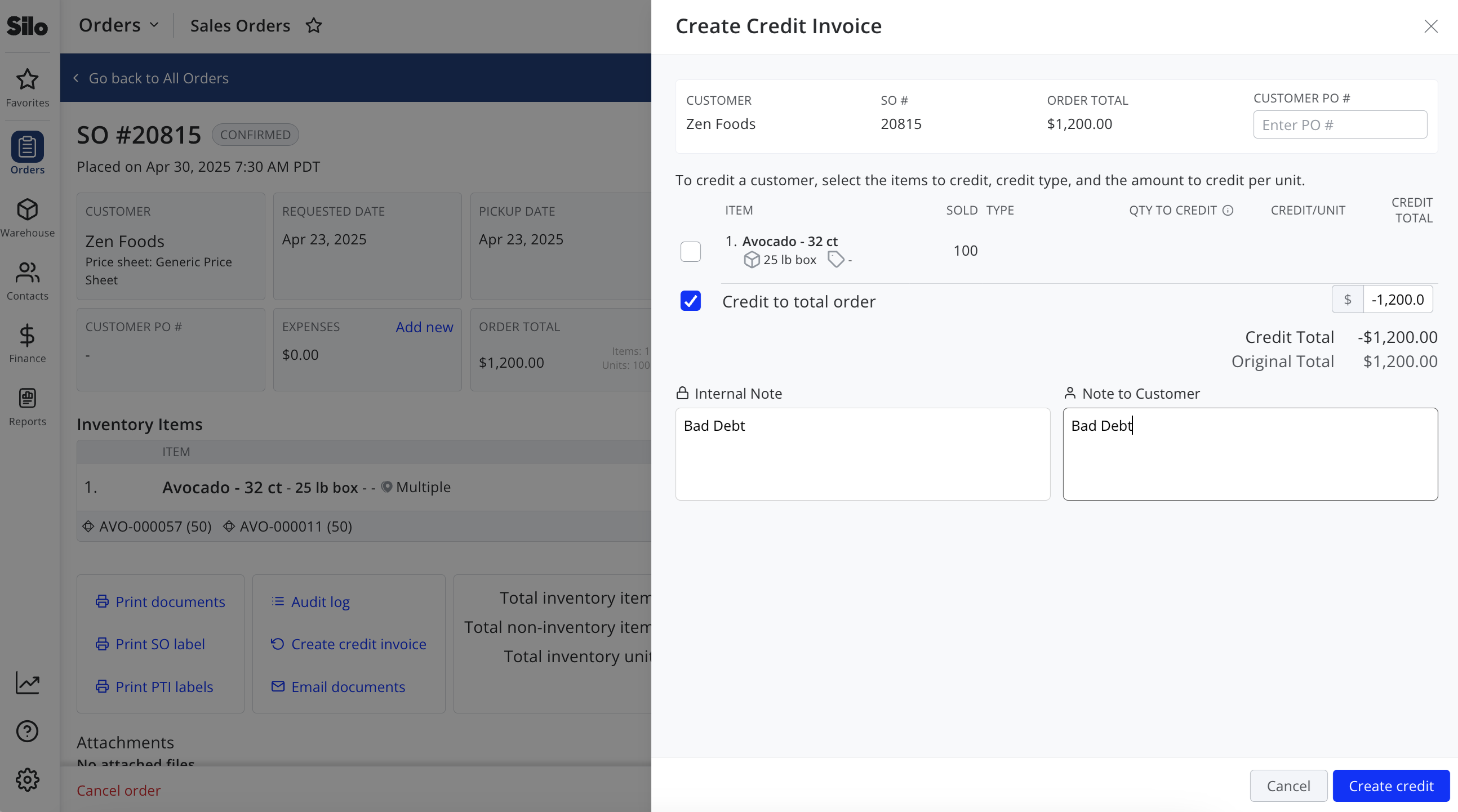
Step 2: Press Create credit invoice, select the Add credit to total order option, and create a credit to total order for the remaining balance of the invoice with an internal note explaining the reason.
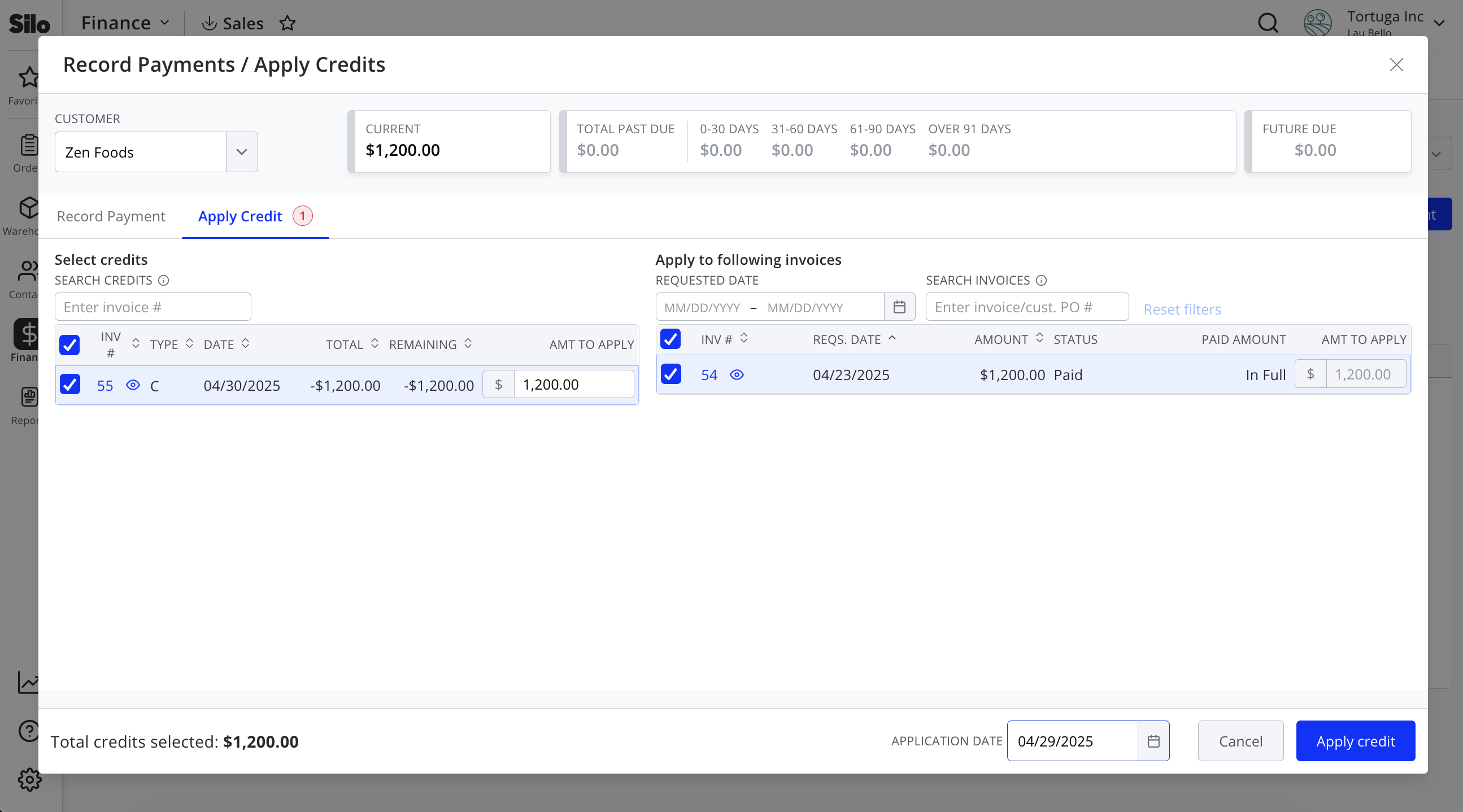
Step 3: Navigate to Finance > Sales > Credits and press Apply credit. Select the customer, find the credit you just created, and apply it to the invoice you are writing off.
Reflecting Bad Debt in QuickBooks
If you're using one of Silo's QuickBooks integrations, this is how each option would be reflected in QuickBooks:
Option 1: Recording a Payment + Creating an Expense
- The payment recorded in Silo will sync over, so the invoice will appear as paid in QuickBooks
- The "Bad Debt" expense created in Silo will sync to QuickBooks as a paid bill or expense, assigned to the “Bad Debt” vendor and your chosen expense account (example: Bad Debt Expense)
- Your Accounts Receivable will be reduced appropriately
- Your Profit & Loss statement will be reflected under your "Bad Debt" expense account
Option 2: Creating + Applying a Credit
- The credit invoice created in Silo will sync over to QuickBooks as a credit memo
- The invoice will appear as fully paid once the credit is applied
- There won't be a separate expense entry as the invoice is offset by the credit