In the Finance > Chart of Accounts screen, you can update the account number, name, description, date to start tracking, and starting balance of any of your accounts.
- Navigate to Finance > Chart of Accounts
- Press Edit on the right side of the row for the account you wish to edit
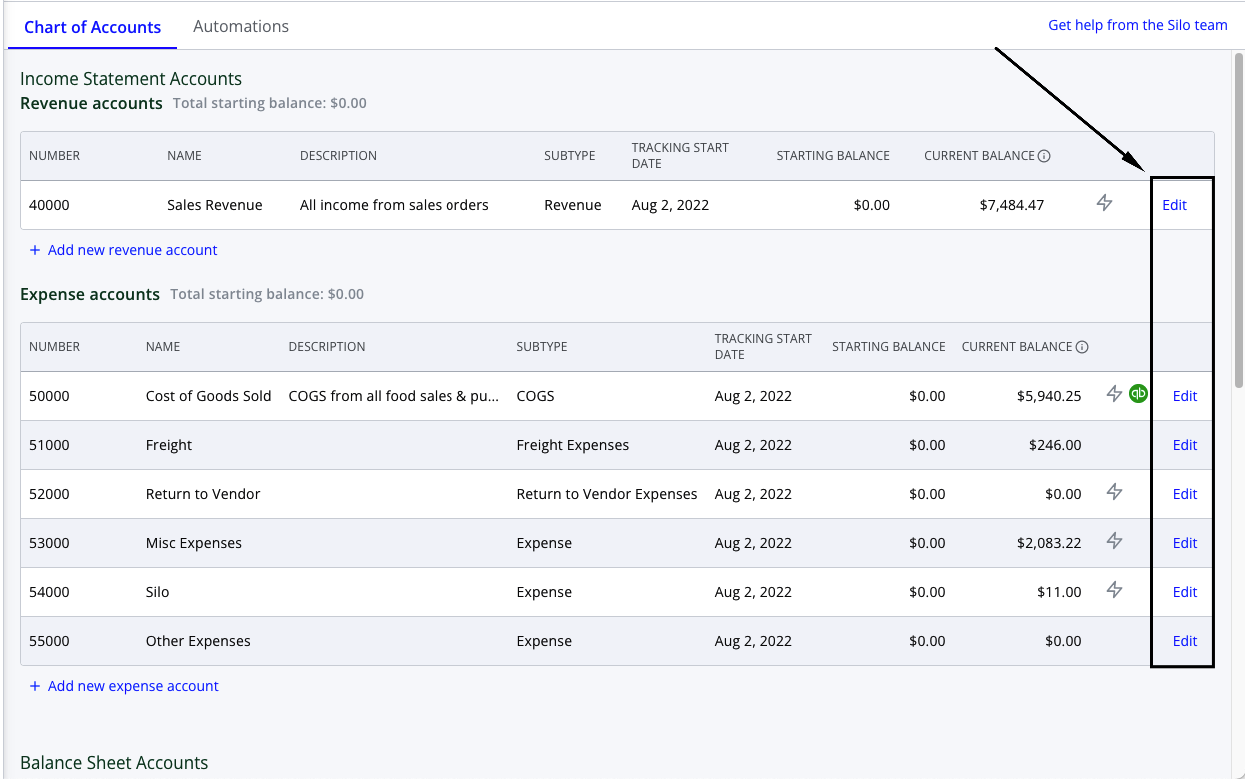
This will open a panel where most of the account fields can be edited:
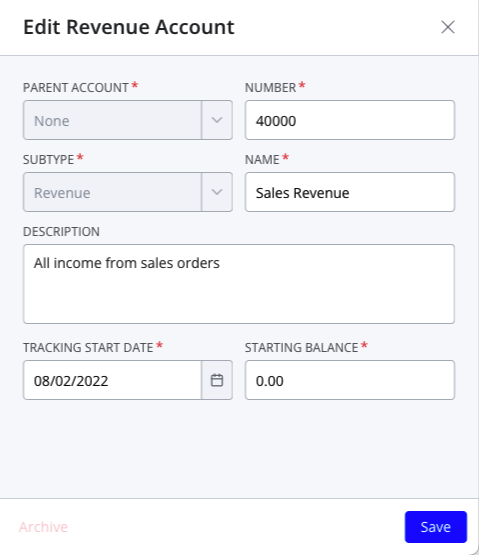
- If you update the account number and name will be reflected in other places throughout the platform that show account information (e.g., Ledgers screen and fields to select an account when recording a payment or creating an expense).
- If you move the tracking start date of an account to a later date, you will be warned that all journal entries before the new start date will be deleted and can’t be recovered.
- Note: that moving the tracking start date earlier will not automatically create any journal entries for transactions between the original start date and the new start date.
- If you edit the starting balance of an account and it results in your accounts being unbalanced (the total starting balance of the asset accounts does not equal the sum of the total starting balance of the liability and equity accounts), an error will appear at the top of the Chart of Accounts screen.
- You should resolve this error, or your accounting may need to be more accurate going forward. The Chart of Accounts screen shows the total starting balance next to each account grouping.
- The description is only for internal use; the updated description will not display anywhere else in the platform besides the Chart of Accounts screen.
You can also add new accounts from this screen by pressing the Add new account link under the appropriate section (Revenue, Expense, etc.), same as when initially configuring your chart of accounts. Note that when you create an account for an existing chart of accounts, it cannot be deleted, so make sure you confirm that all fields (especially Parent Account and Subtype) are set correctly before adding it.
You can also archive existing accounts from this screen. This will prevent them from appearing in accounting reports going forward (although historical data will still be visible in places like the Ledgers screen). Archiving will also prevent users from selecting them for any accounting automations or creating any manual journal entries in them.
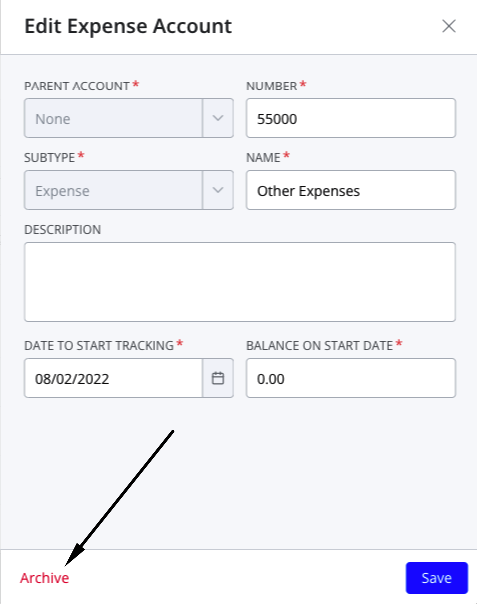
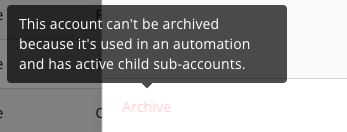
Note that accounts can only be archived if they are not currently being used for an automation and if they have no active child accounts. If either of these conditions are not met, the Archive button will be disabled.
Archiving is the only way to stop using an account; Silo doesn't currently offer the option to completely delete them. If you created an account in error and wish to delete it, reach out to Silo Support.