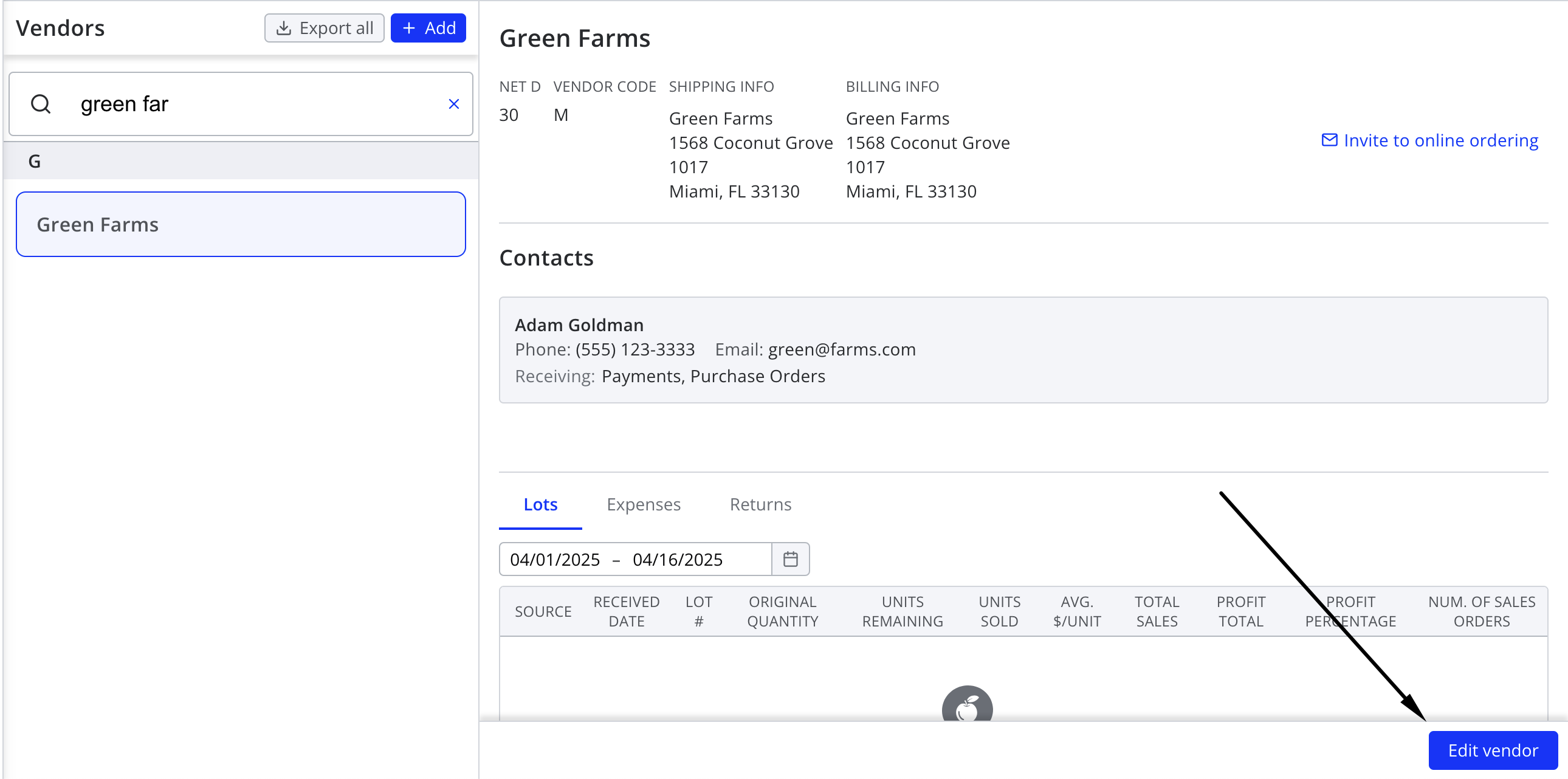
To make changes to a vendor, navigate to Contacts > Vendors. From there, select the vendor you'd like to edit from the list on the left, then press Edit vendor in the footer of the right pane.
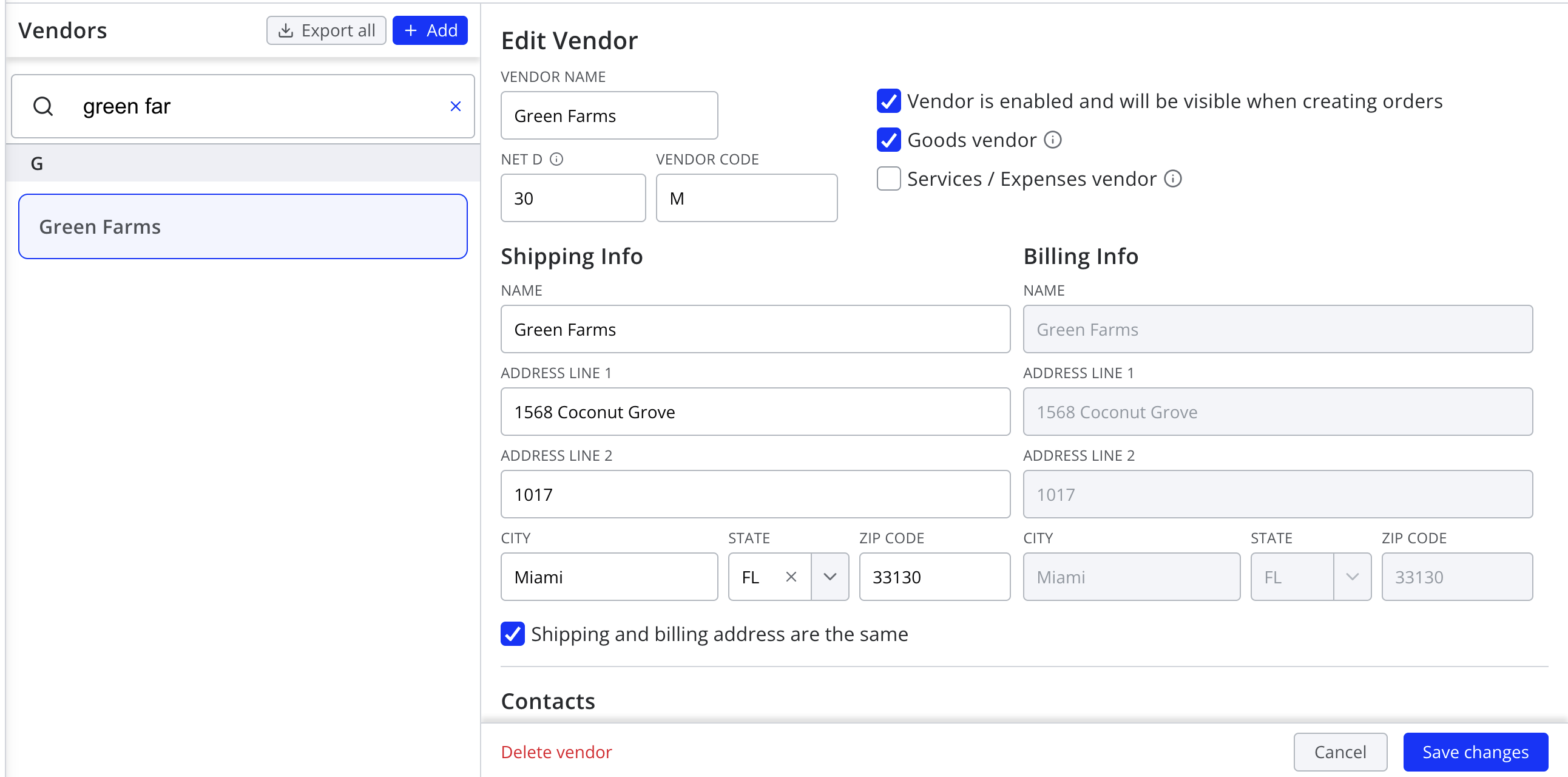
Once in edit mode, you'll have the option to adjust the vendor's shipping information, billing information, net D, credit limit, vendor code (if applicable), notes, and additional contacts. Be sure to press Save changes after you're done making edits.
Note that when you change a vendor's Net D, only POs and expenses created after the change will reflect the new terms. Existing payables will keep their original due dates unless you edit their requested dates.
Adding a Payment Contact (required for sending payments via BillPay)
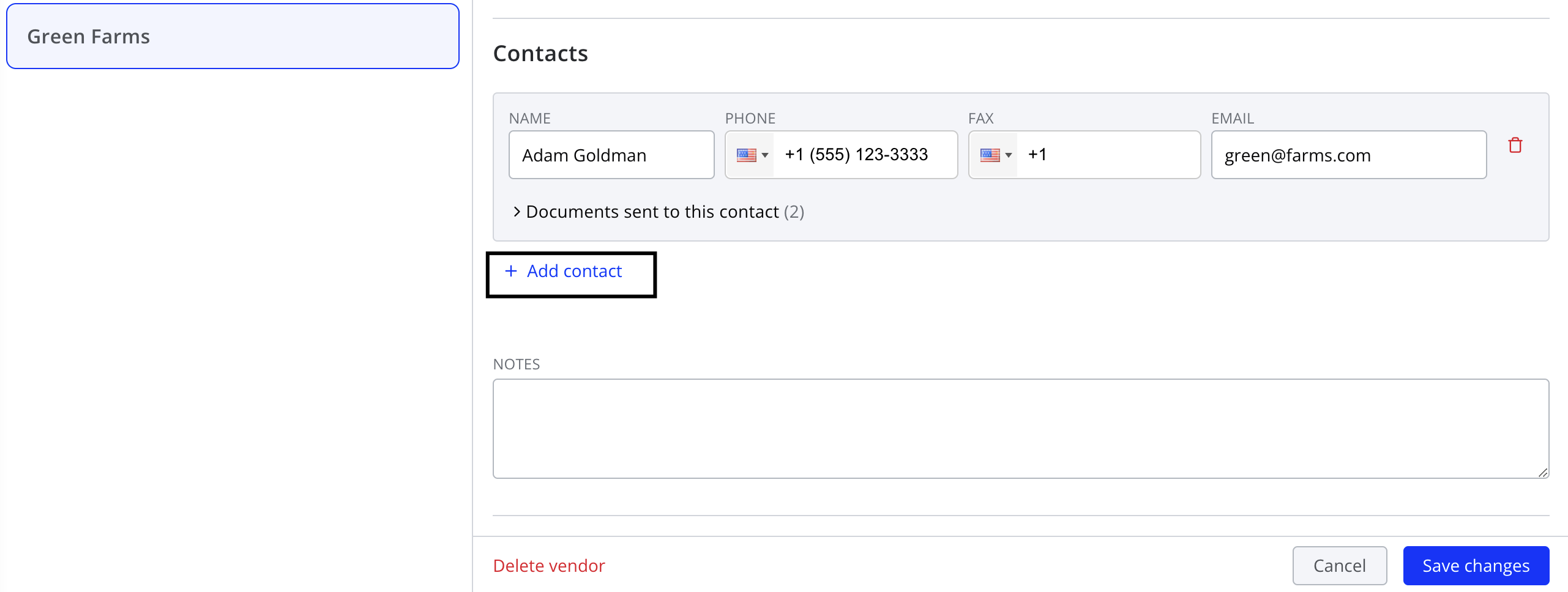
Once you're in edit mode for the vendor, press Add contact near the bottom of the right pane.
You can then enter a name, phone and fax number, and email address, as well as select the type of communications the contact should receive (Payments for emails regarding BillPay and Purchase Orders for notifications when a PO is placed).
Deleting a Vendor
To delete a vendor, first enter edit mode by pressing Edit vendor in the footer of the right pane. You should then see a Delete vendor button appear on the left.
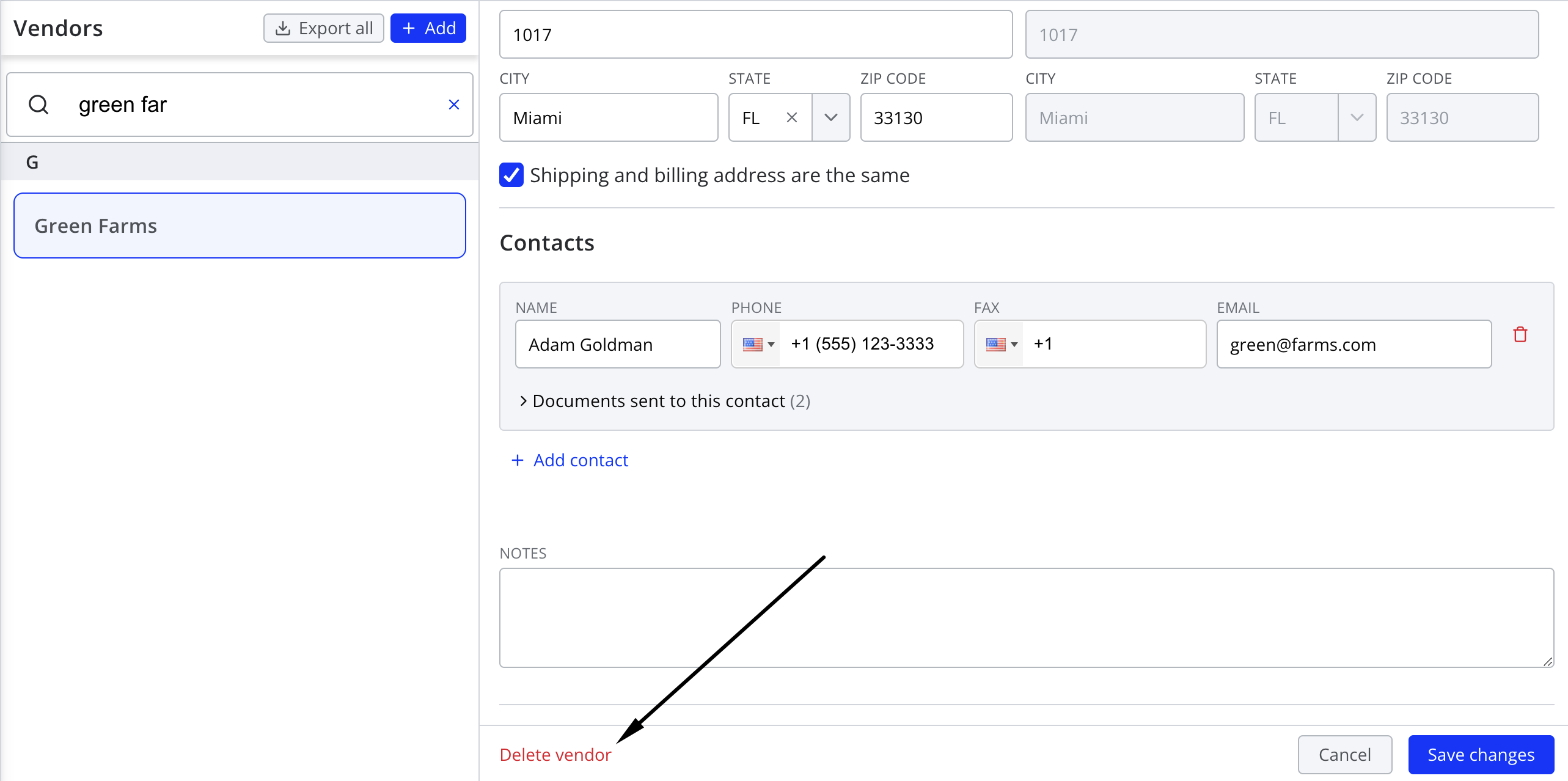
Note that this option is only available if the vendor has no historical orders, returns, payments, or expenses. If they do have transaction history, the button will be disabled to prevent orphaning all of these transactions within Silo.
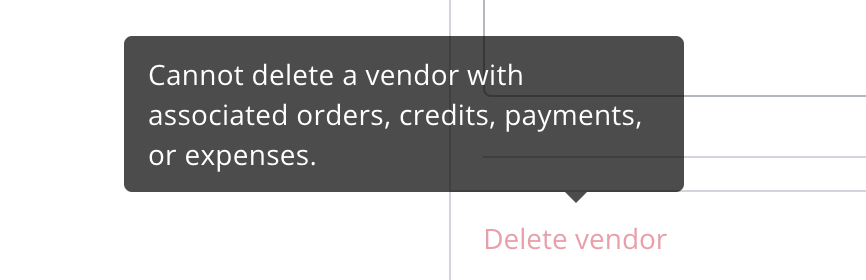
You have a few options if you no longer want to see this vendor:
- Change the vendor on the existing transactions. If this is not possible, you may need to reach out to Silo support.
- Disable the vendor instead. This keeps them in Silo, but prevents users from creating orders for them going forward.
Disabling a Vendor
Disabling a vendor prevents them from being selected in ordering workflows. They will still be visible in accounting workflows and you can still send and record payments to them. This is a good way to indicate that you are temporarily or permanently no longer doing business with a specific vendor (for example, because they've gone out of business).
To disable a vendor, first enter edit mode by pressing Edit vendor in the footer of the right pane. Then, unselect the Customer is enabled and can be selected when creating orders checkbox.
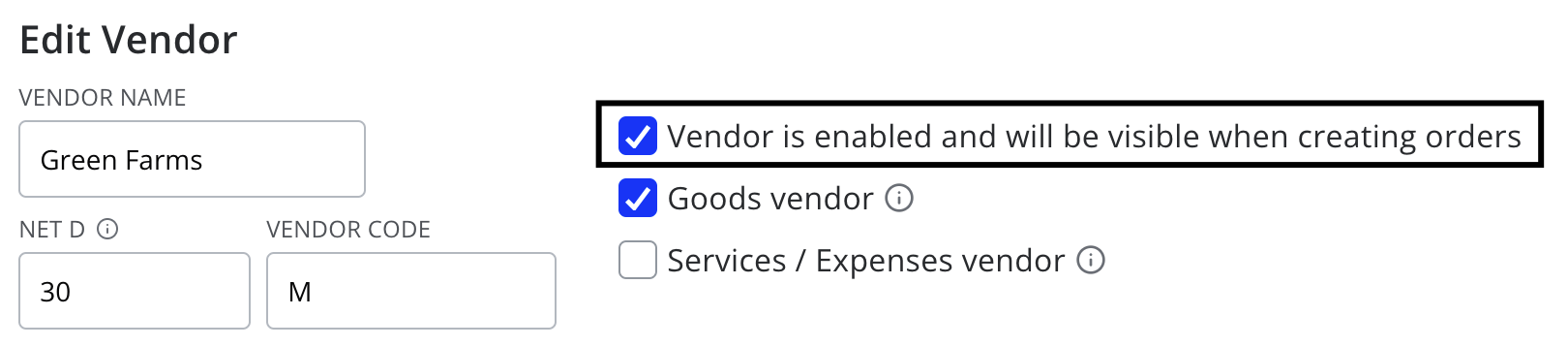
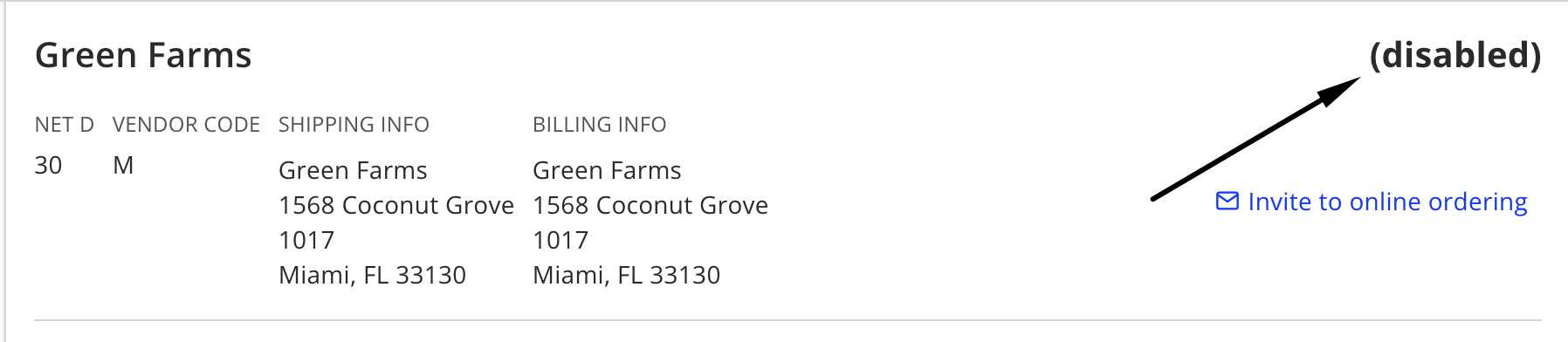
After you press Save changes, you should see "(disabled)" appear in the header of the vendor profile.