To include country of origin on invoices, BOLs, and sales confirmations:
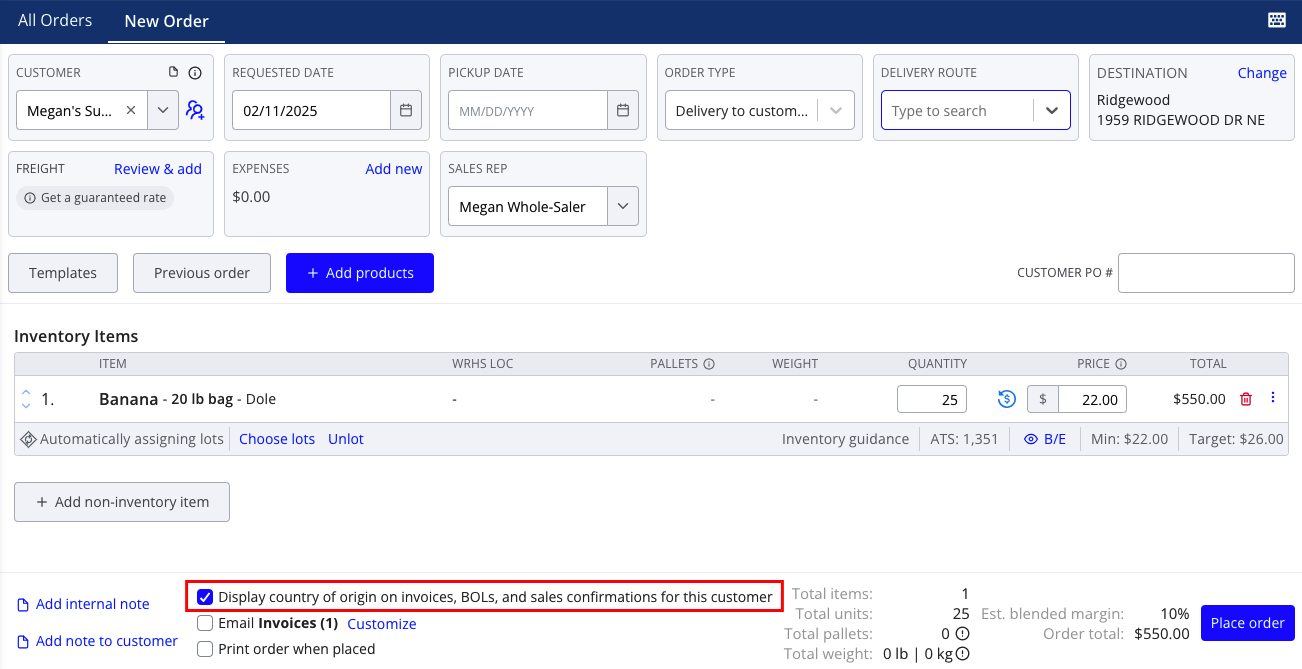
- Create a new sales order and select a customer
- In the order footer, make sure the checkbox labeled Display country of origin on invoices, BOLs, and sales confirmations for this customer is selected
- Finish placing the order as normal. When you print documents for this order, the country of origin display for all assigned lots with a country specified should appear.
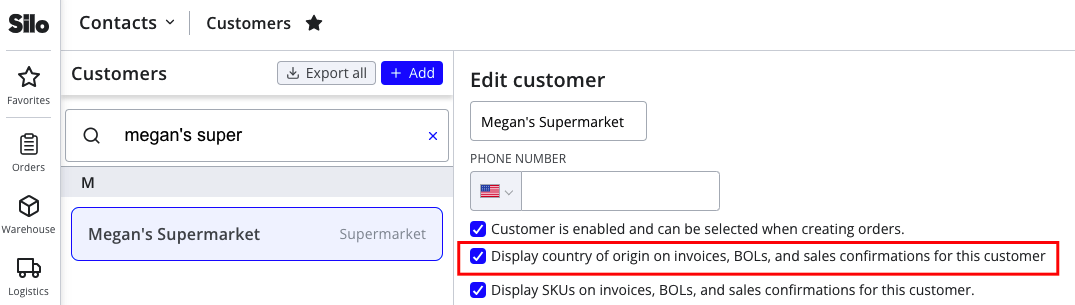
Note that you can also edit how this checkbox defaults for each customer by toggling the Display country of origin on invoices, BOLs, and sales confirmations for this customer checkbox on the Customers screen.
To include country of origin on pick tickets:
- Navigate to Settings > Orders
- Make sure the Show country of origin in pick tickets setting is toggled on
- Print the pick ticket for a sales order as usual - you should see the country of origin display for any assigned lot with a country specified
