The Orders > Delivery Routes screen allows you to configure delivery routes to suit your organization's needs. You can specify a name and description for the route, available days of the week, order minimum, and delivery fee. You can also use a map to search for zip codes along the delivery route and select which zip codes you deliver to.
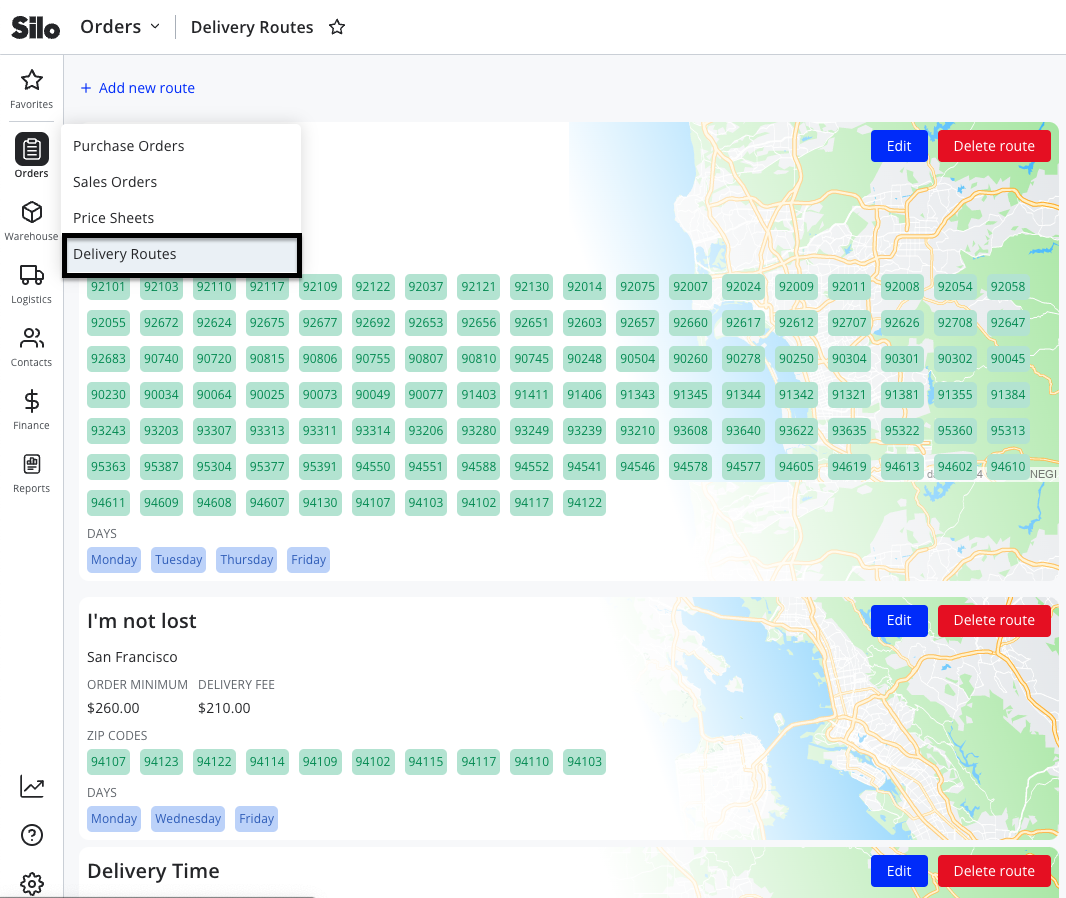
To create a delivery route:
- Navigate to Orders > Delivery Routes
- Press Add new route
- Fill in the required Route Name and Description fields
- Select the day of the week checkboxes to indicate which days this route runs—this will control which SO requested dates it is available for
- Fill in the delivery fee. If there is no fee for the route, enter $0.
- Optionally, enter the zip codes through which the route runs (or use the map to select them)
- Press Save changes
Note that you can create to delivery routes to best fit your organizational needs. For example, if you don't have defined routes but instead track who delivers each sales order, you might create "routes" that are named after each of your delivery drivers so that they can be assigned to the SOs they're responsible for delivering.