Adding expenses to sales orders is a way to ensure your lot performance takes into account additional costs related to the sales of those items.
To create an expense connected to a new sales order:
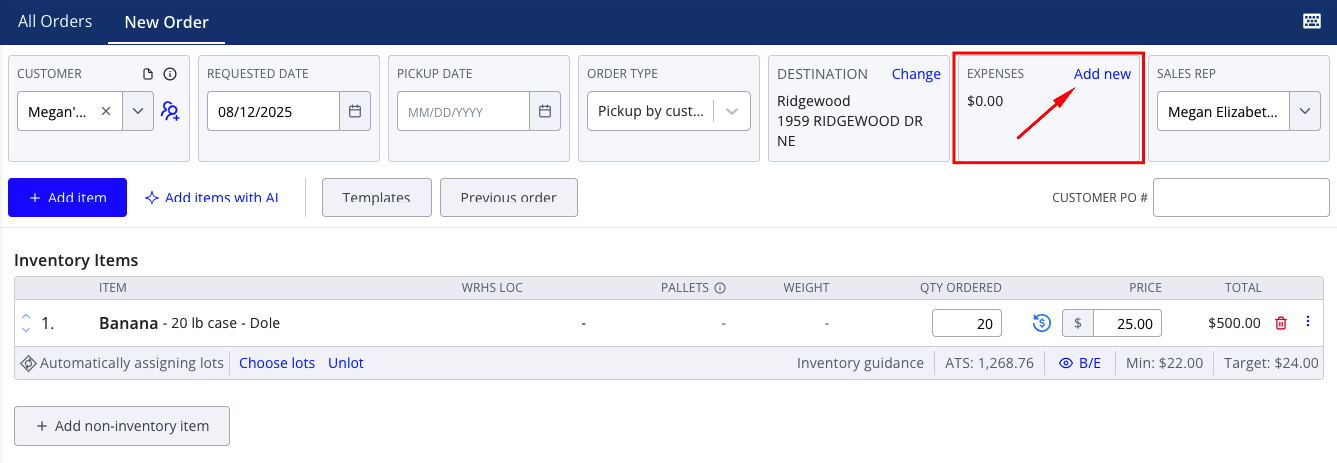
- Navigate to Orders > Sales Orders > New Order
- Select a customer, add products, and fill in any other necessary information
- In the Expenses box in the header, press Add new
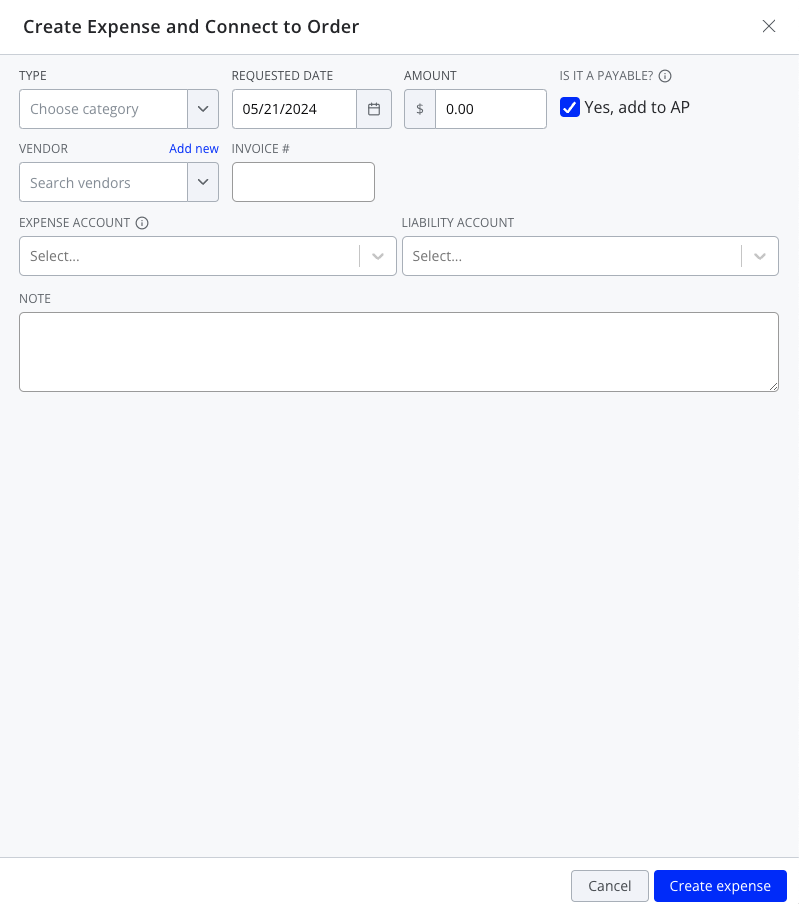
- Select a type, fill in the expense amount, and confirm that the requested date and expense/liability accounts (if applicable) are correct
- If the expense is payable (i.e., you want to track the payment to a vendor in Silo), select the Yes, add to AP? checkbox, select a vendor, and add an invoice number if applicable
- Enter any additional details
- Press Create expense
- Finish placing the sales order as normal