To create a new vendor:
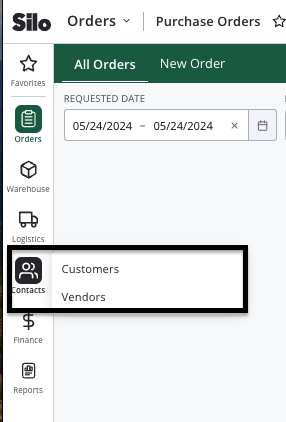
- Navigate to Contacts > Vendors
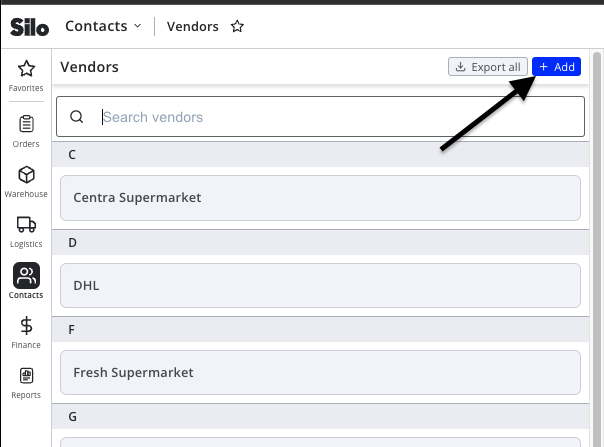
- Press Add at the top of the left pane
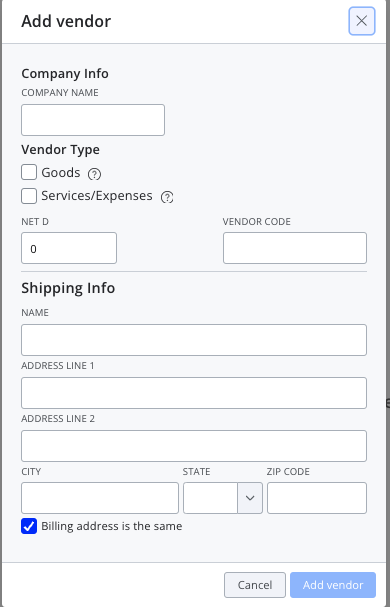
- Enter the required information (company name, vendor type, and net D) and any other additional details
- Press Add vendor
To create a vendor while placing a purchase order:
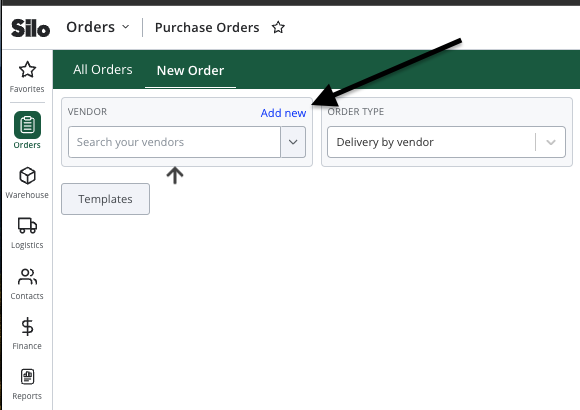
- Navigate to Orders > Purchase Orders > New Order
- Press Add new above the Vendor field
- Enter the required information—note that you cannot unselect the Goods toggle since this is required for a vendor to be selected on a PO
- Press Add vendor—the vendor now exists and is automatically selected in the Vendor field for the order
To create a vendor from a new expense:
- Navigate to Finance > Expenses > Expenses (or any other workflow where you can create an expense)
- Press Add new expense
- Press the Add new link above the Vendor field
- Enter the required information—note that you cannot unselect the Services/Expenses toggle since this is required for a vendor to be selected on an expense
- Press Add vendor—the vendor now exists and is automatically selected in the Vendor field for the expense
For further information on how to edit a vendor, see the article below: