Invoices in Silo can be printed and given your customers or sent directly to customer contacts via email or fax. This article breaks down what information appears on the invoice and what configuration options are available for it.
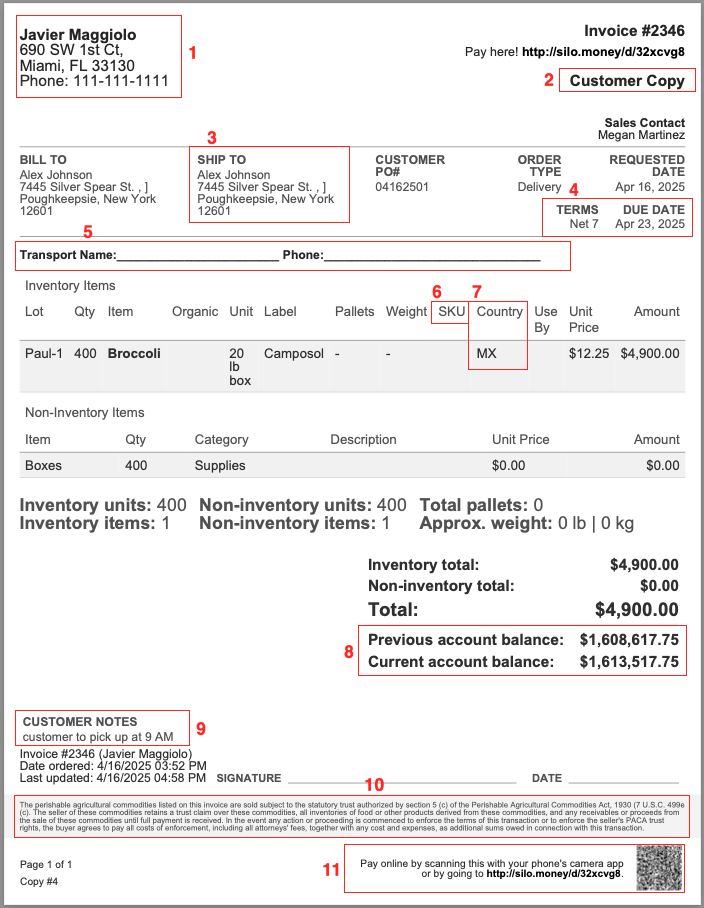
- The top left corner of the invoice displays the shipping name, shipping address, and company phone number for your Silo account. If you have a separate billing address, it will display below under a "Please remit payment to" heading. These addresses are configured during implementation, but if you need to update them you can reach out to Silo Support.
- The label at the top of the printed invoice is configured in the Purpose Label setting in Settings > Orders > SO print settings.
- The Ship To name and address come from the Destination selected on the sales order. You can select any of the customer's addresses as the destination.
- The terms displayed (and the due date calculated from it) are based on the customer's terms at the time the sales order was created. If you edit the customer's terms, existing SOs will not be retroactively impacted and will continue to show the old terms on their invoices.
- The banner text that displays above the item list on invoices (as well as other printed SO documents) can be configured in the BOL, Invoice, and Sales Confirmation Banner Text setting in Settings > Orders > SO print settings.
- SKUs can be configured to display on all invoices by turning on the Show SKUs in invoices, sales confirmations, and BOLs setting on the Settings > Orders screen. If you only want them to display on certain invoices, there is also a customer-specific Display SKUs on invoices, BOLs, and sales confirmations for this customer setting that can be configured on the Contacts > Customers screen.
- Country of origin display is also a customer-specific setting. You can change it while placing a sales order by toggling the Display country of origin on invoices, BOLs, and sales confirmations for this customer checkbox in the order footer, or you can change it at any time from the Contacts > Customers screen. This will affect future orders, but you'll need to reprint to see the country of origin on existing invoices.
- You can configure customer balance information to appear below the invoice total by turning on the Show customer balance on invoices setting on the Settings > Orders screen. Note that this will be the balance as of the requested date for the order at the time the invoice is printed or emailed. If subsequent invoices are created for the customer, this may not match their latest balance.
- Any customer notes entered on the order will display on the invoice, as well as any customer notes specified on the order items. Internal notes won't display—they'll only appear on internal printed documents like the pick ticket.
- Silo has a default PACA disclaimer that displays at the bottom of invoices. If you want to customize the disclaimer text that appears, reach out to Silo Support.
- If you are using Silo Collections, you'll have the option to show a QR code and link to allow customers to send you a digital payment for their invoice. Whether these appear on invoices by default can be configured in Finance > Silo Pay by pressing Edit next to the How you're receiving payments heading. They can also be turned off for a specific customer from the Contacts > Customers screen by editing the desired customer and toggling the Hide digital payment link from this customer's statements and invoices checkbox.