Why close a lot?
Closing a lot indicates that you've sold through all available quantity, all documentation (e.g., purchase price) is accurate, and you are ready to close it out. Regularly closing lots helps prevent Silo from getting cluttered with data that is no longer relevant to your sales and inventory workflows. Closing old lots can also help improve the performance of the Warehouse > Inventory screen and other places in Silo that load information about open lots.
What happens when I close a lot?
- The lot no longer appears in the Inventory screen lot drawer for the item.
- The lot won’t appear when attempting to assign lots for that item in a sales order.
- Any remaining units on hand will be marked as closing loss, impacting lot performance calculations.
What if I need to find a closed lot?
- Closed lots can still be searched for on the Lots screen.
- Transactions for closed lots are still visible in the Inventory Transactions list for an item in the Inventory screen.
- If needed, you can reopen a closed lot by accessing the Lot Details window and pressing Open lot.
Is there a way to auto-close lots?
Yes. In Settings > Inventory > Inventory Management, there is a setting called Days after which to auto-close received lots with 0 O/H that can be turned on by administrators. If this setting is set to a number, any lot older than that number of days that has been received and has no remaining quantity on hand will be automatically closed. This process happens once a day at 2:30 PM Pacific time, so you may need to wait a day to see changes after turning on the setting. If you would like to disable this feature, you can simply clear the number from the field. 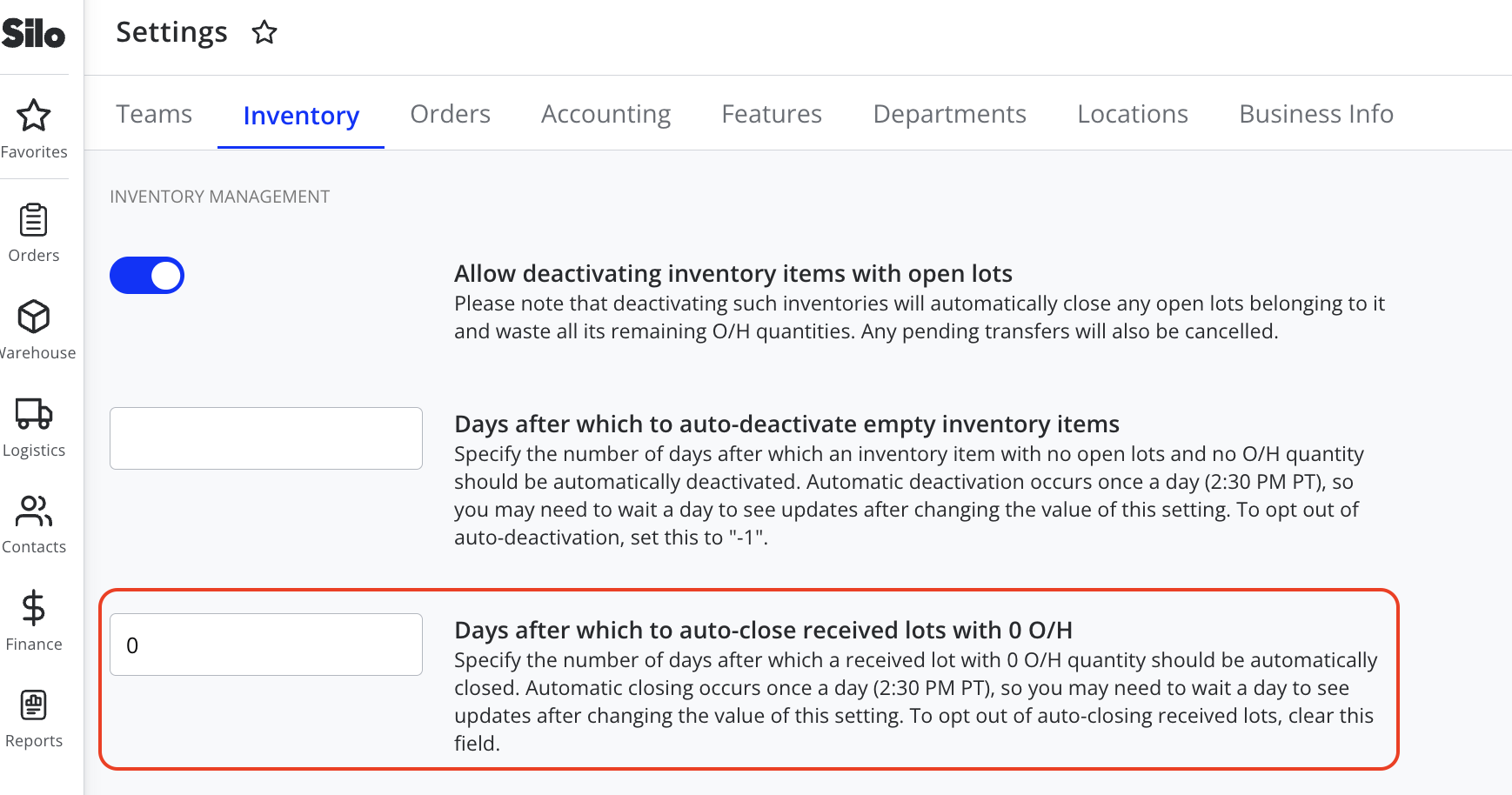
How do I close or reopen a lot?
- Navigate to the Warehouse > Lots screen
- Adjust the filters or search as needed to find the desired lot
- If needed, press Edit on the purchase order to which the lot belongs to make edits to the Cost/Unit or Profit %
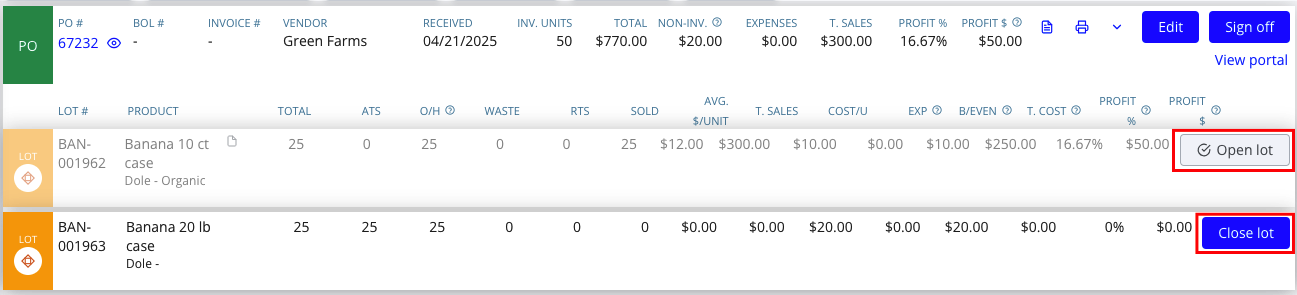
- Press Close lot to close an open lot, or Open lot to reopen a lot that has already been closed
What if the lot is oversold?
In some workflows, such as cancelling a restock credit, it's possible for a lot to become oversold. This likely reflects some incorrect documentation in the system and can result in inaccurate performance calculations. As a result, users are not able to close lots that are oversold until they correct this documentation.
In order to close the lot, first use the Sales Transfer workflow to either unlot or transfer one or more of the sales currently assigned to this lot so that it is no longer oversold.
For further information, see the following article: