Why change your bank details in Silo?
If you've made changes to your bank account or would like to change where customer payments are deposited or where payments to vendors are withdrawn from, you'll need to update your bank information in Silo.
To change your bank account:
- Navigate to Finance > Silo Pay
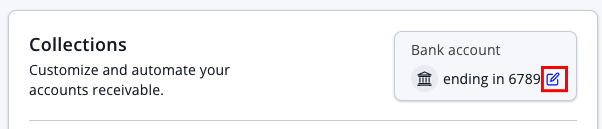
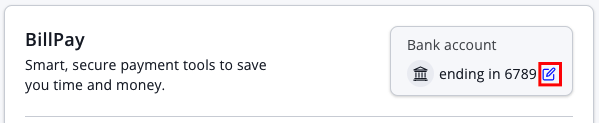
- If you wish to change the account where customer payments are deposited, press the edit icon next to your account number in the Collections section (left side). If you wish to change the account from which vendor payments are withdrawn, press the edit icon next to your account number in the BillPay section (right side).
- When the Plaid window opens, press Continue
- Select Instant and follow the steps to connect your account. We highly recommend this method as it's the quickest way to safely connect your account without having to receive micro-deposits.
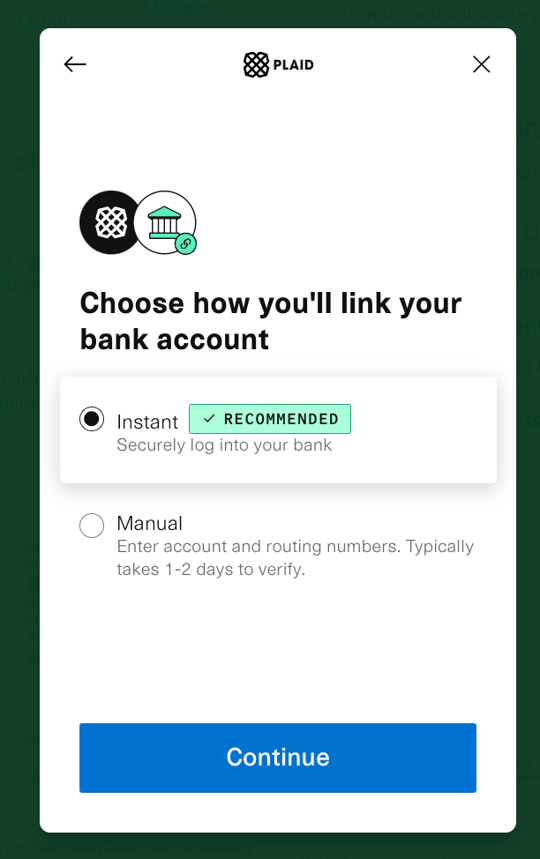
- Alternately, if your banking institution is not available on Plaid or you don't have access to the credentials for the account, you may also use the Manual method. Please note: you'll receive a microdeposit to your bank account, which typically takes 1-2 days to verify.
To update your journal entry automations:
- Navigate to Finance > Chart of Accounts.
- Confirm there is an account listed that represents the new bank account you are using. It should have a type of Asset and a subtype of Current > Bank.
- Navigate to the Automations tab.
- Update the settings for Silo Pay: Collections and/or BillPay to your new bank account to ensure that journal entries are automatically created in the correct account.
Once you've updated your automations, you may also want to return to the Chart of Accounts tab and archive your old bank account if it is no longer in use. For more information about account archiving, see the following article: