Delivery fees are recorded as non-inventory items that automatically default in on a sales order based on the selected delivery route. To add a delivery fee:
- Navigate to Orders > Sales Orders > New Order
- Select your desired customer
- Make sure the order type is set to Delivery to customer so that the Delivery Route field appears.
- In the Delivery Route field, select the appropriate route—you should now see a Delivery Fee non-inventory item added to the bottom of the order.
- If needed, edit the price of the delivery fee item.
- Finish adding items and placing the order as usual.
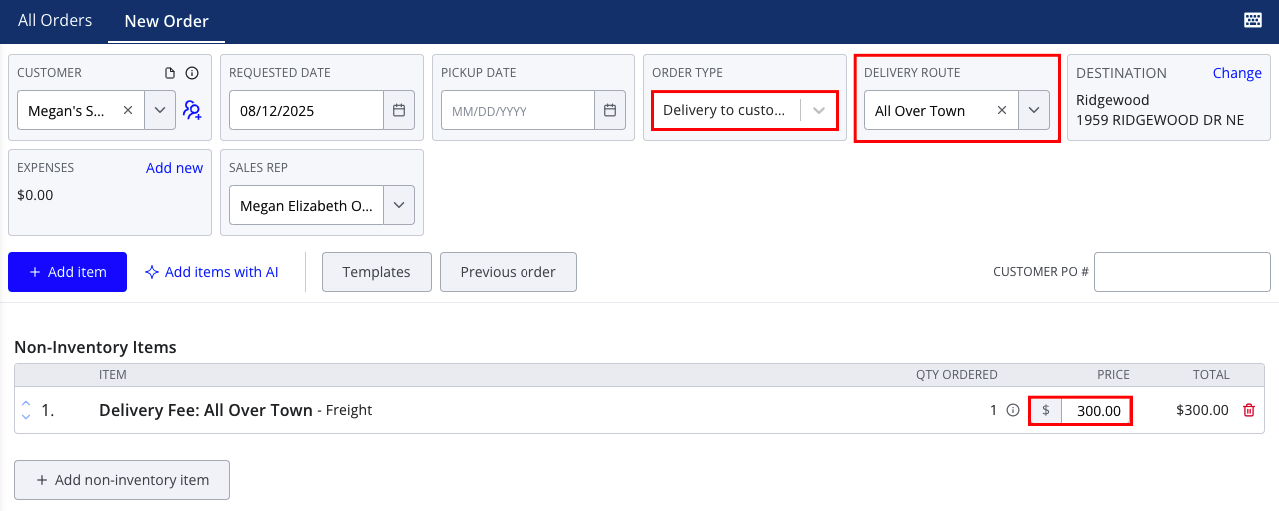
Note that you cannot delete the delivery fee non-inventory item without also clearing the
Delivery Route field. If you don't wish to charge a delivery fee, you can simply set the price to $0 and it will be left off of the invoice for your customer.
For information about configuring default routes for your customers, see the following article:
For more information about other non-inventory items, see the following article: