Overview
Price sheets allow you to set a price for each item in your inventory that will be used for a specific group of customers (e.g., restaurants or wholesale customers). This gives salespeople more accurate pricing guidance based on the customer they select when creating a sales order.
Price sheets are a key communication tool between users, sellers, and customers. Frequently users outside of Silo manage these via large, cumbersome spreadsheets. Silo's price sheets are designed to help maintain this communication tool while cutting down the time and effort required to keep them updated.
Setup
Price sheet prices can be created and assigned to customers from the Price Sheets tab under Inventory on the navigation bar.
Prices for each item on a price sheet can be edited from the Pricing sub-tab in the Inventory screen. From here, users can also "publish" these prices, either by toggling the Published column for an individual item or by multi-selecting and using the Publish items button in the bulk action footer. Items with published price sheet prices appear in the printed price sheets generated by Silo
Parent vs. Dependent
Parent price sheets are independent; prices for inventory items are set directly on the price sheet. Dependent price sheets are based on a parent; item prices are set to +/- a percentage of the parent price sheet’s prices by default (although they can be manually overridden). Dependent price sheet prices are automatically adjusted each time a parent price sheet price is changed, allowing users to update pricing across multiple sheets quickly. Note that dependent prices will match the number of decimals on the parent - so if the price on the parent price sheet has only 2 decimal places, the dependent price will be rounded to 2 decimal places as well.
Sending
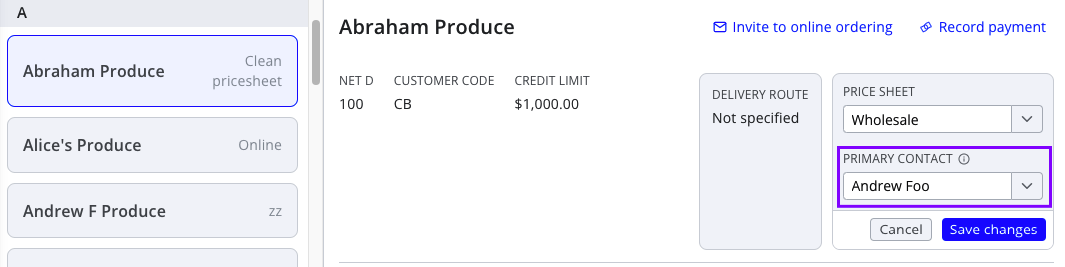
From the Price Sheets screen or the Warehouse > Inventory > Pricing screen, users can email a list of published items on the price sheet to the contacts configured to receive price sheets on all customers assigned to that sheet. These emails can be sent with or without an attached price sheet pdf and with or without including item prices. You can also configure which user's contact information should appear on each customer's emailed price sheet from the Contacts > Customers screen.
If you'd rather provide a price sheet to your customers another way (e.g., a printed copy or a manual email), you can download a pdf copy of the price sheet (with or without prices) using the download buttons in the Inventory > Pricing or Price Sheets screen. There's also an export button that allows you to download a .csv file that includes all of your inventory items, relevant quantities (on hand, incoming, and available to sell), break-even and price sheet prices, and whether or not the item is published on the price sheet.
Interaction with Sales Orders
If an account has configured SO prices to auto-populate from price sheets (see Settings section for more details) when a user selects a customer in the new sales order screen, they will see prices from that customer’s price sheet in the omnibar.

Note that if you edit an existing SO and change the customer, we still preserve the price sheet associated with the order’s original customer.
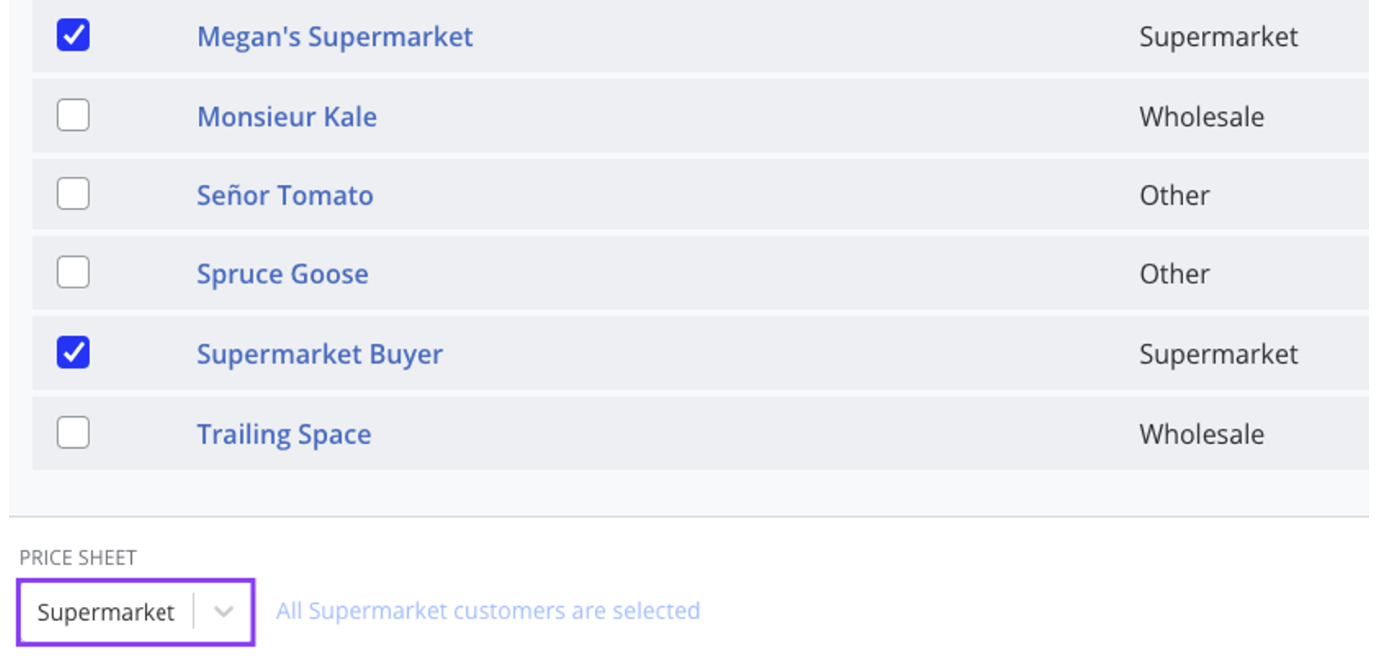
In multi-order mode, selected customers may not all use the same price sheet, so you are prompted to select a price sheet as part of adding customers to the order. By default, this field will populate with the price sheet of the first selected customer.
Permissions
- View-only permission for Inventory > Price sheet items is required to access the Price Sheets screen and the Pricing tab in Inventory.
- Edit/allow permission for Inventory > Price sheet items is required to set and publish price sheet prices.
- Customers > Price sheets > Send price sheet permission is required to email a price sheet.
- View-only permission for Customers > Price sheets is required to download price sheet PDFs.
- Edit/allow permission for Customers > Price sheets is required to create, edit, and delete price sheets.
- Edit/allow permission for Customers > Customer price sheet assignments is required to change a customer’s assigned price sheet.
Relevant Settings
There are a few settings in Settings > Orders that relate to price sheets:
- Choose a prepopulated price when adding new items to a sales order: three of the available options include defaulting in the item’s price from the relevant price sheet when it is added to an order.
- Warn salespeople when the sale price is below the specified value: one option is to show a warning when an item price is set lower than its price sheet price.
You can also now configure groupings of items on a price sheet pdf, as shown below:
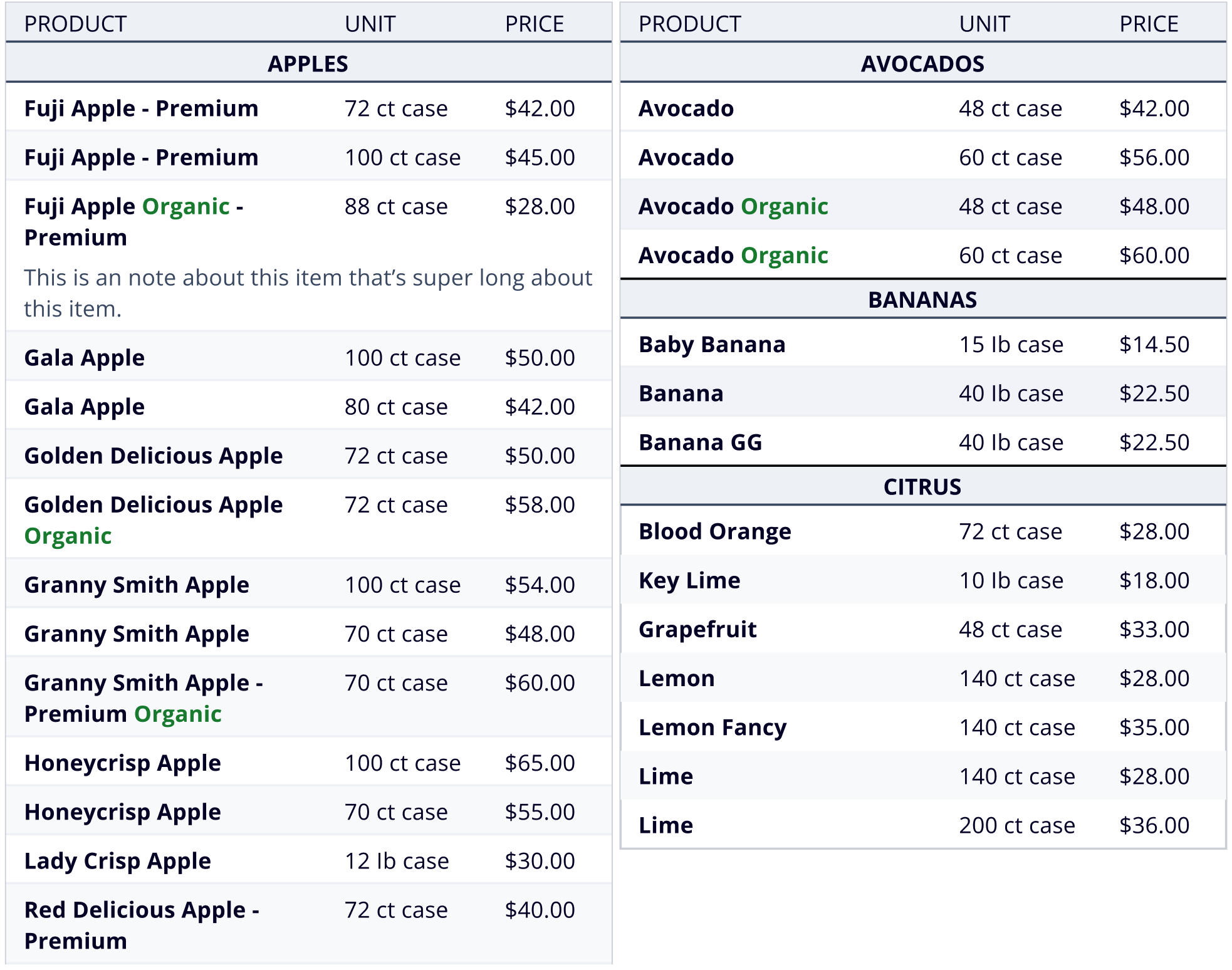
To group items, you'll need to specify a display group for each item in the Inventory > Details screen. Items without a display group will appear in a "No Group" section at the end of the price sheet pdf.

Please note that you must have edit/allow permission for Inventory > Inventory items to specify display groupings.