Overview
The Accounts Receivable team and other business stakeholders can use the Finance > Sales > Invoices screen to see a detailed view of AR, slice invoice data using the filters provided, look at the status of paid/unpaid invoices, and record payments for individual invoices or groups of invoices.
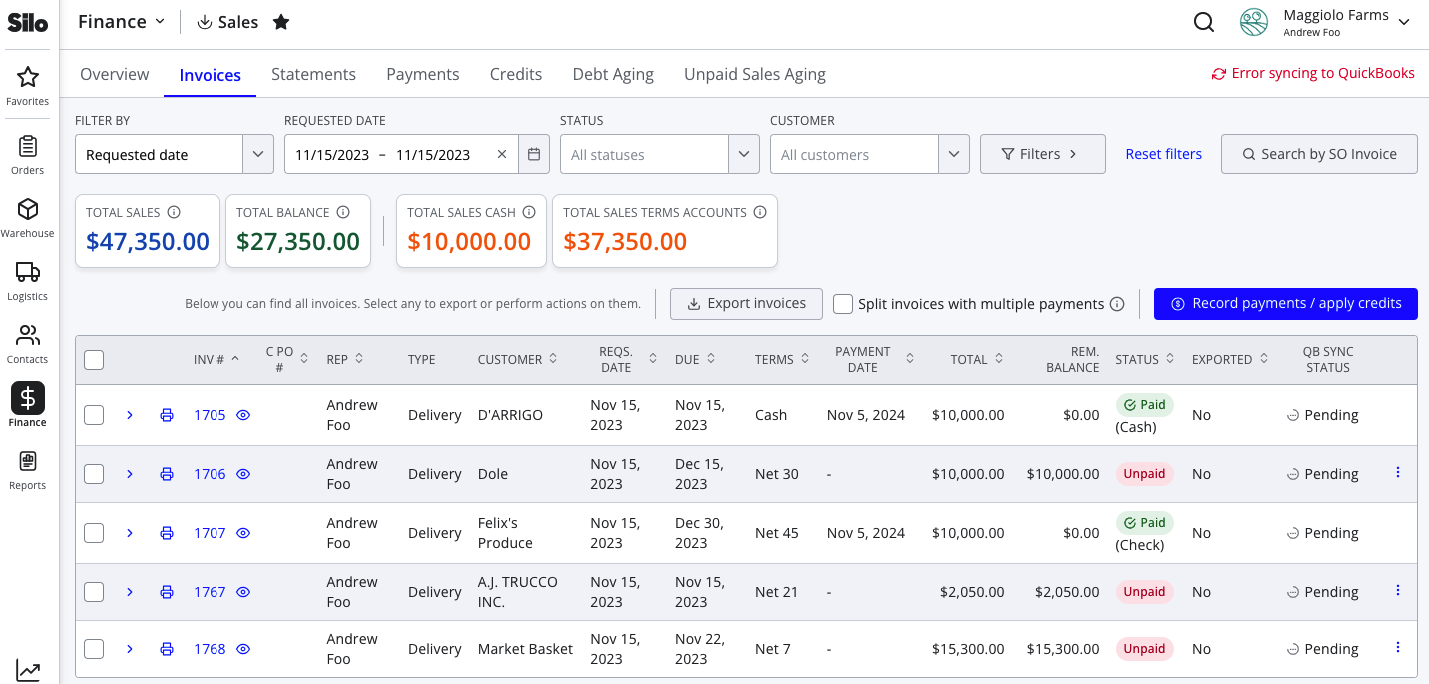
The Invoices screen lists all invoices (sales orders, credit invoices, and overpayment invoices) that meet the selected filter criteria. In addition to listing all the individual invoices, there are some summary-level numbers also presented at the top for easy reference (see the Calculations section below for more details).
Individual invoices show information including their invoice number (with a link to print the invoice), sales rep, order type, customer, requested date, due date, payment date, total amount, and payment status. Invoices can be expanded to see a list of the payments and credits that have been applied to them.
Filters
Available filters are date range type (requested or payment dates), date range, products, customer, terms (cash vs account customers), payment status (including filtering to only cancelled invoices, which are normally hidden from this screen), invoice type (SO vs credit), SO flag status, sign-off status, and QuickBooks sync status (if a QB integration is turned on). You can also search by SO invoice number.
Recording Payments
You can record new payments or apply existing credits from this screen using the Record payments button. You can also record manual payments by selecting the Record payment option from the 3-dot action menu next to an individual invoice, or by selecting one or more invoices from the list and pressing Record payment for selected orders.
Exporting Invoices
You can export all invoices that meet the selected filter criteria to a CSV file by pressing Export invoices at the top of the list, or export a subset by selecting one or more invoices and pressing Export selected invoices. The exported csv file will contain all the same information as the screen.
Calculations
The following calculations are used for the summary bubbles at the top of the screen. These bubbles also include info icons with tooltips that explain the calculations.
- Total Sales: sum of the totals for all sales orders listed, excluding credits and overpayments
- Total Balance: sum of the remaining balance for all sales orders listed, including credits and overpayments
- Total Sales Cash: sum of the totals for all sales orders listed, excluding credits and overpayments, for customers with Net D = 0
- Total Sales Term Accounts: sum of the totals for all sales orders listed, excluding credits and overpayments, for customers with Net D > 0